SST (Service / Sales Tax) Applet
Purpose and Overview
The SST (Service / Sales Tax) Applet is a specialized tool designed to streamline Malaysian tax compliance. It provides a structured environment for managing the entire tax lifecycle—from initial configuration of tax years and tariff codes to the final generation of official SST-02 reports for submission to the Royal Malaysian Customs Department (RMCD).
Key Features Overview
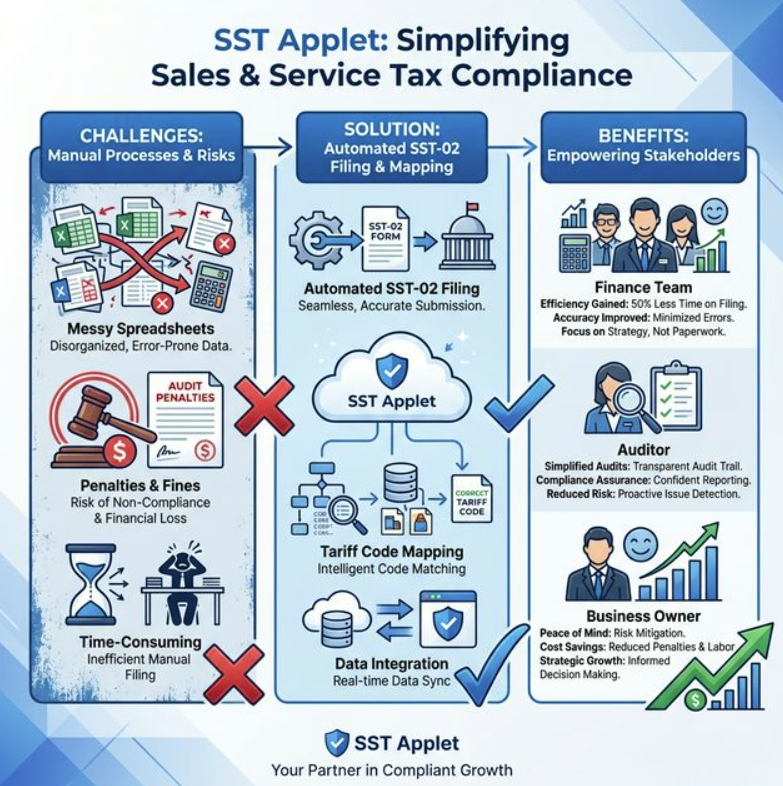
Who Benefits from This Applet?
Finance Team & Tax Accountants:
- Automated calculation of Input (Purchase) and Output (Sales) tax.
- Simplified filing cycle management (Monthly, Quarterly, or Custom periods).
- One-click SST-02 report generation for customs submission.
- Consolidated tax summary reports for service and sales tax.
Compliance Officers & Auditors:
- Accurate mapping via Malaysian Customs Tariff Codes.
- Complete audit trail of filed and unfiled transactions.
- Standardized tax reporting formats for internal and external audits.
- “Unfile” correction workflow that preserves data integrity.
Business Owners & Executives:
- Real-time visibility into net tax positions and liabilities.
- Reduced risk of penalties through automated filing workflows.
- Data-driven analysis of tax obligations across business branches.
- Built-in penalty management for late filing scenarios.
What Problems Does This Solve?
The Manual Tax Filing Problem:
Traditional tax management often involves manual spreadsheets and complex tariff code lookups. Common issues include:
- Incorrect Tax Application: Applying the wrong rate (e.g., 6% instead of 8%) to service items.
- Lost Transactions: Missing taxable invoices during the filing period.
- Reporting Hassles: Manually filling SST-02 forms is time-consuming and error-prone.
- Audit Risks: Lack of a clear link between a filed transaction and the original sales/purchase document.
- No Correction Mechanism: Once filed incorrectly, difficult to reverse without breaking records.
The SST Applet Solution:
- Digital Filing Workflow — Process thousands of transactions in seconds with automated validation.
- Tariff Code Integration — Link items directly to official tariff classifications to ensure regulatory compliance.
- Flexible Reporting Cycles — Handle standard or custom duration filings (e.g., every 2 months) with ease.
- “Unfile” Functionality — Correction workflow to fix errors before final submission without breaking system integrity.
- Integrated Penalty Management — Built-in fields for late filing adjustments and penalty calculations.
- Dual Tax Type Support — Handles both Service Tax and Sales Tax within a single filing cycle.
Key Features Roadmap
Key Concepts
Understanding the SST Framework
Every SST compliance system must address three fundamental aspects. The SST Applet provides structured handling:
| Aspect | Component | Practical Example |
|---|---|---|
| When are you filing? | Tax Year & Filing Cycle | 2025 Fiscal Year, Jan–Feb period |
| What is being taxed? | Tariff Code & Tax Code | Service Tariff 9018 (6% Service Tax) |
| How is it processed? | Tax Filing & SST-02 | File transactions → Generate PDF |
SST Filing Hierarchy
Think of the tax process as a structured flow:
Company Organization
│
├── Tax Year ──→ DEFINES filing frequency (Monthly/Quarterly/Custom)
│   │
│   └── Filing Cycles ──→ SPECIFIC periods (e.g., Jan–Feb 2025)
│       │
│       ├── Service Tax Tab ──→ Filed / Unfiled Transactions & SST-02
│       └── Sales Tax Tab   ──→ Filed / Unfiled Transactions & SST-02
│
├── Tariff Code ──→ CLASSIFICATION master list (from RMCD)
│   │
│   └── Tax Code ──→ RATE mapping (6% Service Tax, 10% Sales Tax)
│
└── SST-02 Report ──→ OFFICIAL submission output (Part A–E)
Flow Through the Hierarchy:
- Tax Year: Defines filing frequency and fiscal boundaries.
- Tariff Code: Official customs classification (e.g.,
018.000). - Tax Code: The rate rule — Input (Purchase) or Output (Sales).
- Filing Cycle: A specific period (e.g., Jan 1 – Feb 28) within a Tax Year.
- Transaction Filing: Link invoices/documents to the filing cycle.
- SST-02: The final report exported as PDF for RMCD submission.
The “Golden Triangle” of SST
To effectively manage SST, you must understand how Tax Years, Tariff Codes, and Tax Codes work together.
| Component | Analogy | Definition | Example |
|---|---|---|---|
| Tax Year | The “Container” | The fiscal period grouping all filing cycles. | 2025 Fiscal Year |
| Tariff Code | The “Label” | Official RMCD classification for a taxable good/service. | 018.000 — IT Services |
| Tax Code | The “Rule” | The specific rate and type applied to transactions. | SST-S8 (8% Service Tax Output) |
How they link:
- You create a Tax Year to define when you are filing.
- You define Tariff Codes to classify what you are selling/buying.
- You create Tax Codes linked to those Tariff Codes to define how much to tax.
- Transactions tagged with these codes are automatically pooled into the correct Filing Cycle for filing.
Quick Start Guide
Get your tax compliance engine running with these essential workflows.
For Admins: Initial System Setup
Goal: Configure the foundation for tax processing in 5 steps.
Step 1: Setup Tax Year (Tax Year menu)
- Select the Company and link to a Fiscal Year.
- Choose a Filing Cycle Duration: Monthly, Quarterly, Custom Month, or Custom Duration.
- Provide a descriptive name (e.g.,
2025 - ABC Sdn Bhd).
Step 2: Create Tariff Codes (Tariff Code menu)
- Input official RMCD Tariff Codes (e.g.,
018.000) and their descriptions. - These codes classify all your taxable goods and services.
Step 3: Define Tax Codes (Tax Code menu)
- Create Output Tax (Sales) and Input Tax (Purchase) codes.
- Set the Tax Rate (e.g.,
6.00for 6%,8.00for 8%). - Link each Tax Code to the appropriate Tariff Code from Step 2.
Step 4: Map Accounts
- Link your Tax Codes to the correct GL accounts in the
Chart of Account Applet.
Step 5: Test Transaction
- Create a draft Sales Invoice, apply the tax code, and verify it appears in the Unfiled Transactions tab of a filing cycle.
For Accountants: Managing Filing & Reports
Goal: Execute the filing process and generate the SST-02 report.
- Create Filing Cycle: Go to Tax Filing → Click "+" → Select Company, Tax Year, Name, Start Date & End Date.
- Select Filing Cycle: Click the filing cycle record to open its details.
- Review Unfiled Transactions: Go to the Tax Filing tab → Select Service or Sales sub-tab → Click Unfiled Transactions → Use the search filter (Branch, Date Range) to load transactions.
- File Transactions:
- FILE ALL: Files every transaction matching the filter with one click.
- FILE IT: Select specific rows using the checkbox, then click FILE IT.
- Handle Corrections: Use the Filed Transactions tab to review. If an error is found, use the Unfile action to move the transaction back to Unfiled.
- Generate SST-02: Go to the SST-02 tab → Enter Penalty Amount and Penalty % (if applicable) → Click SEARCH to populate the report → Click EXPORT TO PDF for RMCD submission.
- Lock Filing Cycle: Once confirmed, go to Details tab → Click Lock to prevent further changes.
Key Features In Detail
Tax Year
What is Tax Year?
The Tax Year is the master configuration that defines the fiscal filing framework for a company. It dictates how frequently the company files SST returns.
Fields Explained:
| Field | Description |
|---|---|
| Company | The registered company entity filing SST. |
| Fiscal Year | The underlying fiscal year to align with accounting periods. |
| Name | A descriptive identifier (e.g., 2025 - ABC Sdn Bhd). |
| Filing Cycle Duration | How often filings are submitted (see table below). |
| Specify Month | Visible only for Custom Month — enter the number of months per cycle. |
| Approval No | Visible for Custom Duration — for RMCD-approved non-standard cycles. |
Filing Cycle Duration Options:
| Option | Description | Example |
|---|---|---|
| Monthly | One filing every calendar month. | Jan, Feb, Mar each separate. |
| Quarterly | One filing every 3 months. | Jan–Mar, Apr–Jun, Jul–Sep, Oct–Dec. |
| Custom Month | A custom number of months per cycle. | Every 2 months (Jan–Feb, Mar–Apr). |
| Custom Duration | A fully custom date range approved by RMCD. | Non-standard period per approval. |
How to Create a Tax Year:
- Go to Tax Year from the sidebar.
- Click "+" (Create).
- Select the Company.
- Select the Fiscal Year.
- Enter a Name (e.g.,
2025 - ABC Sdn Bhd). - Choose the Filing Cycle Duration.
- If Custom Month is selected, enter the number of months.
- Click CREATE.
[Year] - [Company Name] so the filing history is easy to audit.Tariff Code
What is a Tariff Code?
A Tariff Code (also referred to as Label in the system) is the official classification code issued by the Royal Malaysian Customs Department (RMCD). It identifies the exact category of a taxable good or service so the correct tax rate is applied.
Fields Explained:
| Field | Description |
|---|---|
| Tariff Code | The official RMCD code (e.g., 018.000). |
| Tariff Name | A human-readable description of the good or service. |
How to Create a Tariff Code:
- Go to Tariff Code from the sidebar.
- Click "+" (Create).
- Enter the Tariff Code (from the official RMCD tariff schedule).
- Enter the Tariff Name (e.g.,
Management Services). - Click CREATE.
Why Tariff Codes Matter:
The SST-02 report (Part B) requires a breakdown of taxable amounts by Tariff Code. Without correctly configured Tariff Codes, the SST-02 report will not display the required tariff-level detail for RMCD submission.
Tax Code
What is a Tax Code?
A Tax Code is the calculation rule that defines the tax rate and type applied to each transaction. It acts as the bridge between a Tariff Code and the actual tax amount computed on invoices.
Fields Explained:
| Field | Description |
|---|---|
| Tax Code | A unique identifier for the tax rule (e.g., SST-S6, SST-ST10). |
| Tax Code Description | A description of the tax rule (e.g., Service Tax 6% Output). |
| Tax Type | The system-level tax classification (e.g., SST Output, SST Input). |
| Tax Type Name | Auto-populated based on Tax Type selection. |
| Tax Rate (%) | The percentage rate to apply (e.g., 6.00 for 6%, 10.00 for 10%). |
| Tariff Code (Label) | The Tariff Code this tax rule applies to. |
Common Tax Types:
| Tax Type | Description | Example |
|---|---|---|
| Output (Sales Tax) | Tax collected from customers on sales. | 10% on manufactured goods. |
| Output (Service Tax) | Tax collected on services rendered. | 8% on professional services (from 2024). |
| Input (Purchase Tax) | Tax paid on purchases (where applicable). | For tracking input costs. |
How to Create a Tax Code:
- Go to Tax Code from the sidebar.
- Click "+" (Create).
- Enter the Tax Code (e.g.,
SST-S8). - Enter the Tax Code Description (e.g.,
Service Tax 8% Output). - Select the Tax Type from the dropdown.
- Enter the Tax Rate (%) (e.g.,
8.00). - Select the Tariff Code to link this rule to.
- Click CREATE.
Tax Filing
What is Tax Filing?
Tax Filing is the operational core of the SST Applet. It is where you create filing cycles, assign transactions to a period, and prepare data for the SST-02 report.
Tax Filing Cycle
A Filing Cycle represents a specific taxable period (e.g., January 1 – February 28, 2025). It exists within a Tax Year.
Filing Cycle Fields:
| Field | Description |
|---|---|
| Company | The entity the cycle belongs to. |
| Tax Year | The parent Tax Year for this cycle. |
| Name | A descriptive name (e.g., Jan–Feb 2025). |
| Filing Duration | Auto-inherited from the Tax Year (read-only). |
| Start Date | The first day of the taxable period. |
| End Date | The last day of the taxable period. |
Locked Status:
A filing cycle can be in two states:
| Status | Description |
|---|---|
| Open | Transactions can still be filed or unfiled. |
| LOCKED | No further changes are allowed. Used once the SST-02 is finalized and submitted. |
The Tax Filing View (Tabs)
When you open a filing cycle, you will see two main tabs:
Tab 1: Details
- Displays filing cycle metadata: Company, Tax Year, Name, Start Date, End Date.
- Contains the Lock button (to finalize the cycle) and Delete button.
Tab 2: Tax Filing
- Contains two sub-tabs: Service (for Service Tax) and Sales (for Sales Tax).
- Each sub-tab has its own transaction management interface.
Service Tax Filing Sub-Tab
The Service sub-tab manages all Service Tax transactions and is organized into three nested tabs:
| Tab | Description |
|---|---|
| Filed Transactions | Transactions already included in this filing cycle. |
| Unfiled Transactions | Pending transactions eligible for filing in this period. |
| SST-02 | The official SST-02 form for Service Tax, ready for export. |
Sales Tax Filing Sub-Tab
The Sales sub-tab manages all Sales Tax transactions with the same three nested tabs:
| Tab | Description |
|---|---|
| Filed Transactions | Sales transactions already filed for this cycle. |
| Unfiled Transactions | Pending sales transactions eligible for this period. |
| SST-02 | The official SST-02 form for Sales Tax, ready for export. |
Unfiled Transactions — How to File
The Unfiled Transactions grid is where you review and submit transactions into the filing cycle.
Grid Columns:
| Column | Description |
|---|---|
| Document No | The source invoice/document number. |
| Document Date | Date the transaction occurred. |
| Document Short Code | Abbreviated document type identifier. |
| Amount Before Tax | The taxable base amount (before tax). |
| Taxable Amount | Net taxable value after adjustments. |
| Tax Amount | The calculated SST amount. |
| Amount After Tax | Total inclusive of tax. |
| Settlement Date | Date the document was settled/paid. |
| Settlement Document | Reference to the settlement document. |
| Settlement Amount | Amount settled against this document. |
| Outstanding Amount | Remaining balance. |
| Filing Status | POSTED or NOT POSTED. |
Actions:
| Button | Description |
|---|---|
| FILE ALL | Files every transaction in the filtered list into the cycle. |
| FILE IT | Files only the rows selected via checkbox. |
Step-by-Step Filing:
- Open the desired Filing Cycle from the Tax Filing Listing.
- Go to Tax Filing → Service (or Sales) sub-tab.
- Click the Unfiled Transactions tab.
- Use the Advanced Search filter to set: Branch + Date From + Date To.
- Click Search to load matching transactions.
- Review the data: verify
Amount Before Tax,Tax Amount, andFiling Status. - Choose to FILE ALL or select specific rows and click FILE IT.
- Transactions move to the Filed Transactions tab.
SST-02 Report
What is the SST-02 Report?
The SST-02 is the official tax return form required by the Royal Malaysian Customs Department (RMCD). The SST Applet auto-generates this report from the filed transactions, reducing manual data entry and errors.
SST-02 Report Structure:
The report is divided into 5 official parts, mirroring the RMCD’s actual SST-02 form:
| Part | Title | Contents |
|---|---|---|
| Part A | Registered Person Particulars | SST No., Company Name, Taxable Period, Due Date. |
| Part B | Sales / Service Details | Tariff-level breakdown of taxable goods and services. |
| Part B2 | Value of Tax Payable | Summary by tax rate (5%, 10%, 6%, Group H). Sections 11–16. |
| Part C | Schedule 2 Goods | Goods taxed at specific rates (per litre, per kg). |
| Part D | Sales Exempted from Sales Tax | Exports, exempted persons (Schedule A, B, C). |
| Part E | Schedule C Purchases | Raw materials purchased/imported exempt from Sales Tax. |
SST-02 Part B2 Key Sections:
| Section | Description |
|---|---|
| 11a | Taxable Goods at 5% Rate. |
| 11b | Taxable Goods at 10% Rate. |
| 11c | Taxable Services (other than Group H) at 6%. |
| 11d | Taxable Services from Group H (per card). |
| 12 | Total Value of Tax Payable. |
| 13a | Tax deduction from credit notes. |
| 13b | Sales Tax Deduction. |
| 13c | Service Tax Deduction. |
| 13A | Adjustment under Sales Tax Deduction. |
| 14 | Total Tax Payable Before Penalty. |
| 15 | Penalty Rate / Penalty Amount. |
| 16 | Total Tax Payable Inclusive of Penalty. |
How to Generate the SST-02 Report:
- Open the desired Filing Cycle.
- Navigate to Tax Filing → Service (or Sales) → SST-02 tab.
- If there is a late filing penalty, enter:
- Penalty Amount (fixed RM amount, if applicable).
- Penalty % (percentage rate, if applicable).
- Click SEARCH to populate the report grid.
- Verify all sections (Part A through Part E) display correctly.
- Click EXPORT TO PDF to generate the official PDF document.
- Submit the PDF to RMCD via the MySST portal.
SEARCH is clicked, ensuring the latest filed transaction data is reflected.Reporting & Analytics
The SST Applet provides three dedicated reporting views accessible from the sidebar, giving management and finance teams visibility into transaction-level tax data across filing periods.
SST Service Tax Report
What it shows: A consolidated listing of all Service Tax transactions, searchable and filterable by various criteria.
- Use case: Cross-check filed service tax amounts against original invoices.
- Access: SST Service Tax Report from the sidebar.
SST Sales Tax Report
What it shows: A consolidated listing of all Sales Tax transactions.
- Use case: Compare sales tax collected across branches and periods.
- Access: SST Sales Tax Report from the sidebar.
SST Tax Code Summary
What it shows: A summary grouped by Tax Code, showing total taxable amounts and tax values per code.
- Use case: Identify which tax codes are generating the most liability; useful for rate reconciliation.
- Access: SST Tax Code Summary from the sidebar.
Common Scenarios
Scenario 1: Updating Tax Rate Mid-Year
Policy Update: Service Tax increases from 6% to 8%
Action:
  1. Go to Tax Code → Find the 6% Service Tax Code.
  2. Update "Tax Rate (%)" field to 8.00.
  3. Click SAVE.
Result: Future transactions use 8% while historical filed data remains intact.
Scenario 2: Handling a Misclassified Transaction
Problem: Invoice INV-001 was filed in the wrong filing cycle.
Action:
  1. Open the incorrect Filing Cycle.
  2. Go to Tax Filing → Service → Filed Transactions.
  3. Find INV-001 and click "Unfile".
  4. The transaction returns to "Unfiled Transactions".
  5. Open the correct filing cycle and re-file the transaction.
Result: Transaction is correctly assigned to the right period.
Scenario 3: Late Filing with Penalty
Problem: Filing is submitted 2 weeks after the RMCD due date.
Action:
  1. Open the Filing Cycle → Tax Filing → Service → SST-02.
  2. Enter Penalty % (e.g., 10%) in the Penalty % field.
  3. System auto-fills Penalty Amount based on total tax payable.
  4. Click SEARCH → EXPORT TO PDF.
Result: SST-02 PDF includes Section 15 (Penalty) and Section 16 (Total inclusive penalty).
Scenario 4: Custom Bi-Monthly Filing
Requirement: Company files every 2 months as approved by RMCD.
Action:
  1. Create Tax Year → Set Filing Cycle Duration = "Custom Month".
  2. Enter "2" in Specify Month field.
  3. Save the Tax Year.
  4. When creating a Filing Cycle, Start Date and End Date will span 2 months.
Result: Filing cycles are correctly scoped to bi-monthly periods.
Scenario 5: Year-End Tax Reconciliation
Task: Finance wants to see all SST collected across the year.
Action:
  1. Go to SST Tax Code Summary from sidebar.
  2. Filter by Company and full-year date range.
  3. Export to Excel.
Result: Full breakdown of tax collected per Tax Code for the fiscal year.
Configuration & Settings
Settings (Settings > Default Tax Settings)
The applet-level settings allow administrators to set organizational defaults that apply to all users.
| Setting | Description |
|---|---|
| Default Branch | Pre-fills the Branch field in search filters across Tax Filing screens. |
| Default Location | Pre-fills the Location field in relevant screens. |
Personalization (Personalization > Default Selection)
Individual users can also set their own personal defaults which override the applet-level defaults:
| Setting | Description |
|---|---|
| Default Branch | User-specific default branch for search filters. |
FAQ
Q: Why can’t I find my Sales Invoice in the Unfiled Transactions list?
A: Ensure the Sales Invoice is Finalized (posted) and has a valid Tax Code applied. Also confirm that the transaction date falls within the selected Date Range in the Advanced Search filter, and that the correct Branch is selected.
Q: How do I handle Credit Notes in SST filing?
A: Credit Notes appear in the Unfiled Transactions list with negative base amounts. Filing them correctly reduces your Net Tax Payable. In the SST-02, they are reflected in Section 13a (Tax deduction from credit notes).
Q: Can I change my filing cycle from Quarterly to Monthly?
A: Yes — update the Filing Cycle Duration in the Tax Year settings. It is strongly recommended to make this change only at the start of a new Tax Year to avoid overlapping periods and logic conflicts mid-year. Consult RMCD approval if your filing frequency changes are mandated.
Q: What is the difference between “Unfile” and “Delete”?
A: Unfile moves a transaction from the “Filed” pool back to “Unfiled” — it preserves all records and allows re-filing into the correct cycle. You should never delete a historical tax transaction, as this breaks audit integrity. The system does not support bulk deletion of filed transactions for this reason.
Q: How does the system handle “Custom Month” filing?
A: When creating a Tax Year with Custom Month selected, you enter the exact number of months per cycle (e.g., 2 for bi-monthly). When creating Filing Cycles under that Tax Year, the system respects the custom duration when auto-calculating the End Date based on Start Date.
Q: What does “LOCKED” status mean on a Filing Cycle?
A: A LOCKED filing cycle cannot have any new transactions filed or unfiled. It signals that the period is closed and the SST-02 has been finalized. Lock a cycle only after exporting and verifying the SST-02 PDF. The lock action is irreversible.
Q: How do I know which transactions were already filed?
A: Open the Filing Cycle → Tax Filing tab → Select the relevant sub-tab (Service or Sales) → Click Filed Transactions to see all transactions already included in this cycle, along with their document numbers, dates, and amounts.
Q: Can I file Sales Tax and Service Tax in the same Filing Cycle?
A: Yes. Each Filing Cycle has both a Service sub-tab and a Sales sub-tab. They are managed independently within the same cycle, and the SST-02 report for each tax type is generated separately.
Q: The SST-02 shows blank values after I click SEARCH. What’s wrong?
A: This usually means no transactions have been filed yet for the selected cycle, or the Filing Cycle has no linked Company. Ensure: (1) transactions have been filed via the Unfiled Transactions tab and (2) the Filing Cycle is correctly linked to a Company with a valid SST registration number.