Stock Adjustment Applet
Purpose and Overview
Who Benefits from This Applet?
Warehouse Managers:
- Correct stock discrepancies after physical counts
- Adjust inventory for damaged or lost items
- Process write-offs and write-ons
Inventory Controllers:
- Reconcile system vs physical stock
- Adjust serial and batch number records
- Reset moving average costs when needed
Finance Teams:
- Review and approve stock adjustments
- Track inventory value changes
- Audit adjustment history
Operations Teams:
- Process bulk adjustments via file import
- Fix serial number data issues
- Manage batch quantity corrections
What Problems Does This Solve?
Traditional Adjustment Challenges:
- Manual stock count reconciliation
- Difficulty adjusting serialized inventory
- No audit trail for inventory changes
- Complex moving average recalculations
The Stock Adjustment Solution:
- Easy quantity adjustments - Increase or decrease stock with reasons
- Serial/Batch adjustments - Correct tracked item records
- Bulk import - Process multiple adjustments from files
- Moving average reset - Recalculate item costs accurately
- Complete audit trail - Track all adjustment history
Key Features Overview
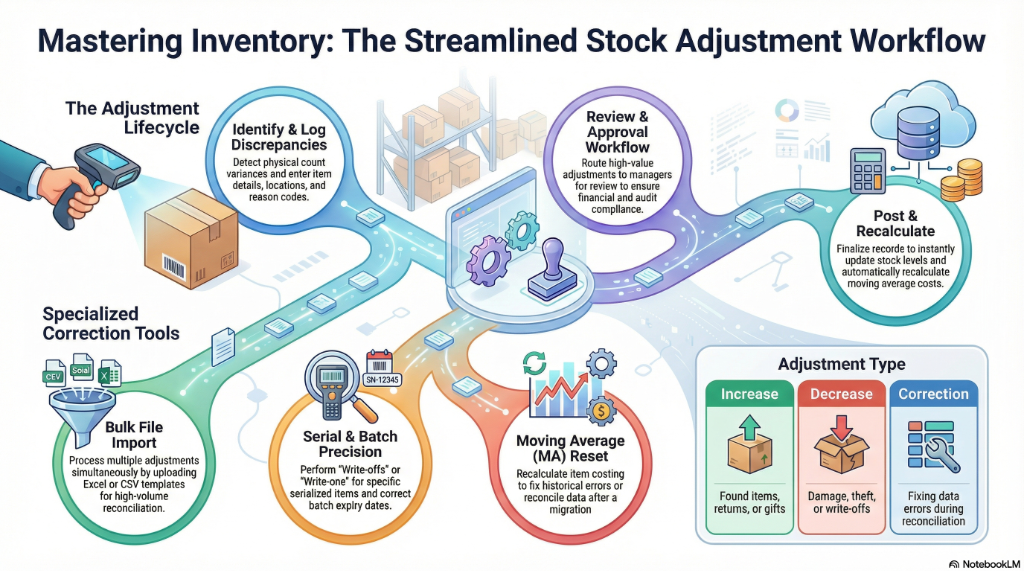
Key Concepts
Adjustment Types
| Type | Description | Use Case |
|---|---|---|
| Increase | Add stock to inventory | Found items, returns, gifts |
| Decrease | Remove stock from inventory | Damage, theft, write-off |
| Transfer | Move between locations | Reorganization |
| Correction | Fix data errors | Reconciliation |
Adjustment Workflow
Count Discrepancy → Create Adjustment → Approval (if required) → Posted
        │                  │                    │                   │
        │                  │                    │                   └── Stock updated
        │                  │                    └── Manager reviews
        │                  └── Enter quantities and reasons
        └── Physical count differs from system
Quick Start Guide
For Warehouse: Adjust Stock After Count
Goal: Correct stock quantity after physical inventory count
- Navigate: Go to Stock Adjustment from the sidebar
- Create New: Click "+" to create adjustment
- Select Item: Search and select the item to adjust
- Enter Details:
- Select Location/Warehouse
- Choose Adjustment Type (Increase/Decrease)
- Enter Quantity difference
- Select Reason Code
- Add Remarks for context
- Submit: Post or send for approval
For Controllers: Bulk Adjust via File
Goal: Process multiple adjustments from a spreadsheet
- Navigate: Go to File Import
- Download Template: Get the adjustment template
- Prepare Data: Fill in items, quantities, and reasons
- Upload: Import the completed file
- Validate: Review detected adjustments
- Process: Confirm and post all adjustments
For Operations: Adjust Serial Numbers
Goal: Correct a serial number record
- Navigate: Go to Serial Adjustment
- Find Serial: Search for the serial number
- Select Action:
- Write-off (remove from inventory)
- Transfer (move to different location)
- Correct (fix data errors)
- Complete: Add reason and submit
Stock Adjustment
Creating Adjustments
Main adjustment features:
- Single Item Adjustment - Adjust one item at a time
- Multi-Item Adjustment - Adjust multiple items in one document
- Reason Codes - Categorize why adjustment was made
- Approval Workflow - Route for approval if required
Key Fields
| Field | Description | Example |
|---|---|---|
| Item | Product to adjust | SKU-001 |
| Location | Warehouse/store | Main Warehouse |
| Adjustment Type | Increase or Decrease | Decrease |
| Quantity | Amount to adjust | 5 |
| Reason Code | Why adjusting | Damaged |
| Remarks | Additional notes | Found during cycle count |
File Import
Bulk Adjustment Import
Process adjustments in bulk:
- Download Template - Get properly formatted file
- Enter Data - Fill in adjustment details
- Upload & Validate - System checks for errors
- Review - Confirm before posting
- Post All - Apply all adjustments
Supported Formats
- CSV files
- Excel files (.xlsx)
Serial Adjustment
Serialized Item Corrections
Adjust items tracked by serial number:
- Write-off Serial - Remove from inventory
- Write-on Serial - Add to inventory
- Transfer Serial - Move to different location
- Change Status - Update serial status
Batch Adjustment
Batch Quantity Corrections
Adjust items tracked by batch number:
- Adjust Batch Quantity - Increase or decrease
- Split Batch - Divide into multiple batches
- Merge Batch - Combine batches
- Update Expiry - Correct expiry dates
Reset Moving Average
Moving Average Cost Reset
Recalculate item costing:
- Reset MA - Reset moving average for item
- Reset MA Line - Reset for specific transactions
- File Import Reset MA - Bulk reset via file
- Stock Adjustment Reset MA - Adjust and reset together
When to Use:
- Initial system setup
- After data migration
- Correcting historical cost errors
- After major inventory corrections
Serial Data Fix
Correct Serial Number Data
Fix serial number data issues:
- Orphaned serial records
- Duplicate serial entries
- Missing serial associations
- Location mismatches
Stock Adjustment Reset MA
Combine stock adjustment with moving average reset:
- Make quantity correction
- Automatically recalculate MA cost
- Update inventory value
Configuration & Settings
Default Settings
Configure default reason codes and approval requirements.
Printable Format Settings
Customize adjustment document printouts.
Field Configuration
Set visible fields and required inputs.
Webhook Configuration
Integrate with external systems for adjustment notifications.
Feature Visibility
Control which features appear for users.
Permissions
Control access levels:
- Create - Allow creating adjustments
- Approve - Approve/reject adjustments
- Post - Direct posting without approval
- Admin - Full configuration access
Release Notes
View applet updates and version history.
Applet Log
Audit trail of all actions in the applet.
Personalization
Personal Default Settings
Save your preferred location and reason defaults.
Sidebar Customization
Arrange menu items to match your workflow.
FAQ
Q: Do I need approval for stock adjustments? A: This depends on your organization’s settings. High-value adjustments may require manager approval.
Q: How do I adjust multiple items at once? A: Use the File Import feature to upload multiple adjustments from a spreadsheet.
Q: What happens to the cost when I adjust stock? A: The moving average cost is recalculated based on the adjustment. Use Reset MA for precise control.
Q: Can I reverse an adjustment? A: Post a counter-adjustment with the opposite quantity. The original adjustment remains for audit.
Q: How do I find past adjustments? A: Use the Stock Adjustment listing with date filters to find historical adjustments.
Q: What reason codes should I use? A: Use the reason that best describes why the adjustment is needed: Damaged, Lost, Found, Count Variance, etc.