Stock Replenishment Applet
Purpose and Overview
The Stock Replenishment Applet provides a structured workflow for planning, scheduling, and executing stock replenishment activities. It uses a template-driven approach where Replenishment Templates define the scope of items and locations, Replenishment Events schedule when replenishment cycles occur, and Replenishment Runs execute the actual calculations—comparing current stock levels against demand to generate order quantities and Purchase Orders.
Key Features Overview
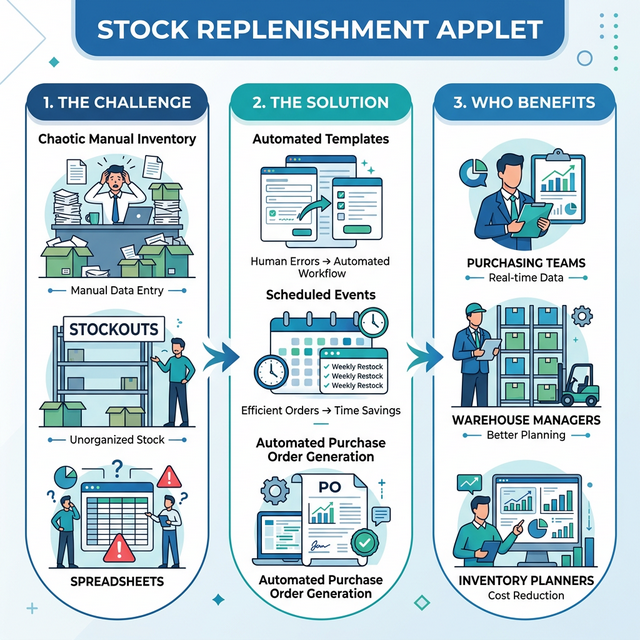
Who Benefits from This Applet?
Purchasing & Procurement Teams:
- Generate Purchase Orders directly from replenishment run results
- View order quantities by supplier for consolidated ordering
- Track PO fulfillments linked to specific replenishment runs
- Reduce manual reorder calculations
Warehouse & Operations Managers:
- Define item and location scope through reusable templates
- Schedule recurring replenishment events (daily, weekly, monthly)
- Compare current vs. previous run data to spot trends
- Export replenishment data for offline analysis
Inventory Planners:
- Analyze stock balance, adjustment quantities, and availability per item
- Review order quantities across multiple locations and categories
- Use Order Qty Reports for consolidated reporting
- Track moving average cost and last purchase cost per item
Finance & Management:
- Visibility into upcoming purchasing commitments
- Cost analysis through MA Cost and Last Purchase Cost tracking
- Audit trail with Created By, Creation Date, Modified By, Modified Date
- Status-based workflow control (Active/Inactive)
What Problems Does This Solve?
The Ad-Hoc Replenishment Problem:
Without a structured approach, businesses often face:
- Inconsistent replenishment timing leading to stockouts or overstocking
- No standardized scope—different staff replenish different items/locations each time
- Manual spreadsheet-based calculations prone to error
- No link between replenishment decisions and Purchase Order generation
- Difficulty comparing current and historical replenishment data
The Stock Replenishment Applet Solution:
- Templates - Define a reusable scope of items, locations, suppliers, and categories
- Scheduled Events - Automate when replenishment runs occur with recurring schedules
- Run Comparison - Compare current run against previous run to identify changes
- PO Generation - Convert order quantities directly into Purchase Orders
- Reporting - Centralized Order Qty Reports for analysis and decision-making
Key Features Overview
Key Concepts
Understanding the Template → Event → Run Hierarchy
The applet organizes replenishment work into three layers:
| Layer | Purpose | Analogy |
|---|---|---|
| Replenishment Template | Defines WHAT to replenish—items, locations, suppliers, categories | A “recipe” for what should be checked |
| Replenishment Event | Defines WHEN to replenish—cycle dates and recurring schedules | A “calendar entry” for when to run the recipe |
| Replenishment Run | Executes the HOW—calculates order quantities and generates POs | The actual “cooking”—producing results |
Data Flow
Replenishment Template (Items, Locations, Suppliers, Categories)
│
├── Replenishment Event (Cycle Dates, Recurring Schedule)
│   │
│   └── Replenishment Run (Current vs. Previous Run)
│       │
│       ├── Details ──→ Run Name, Dates, Template, Status
│       ├── Locations ──→ Warehouse locations in scope
│       ├── Items ──→ Item-level stock data
│       ├── Suppliers ──→ Supplier assignments
│       ├── Categories ──→ Item categorization
│       ├── Item List ──→ Full item listing with stock balances
│       ├── Order Qty ──→ Calculated order quantities
│       ├── Purchase Orders ──→ Generated POs
│       └── Export ──→ Data export options
│
└── Order Qty Reports ──→ Consolidated reporting across runs
Quick Start Guide
Get up and running quickly with these essential workflows.

For Admins: Set Up Templates
Goal: Create reusable definitions for what items and locations to replenish in 4 steps.
- Navigate: Go to Replenishment Template from the sidebar
- Create Header: Click "+" → Enter Template Name (“Electronics KL”) and Description → Set Status to Active → SAVE
- Configure Scope: Open the created template
- Add Data: Use the sub-tabs to add specific Locations, Items, Suppliers, or entire Categories to include in this template.
Pro Tip: Group your templates logically by warehouse or product category (e.g., “Weekly Consumables - HQ”).
For Planners: Schedule Automated Events
Goal: Schedule when replenishment should occur automatically.
- Navigate: Go to Replenishment Events
- Create Event: Click "+"
- Fill Details:
- Template: Select your pre-configured template (e.g., “Electronics KL”)
- Event Name & Code: Give it a clear name like “Weekly Electronics Review”
- Dates: Set the Cycle Start and End Dates
- Set Recurrence (Optional): Check Recurring to open the rule editor and set it to run Daily, Weekly, or Monthly.
- Save: Click SAVE
For Purchasing Officers: Execute Runs & Generate POs
Goal: Calculate order quantities and automatically generate Purchase Orders for suppliers.
- Navigate: Go to Replenishment Runs → Click "+"
- Create Run:
- Select the Replenishment Template
- Provide a Run Name (e.g., “Nov Week 1 Electronics”)
- Define the Current Run Dates
- Click SAVE
- Review Calculations:
- Open the Items or Item List tab to verify stock balances and adjustments.
- Open the Order Qty tab to review the system-calculated order suggestions.
- Generate Orders:
- Navigate to the Purchase Orders tab.
- Select the approved quantities and click Generate POs. The system clusters them by Supplier!
What happens next? Draft Purchase Orders are created in the procurement system for final approval and sending to suppliers.
Executing Replenishment Runs
This section details your primary workspace for executing and reviewing replenishment calculations.
The Replenishment Run Dashboard
This is where the magic happens—where your templates and real-time stock data merge to produce actionable order quantities.
What You Can Do:
- ✓ Execute a new stock replenishment calculation
- ✓ Compare current vs. previous run data to spot demand trends
- ✓ Drill down into item-level details (Qty Balance, Available, MA Cost)
- ✓ Export data for offline sign-off
Detailed Run Views (Tab by Tab):
Once a run is created, you access a powerful tabbed interface:
| Tab | What It Shows | How to Use It |
|---|---|---|
| Details | Run metadata, dates, and audit trail | Verify the period you are analyzing. |
| Locations / Items / Suppliers | The specific entities scoped in this run | Use these to exclude specific items or suppliers from this specific run. |
| Item List | Master view of all stock data | Use this table to analyze qty_balance, qty_available, and costs (ma_cost, last_purchase_cost) per item. |
| Order Fulfillments (PO) | Status of POs generated from this run | Track whether suppliers have fulfilled the orders you placed last week! |
| Purchase Orders | The generated PO records | Your gateway to creating actual supplier orders from the calculated quantities. |
| Export | Data extraction tools | Download the run data to Excel for management review. |
Common Scenarios:
Scenario 1: End-of-Month Bulk Ordering
Task: Order all office supplies for the next month.

Steps:
1. Create a Replenishment Run selecting the "Office Supplies" template.
2. Review the "Item List" to ensure no sudden stock anomalies.
3. Compare the generated order quantities with last month's run.
4. Go to the "Purchase Orders" tab and generate bulk POs for all 3 stationery suppliers simultaneously.
Scenario 2: Excluding an Item Temporarily
Task: A specific monitor is being discontinued, but it's in the template.

Steps:
1. Generate the Run as normal.
2. Go to the "Items" tab.
3. Select the discontinued monitor and remove/exclude it from this specific run before generating POs.
Managing Templates and Events
Automate your replenishment logic using Templates and Events.
Replenishment Templates
Templates define your scope. Instead of selecting 500 items manually every time you want to order, you create a template named “Fast Moving Goods” once.
- Add specific Locations
- Add specific Categories
- Let the system do the heavy lifting of pulling all matching items into the run.
Replenishment Events (Automation)
Events put your templates on a schedule.
- Use the Recurring feature to set up complex schedules (e.g., “Every 2nd Tuesday of the month”).
- The system uses the Cycle Start Date and Cycle End Date to determine exactly what historical data to analyze for upcoming automated runs.
Order Qty Reports (Consolidated Reporting)
While the Replenishment Run view shows details for a single run, the Order Qty Reports section provides a macro view.
Why Is This Useful?
For Purchasing Managers:
- Cross-Run Analysis: Compare order quantities across multiple runs (e.g., comparing the “HQ Run” vs the “Branch Run”).
- Supplier Consolidation: Identify if the same supplier is being ordered from across multiple different replenishment events.
- Budget Forecasting: Summarize total projected order quantities to estimate cash flow requirements for the upcoming week.
Tip: Use the built-in advanced search filters to isolate specific categories (like “Electronics”) across all active runs.
Configuration & Settings
Fine-tune the applet’s behavior to match your operational preferences. Navigate to Settings from the sidebar.
1. Default Selection (Settings > Default Selection)
Save time on data entry by configuring applet-wide defaults:
- Default Branch: Pre-select the main operational branch for all new templates and runs.
- Default Location: Set the default warehouse receiving the stock.
- Details Tab Ordering: Powerful feature! Drag-and-drop to reorder the tabs in the Replenishment Run view. (e.g., If you prioritize the “Item List” above “Locations”, move it to the front!)
2. Field Settings (Settings > Field Settings)
Control field visibility and behavior across the applet grids. Choose which columns (like ma_cost or qty_adjustment) are visible by default to your users.
Personalization
Make the applet work for your specific daily workflow.
Sidebar Customization
Don’t use Templates? Hide the “Replenishment Template” menu item from your sidebar for a cleaner workspace.
Personal Default Selection
Override the company-wide Default Branch and Default Location with your own personal preferences. Perfect for Branch Managers who only order for their specific location!
FAQ
Q: Can I run a replenishment calculation manually if it’s not scheduled? A: Absolutely. Just go to Replenishment Runs, click “+”, select your desired template, and run it immediately. Events are just for automation; they don’t block manual runs.
Q: What happens if I manually create a PO outside of this applet?
A: Real-time stock availability calculations (qty_available) inherently consider open POs. The Replenishment Run will see the incoming stock from your manual PO and reduce its suggested order quantity accordingly to prevent over-ordering.
Q: How do I handle seasonal spikes in demand? A: You can clone an existing Replenishment Template, adjust the parameters or include seasonal items, and schedule a temporary Replenishment Event that only runs during your peak months.
Q: Why is an item showing a high suggested order quantity?
A: Check the “Item List” tab in your run. Look at the qty_balance and qty_adjustment fields. It’s likely that actual stock dropped significantly, or a large sales order reserved the available inventory.
Q: Can I change the order of the tabs in the Run view? I want “Purchase Orders” to be first! A: Yes! Admins can go to Settings > Default Selection > Details Tab Ordering and physically drag-and-drop the tabs into any order.
Q: Who can see the ma_cost (Moving Average Cost) in the Item List?
A: Field visibility can be controlled via Settings > Field Settings and through the permission matrices, ensuring sensitive cost data is only visible to authorized purchasers or managers.