Use the built-in GL sections and set up your categories and codes
Steps 2 to 5 of the Chart of Accounts Setup Guide: build GadgetSphere’s own accounts inside the chart. You learn the 18 GL Sections the statements read, import your categories each under its section, check that the tree shows every one, and import your GL codes. It follows Step 1, where you confirmed the company carries one chart.
- Step 2: learn the 18 GL Sections, and leave their codes alone.
- Step 3: bulk import your GL Categories, each with its section.
- Step 4: check the tree, every category under its section.
- Step 5: bulk import your GL Codes.
Step 2: Learn the 18 GL Sections — and leave their codes alone
Master Data > Chart of Account Applet > GL Section
Click GL Section in the sidebar. The listing shows each section’s code, name, account number and status. The codes are what matter — and the categories and codes the template put under each of them are listed on the applet page under The built-in template, which is the quickest way to see what a section is meant to hold. Month-end closing looks at the section code of every balance and closes eleven of them to profit and loss; everything else is carried forward as a balance-sheet item. The opening-balance report you will use in Step 9 lays out its balance sheet and profit and loss by the same codes.
| Statement | Section codes (use exactly these) | What goes there for GadgetSphere |
|---|---|---|
| Balance sheet — assets | CurrentAssets, FixedAssets, FixedAssets-AccumulatedDepreciation, OtherAssets | Cash and bank, trade debtors, card receivables, inventory; shop fit-outs and equipment; their depreciation |
| Balance sheet — liabilities | CurrentLiabilities, LongTermLiabilities | Trade creditors, SST payable, accruals; bank loans |
| Balance sheet — equity | ShareCapital, RetainedEarnings, ProfitLoss | Paid-up capital; accumulated profits; the current year’s result |
| Profit and loss | SalesRevenue, SalesExpenses, CostOfGoodsSold, CostOfGoodsSold-Gains, CostOfGoodsSold-Expenses, GeneralExpenses, OtherRevenues, OtherExpenses, TaxExpenses, Dividend | Sales; discounts and commissions; purchases and inventory cost; purchase returns; freight and assembly; rent, wages, marketing, utilities; interest income; bank charges; tax |
One code in the table is not on your screen: Dividend is recognised by the reports as profit-and-loss but the template does not create it, which is why you count 18 sections and the table shows 19 codes. Leave it out unless you pay dividends; if you do, create a section with exactly that code. You may rename a section’s display name (click the row, change GL Section Name, UPDATE) if your finance manager prefers “Non-Current Assets” to “FixedAssets”. You should not create new sections, and you should not touch a code. If you feel the urge to add a section called Expenses because that is what the old system had, resist it: a category under a section code the reports do not know is treated as a balance-sheet item, so your rent and wages would never close to profit and loss.
Screenshot withdrawn; a recapture from a demo tenant is on the list.
Watch out: the section codes are case-sensitive and hyphenated exactly as shown. CurrentAssets is a section; Current Assets and CURRENTASSETS are not, and the category import in Step 3 will refuse them.
Step 3: Bulk import your GL Categories, each with its section
Master Data > Chart of Account Applet > Import GL Category
For a retailer of GadgetSphere’s size you will end up with 20 to 30 categories of your own on top of the template’s. Typing them one by one is slow — use the bulk import. Open Import GL Category and click the *Sample Format link to download the template. It has six columns: GL_CATEGORY_CODE, GL_CATEGORY_NAME, PARENT_CATEGORY, DESC, ACCOUNT_NO, SECTION_CODE. The last one is the link to Step 2 — every row must carry the exact code of the section the category belongs to. Fill it like this:
CAT-CASH-BANK,Cash and Bank, blank, blank, blank,CurrentAssetsCAT-TRADE-DEBTORS,Trade Receivables, blank, blank, blank,CurrentAssetsCAT-CARD-DEBTORS,Card Receivables, blank, blank, blank,CurrentAssetsCAT-INVENTORY,Inventory, blank, blank, blank,CurrentAssetsCAT-TRADE-CREDITORS,Trade Payables, blank, blank, blank,CurrentLiabilitiesCAT-TAX-LIAB,SST Payable, blank, blank, blank,CurrentLiabilitiesCAT-SALES-RETAIL,Retail Sales, blank, blank, blank,SalesRevenueCAT-COST-OF-SALES,Cost of Sales, blank, blank, blank,CostOfGoodsSoldCAT-OPEX-PREMISES,Rental and Utilities, blank, blank, blank,GeneralExpensesCAT-OPEX-STAFF,Wages and Salaries, blank, blank, blank,GeneralExpenses
… and so on for marketing, bank charges, depreciation, share capital (ShareCapital) and retained earnings (RetainedEarnings). Leave PARENT_CATEGORY blank unless you want a sub-category; if you fill it, it must be the code of a category that already exists. Save as CSV, drag it onto the upload area, review the row flags (green = ready, red = error, hover for the reason), then click ADD to commit. The category code cannot be changed on screen after import (the edit form shows it read-only) — if you typo it, deactivate the category and create it again. If you have fewer than ten categories, create them by hand under GL Category > New and pick the section on the GL Section tab instead.
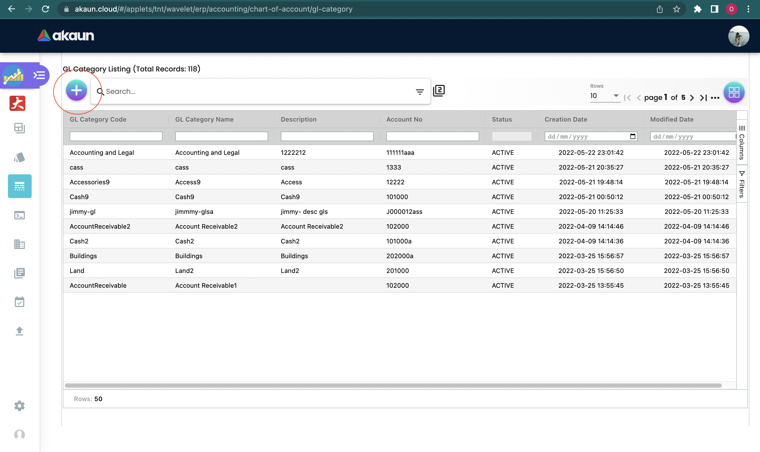
Watch out: a row whose SECTION_CODE matches no section is skipped with INVALID SECTION CODE written against the row — but the other rows still go in and the import finishes, so the status alone will not tell you. Check the row flags after every import and compare the count in the GL Category listing with the rows in your file. Copy the section codes from the GL Section listing rather than retyping them.
Step 4: Check the tree — every category under its section
Master Data > Chart of Account Applet > Chart of Account > (open the chart)
Open the Chart of Account tree view and expand each section. Every category you imported should be visible under the section you named in SECTION_CODE. If one is missing, it has no section link: open GL Category, click the category, switch to the GL Section tab, Add, pick the section, save. That is also how you fix a category that landed under the wrong section — delete the wrong link on the same tab and add the right one. Link each category to exactly one section.
Watch out: a category that is linked to no section is invisible to the statements and to month-end. It is the single most common reason a balance “disappears” from the trial balance while the GL Code listing still shows it.
Step 5: Bulk import your GL Codes
Master Data > Chart of Account Applet > Import GL Code
Open Import GL Code and download the *Sample Format CSV. The columns are CHART_OF_ACC, GL_CATEGORY, GL_CODE_1, GL_NAME, DESC, GL_CODE_3. CHART_OF_ACC is the chart’s code from Step 1 (DEFAULT or COA-GS); GL_CATEGORY is the category code from Step 3 (CAT-CASH-BANK, not “Cash and Bank”); GL_CODE_1 is the account code; GL_CODE_3 is the Account No., optional — put your accountant’s number there if you keep one beside the mnemonic code, or leave it blank. Go back to your exported chart from the previous system, map each old code to its new GadgetSphere code, and paste into the template. A typical block looks like: DEFAULT, CAT-CASH-BANK, CASH-PRI-KV01, Cash - Primary Bank - KV Branch 01, blank, blank; the next row CASH-PRI-KV02; and so on for all 28 cashbooks. Then the inventory codes (INV-SMARTPHONE, INV-LAPTOP, INV-TABLET, INV-GAMING, INV-ACCESSORY), the sales codes (SALES-SMARTPHONE, SALES-LAPTOP, SALES-ACCESSORY), the cost-of-sales codes (COST-SMARTPHONE, COST-LAPTOP), the expenses (EXPENSE-RENTAL, EXPENSE-WAGES, EXPENSE-MARKETING, EXPENSE-UTILITIES, EXPENSE-BANK-CHARGES, EXPENSE-ROUNDING), the liabilities (LIAB-SST-OUTPUT, LIAB-SUPPLIER-TRADE, LIAB-GRIR), and equity (EQUITY-CAPITAL, EQUITY-RETAINED). Get one row right first, upload it, confirm it lands in the right category, then run the full file.
A note on branches, because a 22-branch retailer always asks: you do not need a sales code per branch. Every journal line BigLedger writes carries the branch from the document, and the Financial Report applet’s Profit Loss Report groups by branch (and by segment, profit centre, dimension or project) without any help from the code. Keep one SALES-SMARTPHONE; let the branch on the invoice do the splitting. Cash is different — each bank account is a real, separate asset, so one code per cashbook is right.
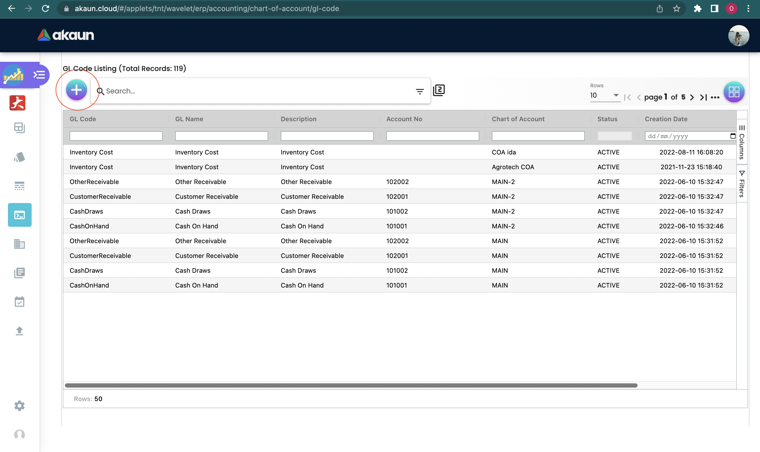
Watch out: a row whose GL_CATEGORY matches no category code is flagged GL Category is invalid — the usual cause is pasting the category name instead of its code. And a row whose GL_CODE_1 already exists in that chart does not fail: it updates that code’s name, category and description. That is handy for fixing names in bulk, and dangerous if a template code and one of yours share a code by accident. The import never renames a code, but the GL Code screen’s Edit does: postings follow the account, while the renamed code no longer matches the CSV you keep, and nothing checks it against the rest of the chart. So for CASH-PRI-KVO1 (letter O) either correct it on Edit and in your CSV together, or set it INACTIVE and import CASH-PRI-KV01 (zero).
Next: Steps 6 to 9, the ledger, default GL codes and opening balances.
What success looks like for this part
In the Chart of Account tree every category you imported sits under one of the 18 sections, the GL Code listing shows your codes under the right categories, and no row of either import was left flagged.
Common mistakes in this part
| Symptom | Cause | Fix |
|---|---|---|
| Rent and wages never close to profit and loss; they sit on the balance sheet after month-end. | Their category is linked to a section whose code the reports do not recognise — usually a section someone created called Expenses or Operating Expenses. Only the built-in codes (GeneralExpenses and the other ten P&L codes) close to profit and loss. | Open each affected category, GL Section tab, delete the link to the custom section and Add GeneralExpenses (or the right built-in code). Set the custom section INACTIVE. Re-run Month End Processing for the affected months. |
| A category is missing from the Chart of Account tree and from every statement, though it shows in the GL Category listing. | The category has no section link — it was created by hand without one, or its import row failed on SECTION_CODE. | Open the category, GL Section tab, Add the section, save. |
| The GL Code import flags every row GL Category is invalid, or the category import fails with INVALID SECTION CODE. | You pasted names where codes belong. GL_CATEGORY wants the category code (CAT-CASH-BANK); SECTION_CODE wants the section code (CurrentAssets), exactly as shown in the GL Section listing. | Replace the names with codes, copied from the listings, and re-upload. For a partly-imported category file, remove the rows that already went in. |
Related documentation
- Chart of Accounts Setup Guide: the whole setup, with its success check.
- Chart of Account Applet: the reference for every screen used here.