Create the ledger, map default GL codes and enter opening balances
Steps 6 to 9 of the Chart of Accounts Setup Guide: make the chart post. You create the primary ledger and the Set of Books that holds it, map the Default GL Codes that automatic posting falls back to when no document or item account takes precedence, open the fiscal year, then key the opening balances and prove the wiring with one test invoice. It follows Steps 2 to 5, where you checked the built-in sections and added your categories and codes.
- Step 6: create the primary ledger and Set of Books.
- Step 7: map the Default GL Codes.
- Step 8: open the fiscal year and set the period status.
- Step 9: enter opening balances and post one test invoice.
Step 6: Create the primary ledger and Set of Books
Master Data > Chart of Account Applet > Companies > (open GS) > Ledgers tab, then sidebar > Set Of Books
Open GadgetSphere Sdn Bhd in Companies and switch to the Ledgers tab. Click New and fill in: Ledger Code LED-GS-PRI, Ledger Name GadgetSphere Primary Ledger, Ledger Type PRIMARY, Currency MYR. Save. You need this before Step 7, because every Default GL Code you map creates a sub-ledger on the primary ledger. For now one primary ledger is enough — secondary or consolidated ledgers come later when you bring in GSO and GSD.
Next, sidebar > Set Of Books > New. Name it SOB-GS-MAIN (or Main Books FY2026 if your finance manager prefers a human name) and save. Open it, switch to the Ledgers tab, click Add, select LED-GS-PRI, save. This is the wiring that lets Month End Processing and the Trial Balance, Profit and Loss and Balance Sheet snapshots find your data. A Set of Books with no ledger fails month-end with Set of Books is missing primary ledger configuration — an easy hour-long wild goose chase to avoid.
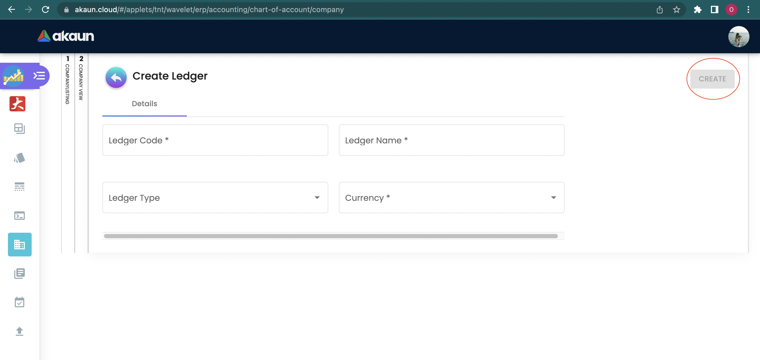
Watch out: if you create the ledger as SECONDARY by mistake, the Opening Balance tab you need in Step 9 will not be there — it appears on primary ledgers only. Create a new PRIMARY ledger before you save any transactions.
Step 7: Map the Default GL Codes
Master Data > Chart of Account Applet > Companies > (open GS) > Default GL Codes tab
This is the step that prevents the biggest class of go-live failures. Open GadgetSphere in Companies and switch to the Default GL Codes tab (if you cannot see it, the company has no chart — go back to Step 1). Work through the sub-tabs and map every role that applies to a retailer, then click SAVE on the company header once — it writes every changed key together.
| Sub-tab | Role (plain English) | Map to |
|---|---|---|
| General | Retained earnings — where last year’s profit goes at year-end | EQUITY-RETAINED |
| General | Profit / loss — the current year’s result on the balance sheet | EQUITY-RETAINED |
| General | Rounding — the sen lost when a total is rounded | EXPENSE-ROUNDING |
| General | Settlement charges — card-acquirer and gateway fees | EXPENSE-BANK-CHARGES |
| Entity | Trade debtor — customers who owe you for sales | DEBTOR-TRADE-RETAIL |
| Entity | Trade creditor — suppliers you owe for stock | LIAB-SUPPLIER-TRADE |
| Entity | Non-trade debtor — money owed to you that is not a sale | DEBTOR-NON-TRADE |
| Entity | Non-trade creditor — money you owe that is not for stock | LIAB-NON-TRADE |
| Sales | Sales, Sales return, Sales discount | SALES-DEFAULT, SALES-RETURN, SALES-DISCOUNT |
| Sales | Output tax — SST you collected and owe the government | LIAB-SST-OUTPUT |
| Purchase | Purchase, Purchase return | EXPENSE-PURCHASES, EXPENSE-PURCHASE-RETURN |
| Purchase | Input tax — the SST charged on your purchase invoices; SST gives most businesses no general credit for it, so what the balance means for your return is for whoever prepares it | ASSET-SST-INPUT |
| Stock | Stock balance — the value of goods on the shelf | INV-STOCK-CONTROL |
| Stock | Cost of goods sold | COST-DEFAULT |
| Stock | Stock adjustment, Reset moving average (MA) — stock-take and cost corrections | EXPENSE-STOCK-ADJUSTMENT |
| Stock | Inventory not invoiced — goods received, invoice not yet received (GR/IR) | LIAB-GRIR |
On the Forex tab: only if GadgetSphere buys in USD from regional distributors — map forex gain and forex loss to your exchange-difference accounts. Skip the Consignment tab and the raw material / work-in-progress (WIP) / finished goods variants on the Stock tab — GadgetSphere is a retailer, not a manufacturer. The system names behind these labels (DEBTOR, OUTPUT_TAX, INVENTORY_NOT_INVOICED and the rest of the 41 keys) are listed on the applet page — you will see them in error messages, which is the only time you need them.
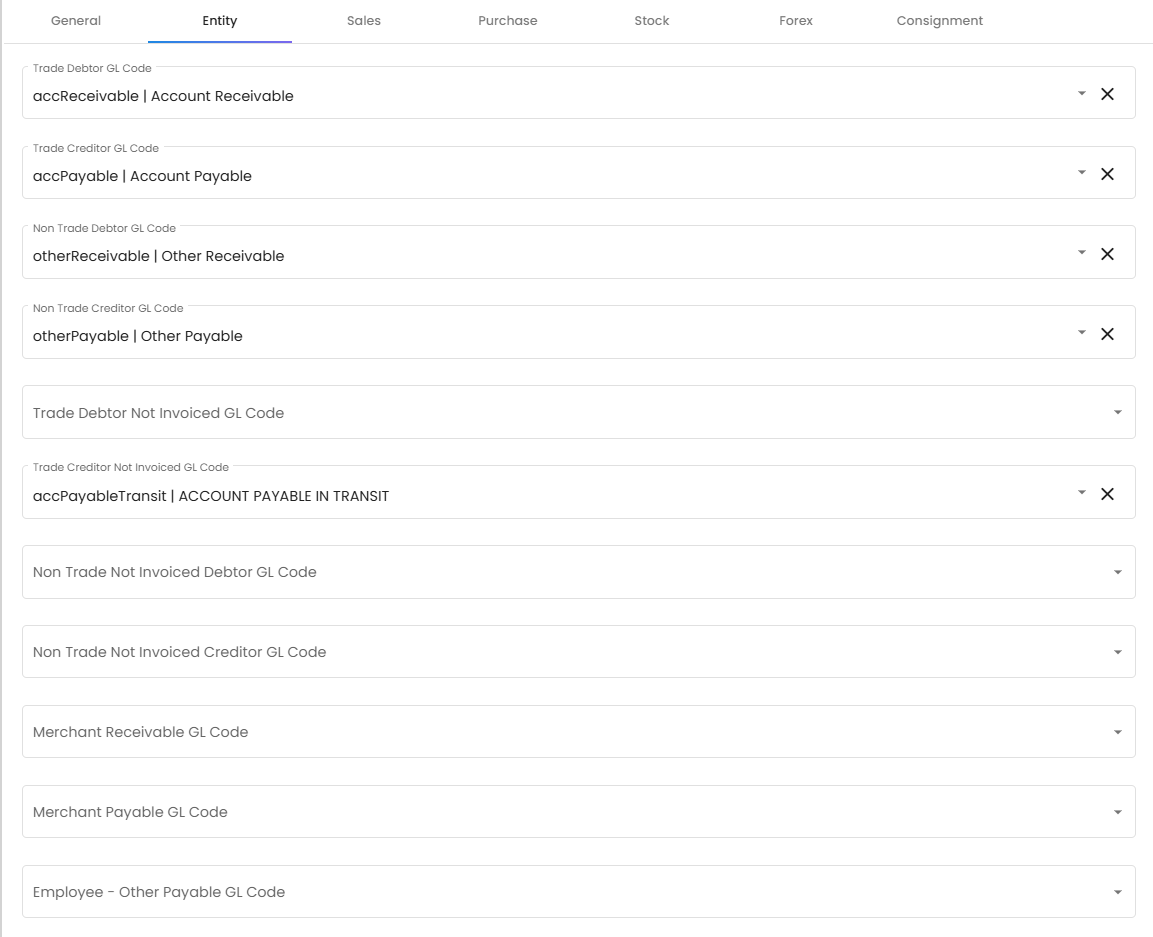
Watch out: a missing mapping does not fail here, and it does not stop a document going FINAL either — the invoice finalises, its background posting job fails, and no journal is written. Nobody in Sales sees a message; finance finds the hole at month-end, or sooner with Trace Document (Step 9). If you map Output Tax to an expense code by mistake (EXPENSE-SST instead of LIAB-SST-OUTPUT), nothing fails at all: the invoice posts, and your SST return shows negative output tax. Check that Output Tax points to a liability code and Input Tax to an asset code before you save.
Step 8: Open the fiscal year and set the period status
Master Data > Chart of Account Applet > Fiscal Year > New
Click Fiscal Year in the sidebar, then New. Select GadgetSphere Sdn Bhd as the Company, name the year FY 2026, set Start Date 1 January 2026 and End Date 31 December 2026, save. BigLedger generates the monthly periods from the date range. Open the new year and switch to the Fiscal Period tab: confirm all twelve periods exist and each shows Closing Status OPEN.
If your cutover is mid-year — say you go live on 1 April — click each of January, February and March, set the status to LOCK_TXN and save. That stops anyone back-dating an invoice into a month that was managed in the old system, while still letting you post opening-balance journals. The four statuses, in plain English: OPEN — anything goes; LOCK_GL — no manual journals, but documents still post (and their automatic journals with them); LOCK_TXN — no invoices, bills, payments or stock documents dated in the period, but manual journals still allowed; LOCK_ALL — both. Avoid LOCK_ALL during setup; that is the hard close after audit sign-off. Two things to know for a 22-branch retailer: stock transfers between branches ignore LOCK_TXN and LOCK_ALL and can still be finalised into a locked month, and any status can be set back to OPEN by anyone who can open this applet — there is no approval on it, so the discipline is in who has the applet.
Screenshot withdrawn; a recapture from a demo tenant is on the list.
Watch out: if FY 2025 already exists and you save a FY 2026 whose dates overlap it, BigLedger refuses with The date_start and date_end dates are overlapping with an existing fiscal period. Make the Start Date of FY 2026 exactly the day after the End Date of FY 2025.
Step 9: Enter opening balances and post one test invoice
Companies > (open GS) > Ledgers > LED-GS-PRI > Opening Balance, then Sales > Sales Invoice > New
Two checks, ten minutes. First, the migration balances. Open the GS company, Ledgers tab, click LED-GS-PRI, then the Opening Balance tab. Add GL Code for each account, key the debit or credit as at 31 December 2025 (the day before FY 2026 starts), and Save. BigLedger stores it as one opening-balance journal on the primary ledger and opens a Financial Report view of that journal — trial balance, profit and loss, balance sheet — from the same tab. For GadgetSphere the total typically runs RM 4–8 million: cash across 28 cashbooks, around RM 2 million of smartphones and laptops in INV-STOCK-CONTROL, trade and card debtors, shop fit-outs net of depreciation, supplier payables, SST payable, share capital, retained earnings. Total debits must equal total credits on that view — if they do not, something is missing, mis-keyed, or on the wrong side. Compare the list against the old system’s own trial balance, line by line; on a migration a wrong amount and a figure keyed as a debit instead of a credit are both commoner than an account left out. (The Opening Balance Migration page covers the stock, debtor, creditor and cashbook sequence; do the bank balances the way it says, or they will be posted twice.)
Second, one test sales invoice. Use a service item for the line — say an Installation service item at RM 1,000 — not a stock item: BigLedger refuses to finalise a sales invoice for a stock item with no stock at the branch (Not Enough Stock for item …), and on a fresh tenant nothing has stock yet. Customer = a test debtor, tax code = 6% SST, branch = GS-KV-01. Save, then set it to FINAL — the journal is written at FINAL, not at save. Open the Ledger and Journal applet and find the journal whose Document No is your test invoice. It should have exactly three lines: debit DEBTOR-TRADE-RETAIL RM 1,060, credit SALES-DEFAULT RM 1,000, credit LIAB-SST-OUTPUT RM 60. The sale credits your company default for Sales unless the item or the invoice line carries its own GL code — the branch does not pick the account, it only tags the line. There is no cost-of-goods line at FINAL; that is computed at month-end.
Read those three lines; do not just check that a journal exists. A missing Sales or Output Tax mapping does not stop anything: the posting job leaves that line out and builds the debtor line from what remains, so the journal still balances. With no Sales default the test posts two lines — debit DEBTOR-TRADE-RETAIL RM 60, credit LIAB-SST-OUTPUT RM 60 — and with no Output Tax default, debit RM 1,000, credit SALES-DEFAULT RM 1,000. Either way nothing flags it: the customer’s statement and the debtor ageing are built from the documents and still show RM 1,060, so after go-live the only sign would be the trade-debtor GL account drifting away from the ageing. This test is where you catch it.
If the invoice is FINAL but no journal appears at all, the posting job failed. FINAL itself succeeds — the journal is written a moment later by a background posting job. Open the Financial Report applet > Error Checking > Trace Document, pick Sales Invoice (Internal), type the invoice number and TRACE: the Missing Journal check fails and the error names the gap — MISSING_DEFAULT_GL_CODE: DEBTOR means the Entity tab in Step 7 is unmapped; TOTAL_DEBITS_AND_TOTAL_CREDITS_NOT_BALANCES means a Sales or Output Tax line was dropped and the test debtor has no AR/AP type, so there was no debtor line to absorb it; NO_JOURNAL_CREATED means no line resolved at all. Map it, then click Resolve on the Trace Document screen to post the journal. Once the journal has the three lines above, Void the test invoice and you are live.
Screenshot withdrawn; a recapture from a demo tenant is on the list.
Watch out: do the test before you switch the company’s E-Invoice Status to ENABLED in the Organisation applet. Once it is on, every finalised invoice is queued for MyInvois; voiding pulls it out of the queue only if it has not been sent yet.
When you are done, run the whole setup’s success check.
What success looks like for this part
The opening-balance journal’s debits equal its credits, the test invoice from Step 9 has its three journal lines on the accounts you mapped, and every month of the fiscal year shows the status you chose.
Common mistakes in this part
| Symptom | Cause | Fix |
|---|---|---|
A sales invoice is FINAL but has no journal; Trace Document reports Missing Journal with MISSING_DEFAULT_GL_CODE: DEBTOR, TOTAL_DEBITS_AND_TOTAL_CREDITS_NOT_BALANCES or NO_JOURNAL_CREATED. Or, with no message at all: the journal exists but the trade-debtor or trade-creditor GL account no longer agrees with the ageing. | A Default GL Code was left blank in Step 7. The entity roles (trade and non-trade debtor and creditor) are named in the message. A missing Sales, Output Tax, Purchase or Input Tax mapping is not: its journal line is silently dropped and the customer’s or supplier’s line absorbs the amount, so the journal balances and posts wrong. Only when the customer or supplier has no AR/AP type does the balance check fail instead. | Open the GS company, Default GL Codes tab, map the missing role (Entity tab for debtor and creditor; Sales tab for Sales and Output Tax; Purchase tab for Purchase and Input Tax), SAVE. Then Resolve each failed document in Trace Document, and Repost each one that posted without the line — every document finalised while the mapping was missing needs one or the other. |
Related documentation
- Chart of Accounts Setup Guide: the whole setup, with its success check.
- Chart of Account Applet: the reference for every screen used here.
- Opening Balance Guide: migrating balances in detail.