Teams and permissions: split view, edit and export, scope to a branch, and test it
Steps 3 to 6 of locking down customer data: grant viewing and exporting separately, scope each document permission to a branch, with a company target as well for every role that creates documents, test it on one person, and switch on multi-factor authentication. It follows Step 2, where the people went into the team; if you are giving a role to each person in Tenant Admin instead, you start here. The running example is GadgetSphere Sdn Bhd, with 22 branches and around 85,000 customer records, whose cashiers need to look customers up at the counter and do not need to download them.
Before you change anything, from what a team leans on: your companies, branches and locations must exist in the Organisation applet, because a target grid has no rows to tick until they do. Taking the tenant owner or admin permission off the only role that carries it can leave nobody able to use the team screens or assign roles, so keep it on at least two people. And moving a person’s branch target takes the old branch’s documents out of their listing at once, including any they were half-way through, so hand those over first. And before you give anyone the export permission, ask them to turn multi-factor authentication on, and confirm with them that they have (Step 6).
- Step 3: split view, edit and export.
- Step 4: scope each permission to a branch or company.
- Step 5: test it on one person before rolling it out.
- Step 6: turn on multi-factor authentication.
Step 3: Split view, edit and export
This is the step that answers the PDPA question, so it gets the most detail.
Navigate to: Tenant Admin → Tenant Roles → (the role), then Applet → (the applet) → Permission Sets or the Permission Set tab, and finally the User tab to give the role to people. For a team: the team → Edit Permissions.
The two routes do not combine on these screens. A role takes permission sets and is given to people. A team takes permissions one at a time on its Edit Permissions tab, each with one target or All, and every member holds them. Neither Tenant Roles, nor Tenant Admin’s Settings › Role Permission, nor the Team Maintenance applet links a team to a role, so decide per right which route carries it. The team’s Permissions List shows only what was granted to the team itself — not what its members also get from their own roles.
Here are the permissions that govern customer and membership personal data. The plain-English description is what matters; the code is what you will see in the picker.
| What you want to control | Permission to grant |
|---|---|
| Look up and view a customer | TNT_API_CUSTOMER_READ, TNT_API_ENTITY_READ |
| Create, change or remove a customer | TNT_API_ENTITY_CREATE / _UPDATE / _DELETE |
| Export customer data to a file | API_TNT_DM_ENTITY_EXPORT_CREATE / _READ |
| View or change membership cards | API_TNT_DM_CRM_MEMBERSHIP_CARD_HDR_READ / _UPDATE |
| Run and export membership reports | MEMBERSHIP_REPORT_READ / _CREATE |
| See who changed a customer record | TNT_API_DM_APPLET_AUDIT_TRAIL_CREATE (the _OWNER and _ADMIN codes also open it; _READ does not) |
Three things worth knowing about how this behaves:
Export really is a separate right, and it is two permissions. Granting someone the ability to view a customer does not give them the ability to export customers. Asking for the file and collecting it are separate as well: the create code puts an export job in your tenant’s queue, which builds the CSV in the background, and the read code is what lists and downloads the finished files. Give HQ Marketing both. If files are already waiting to be built, a new request is answered with Please wait until the current file finishes before generating additional files.
The check happens on the server, not in the browser. BigLedger does not merely hide the export button. The API refuses the request. Someone who knows their way around a browser’s developer tools, or who calls the service directly, still gets nothing.
Changes are recorded. Creating, changing or deleting a customer writes an audit record with the data before and after, who did it and when. Your auditor reads it from the Customer applet’s Audit Trail, which uses the applet audit-trail permission in the table above.
A role table you can copy
GadgetSphere settled on four roles. Yours will look similar:
| Role | View customer | Edit customer | Export customer | View membership | Edit membership | Export membership |
|---|---|---|---|---|---|---|
| Cashier | Own branch | No | No | Own branch | No | No |
| Branch Manager | Own branch | Yes | No | Yes | Yes | No |
| HQ Marketing | All | No | Yes | All | No | Yes |
| Administrator | Yes | Yes | Yes | Yes | Yes | Yes |
Notice that only two of the four roles can export anything, and only one of those two can edit. That is the shape you are aiming for.
Step 4: Scope each permission to a branch or company
The outcome is a cashier who can only see the documents of the branch they actually work at.
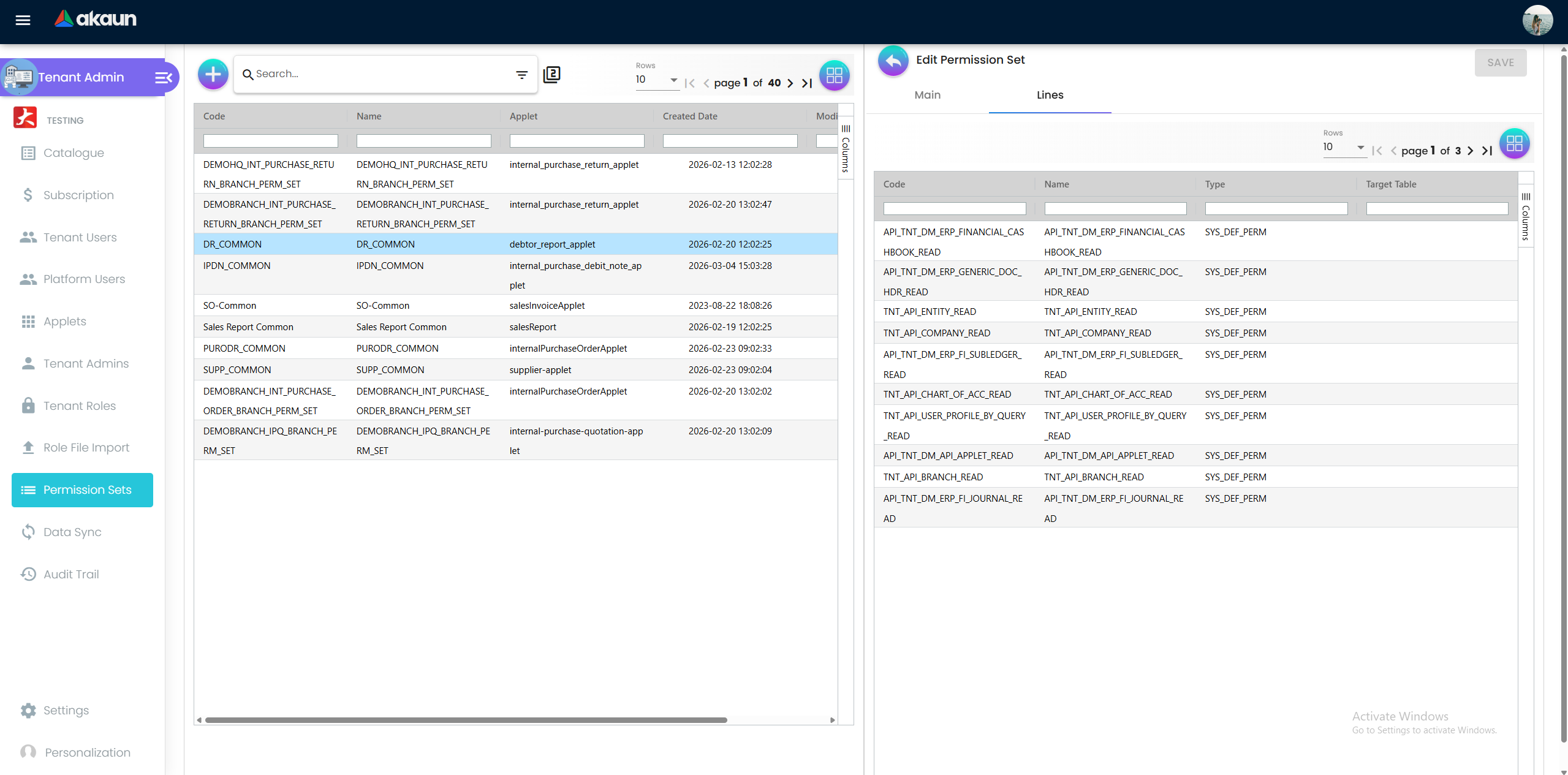
For a role, open Tenant Admin → Tenant Roles → (the role) → Applet → (the applet) → Permission Sets. It has three sub-tabs — Branch, Company and Location — one grid per permission template, with the available targets as rows and a checkbox per row. Tick the targets you want and save. For a team, pick the target in Select Target and Select Target Name as you add each permission.
Leaving a permission with no target (All) means full access across everything. That is fine for your administrator. It is almost never right for a cashier.
For GadgetSphere, the Retail Cashiers — Klang Valley role gets its document permissions scoped to branch GS-KV-01. A cashier there opening the sales invoice listing sees the invoices raised at GS-KV-01 and not the ones raised in Penang, because the document listing really is filtered on the server by the company, branch and delivery branch on each document.
A target restricts documents. It does not restrict master data. This is the part that surprises people, and it is worth knowing before you promise anybody anything. When the server answers a request for documents — invoices, orders, receipts, stock takes — it applies the company, branch and location on your grant and returns only the rows you are permitted. When it answers a request for master data — customers, suppliers, items, price lists — it checks that you hold the read permission and then returns the whole tenant, whatever branch your grant names. So the cashier above can still look up a customer who has only ever shopped in Penang.
Why it works that way: scoping a listing is something each screen’s own query has to ask for, and the screens that handle documents ask for it while the master-data screens do not. Design around it rather than against it — put your confidentiality boundary at the document level, and treat the customer and item masters as visible to everyone who may read those masters at all. If a group genuinely needs two customer lists that cannot see each other, that is a second tenant, not a second target. What the target actually does once you have set it has the mechanism and the evidence.
The symptom you will meet first is an empty drop-down. Company, branch and location selectors are built from exactly these targets: when it opens, the applet asks the server which permissions you hold and with which targets, and offers you those. A login scoped at branch level with nothing at company level therefore opens a new document with an empty Company selector and cannot save. That is the scoping working, not a fault — but it means every role that creates documents needs a company target as well as a branch one. Users who hold Tenant Admin or Tenant Owner skip the whole check and see every company, which is why the person testing the configuration often cannot reproduce what their staff are reporting. Test as an ordinary member of the team, never as yourself.
Step 5: Test it on one person before rolling it out
Do not skip this. Configure a single test user with the new role, log in as them, and try to do the thing they should not be able to do. If you change anything while the test user is logged in, have them reopen the applet first — the server applies the change straight away, but the open screen still holds the permissions it read when it started.
For GadgetSphere the test was: open the sales invoice listing as the test cashier and confirm that Penang’s invoices are absent; open a new document and confirm the Company and Branch selectors offer only what they should; then attempt a customer export (should be refused). Three checks, two minutes. Do not make “can they find a Penang customer” one of your checks — they can, and that is the product, not your configuration.
Roll out to real users only once all three behave as expected.
Step 6: Turn on multi-factor authentication
Access control is only as strong as the login behind it. BigLedger supports multi-factor authentication (MFA) on user login, and we recommend it for every account that can see customer personal data — and treat it as non-negotiable for accounts that can export.
MFA belongs to the person’s akaun.com sign-in, not to your tenant, a team or a role. Each person switches it on for their own login by scanning a QR code into an authenticator app and confirming a code, and BigLedger then records that login as protected, wherever the person signs in to work. The team and role screens have no switch for it, so make it a condition of the grant: before you give someone the export permission, ask them to turn MFA on and confirm with them that they have. A person who loses their phone requests a reset, and BigLedger e-mails a reset link to their main e-mail address.
What success looks like for this part
Your roles (or the team) hold the view and export permissions your role table says and nothing more; every document permission of a branch role carries its branch target, and every role that creates documents a company target as well; your test user, in a freshly opened applet, saw only their own branch’s documents, was offered their company and branch on a new document and saved it, and was refused a customer export; and everyone who holds the export permission has confirmed they turned MFA on. Then run the whole task’s success check.
Common mistakes in this part
Granting the role but forgetting the scope. The most frequent one. A permission with no target is unrestricted — your “branch-only” cashier quietly sees every branch’s documents. Symptom: the test in Step 5 returns invoices from branches the person does not work at. Fix: open the permission line and select a target.
Scoping the branch and forgetting the company. The second most frequent, and it looks like a broken applet rather than a permission. Symptom: the person signs in, opens a new document, and the Company selector is empty, so nothing can be saved. Fix: give the role a company target as well as a branch one.
Judging a change from a screen that was already open. Symptom: you remove a branch from someone’s role, they still see it in the drop-down, and you conclude the change did not save. The server is already applying it; the applet is showing what it read when it opened. Fix: close and reopen the applet, then check again.
Expecting a target to hide master data. Covered in Step 4 and repeated here because it is the assumption that costs the most: a branch target does not stop anyone reading the customer, supplier or item master. Symptom: your branch-scoped cashier searches and finds a customer from the other end of the country. There is no setting that fixes this; the fix is to stop relying on it.
Locking down the applet but leaving the reports open. Any report that includes customer contact columns is governed by that report’s own permission. Restricting the Customer applet alone does not restrict a membership report that lists mobile numbers. Review your report list alongside your applet permissions, every time.
Assuming view permission covers export. It does not, and that is deliberate — but the reverse trips people up too. If your marketing team genuinely needs a mailing list and reports “the export button does nothing”, they are missing API_TNT_DM_ENTITY_EXPORT_CREATE, not the view permission; if they can ask for the file but never get it, they are missing API_TNT_DM_ENTITY_EXPORT_READ.
Two more, about adding people to a team that already holds permissions and never reviewing who holds what, are on the front page.