Audit trail: open a change, read what it says, and read who made it and when
Steps 3 to 5 of finding a change in the audit trail: open the change, read what it says, and confirm who made it and when. It follows Step 2, where you found the document’s rows. The running example is GadgetSphere’s sales invoice: the customer’s copy shows RM 12,400, and BigLedger now shows RM 11,900.
Step 3: Open the change
Click a row. The panel on the right shows Basic Information (Applet Code, Action Name, Table Name, the dates and Action By), and below it Details: the change itself.
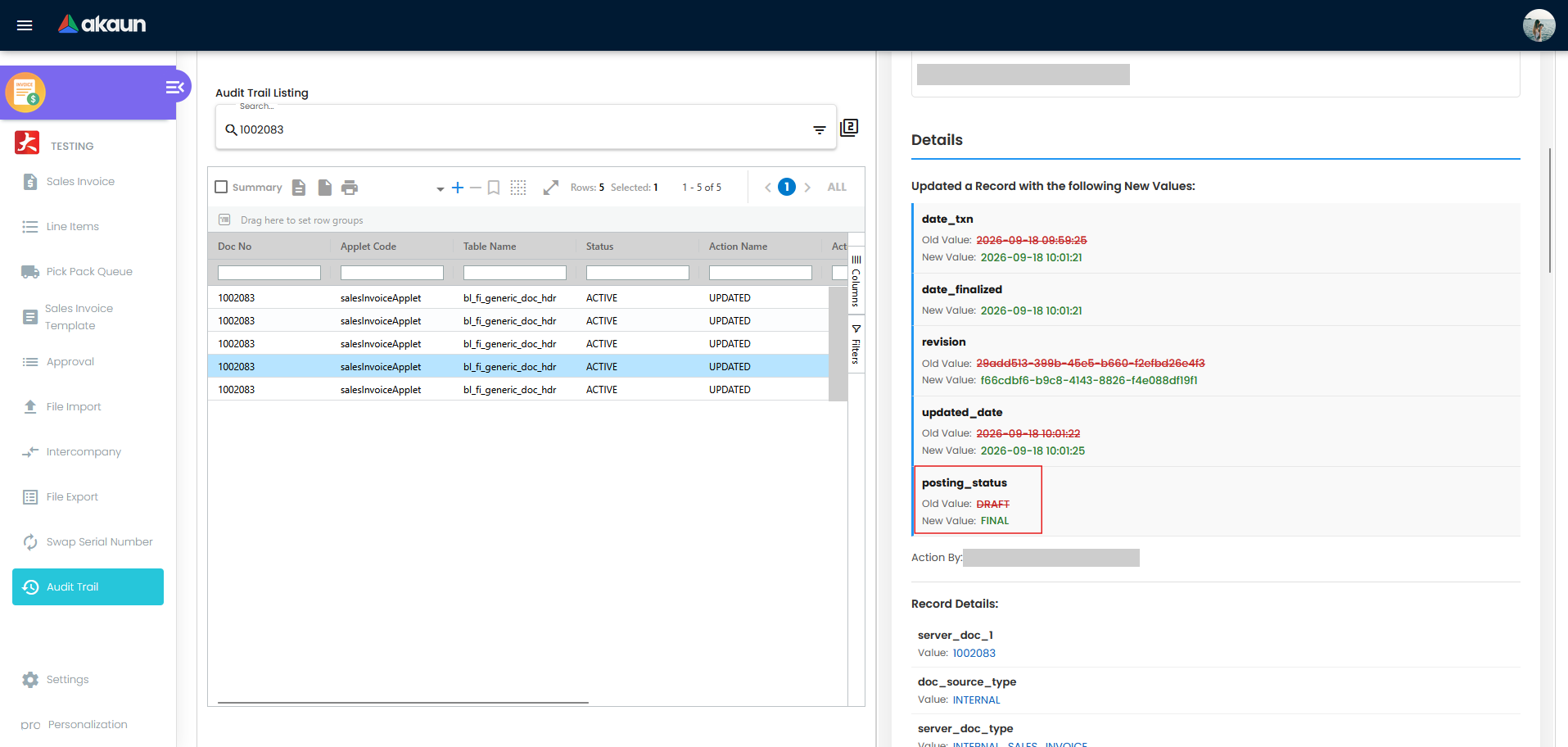
The Details section always has the same three parts:
- The changed fields. Only fields whose value is different appear here, each with Old Value in red and New Value in green. Everything that stayed the same is left out, so a short list means a small change.
- Action By, the person who made it.
- Record Details, the record as it stood after this change, with the document numbers first. Fields that were empty or zero are left out.
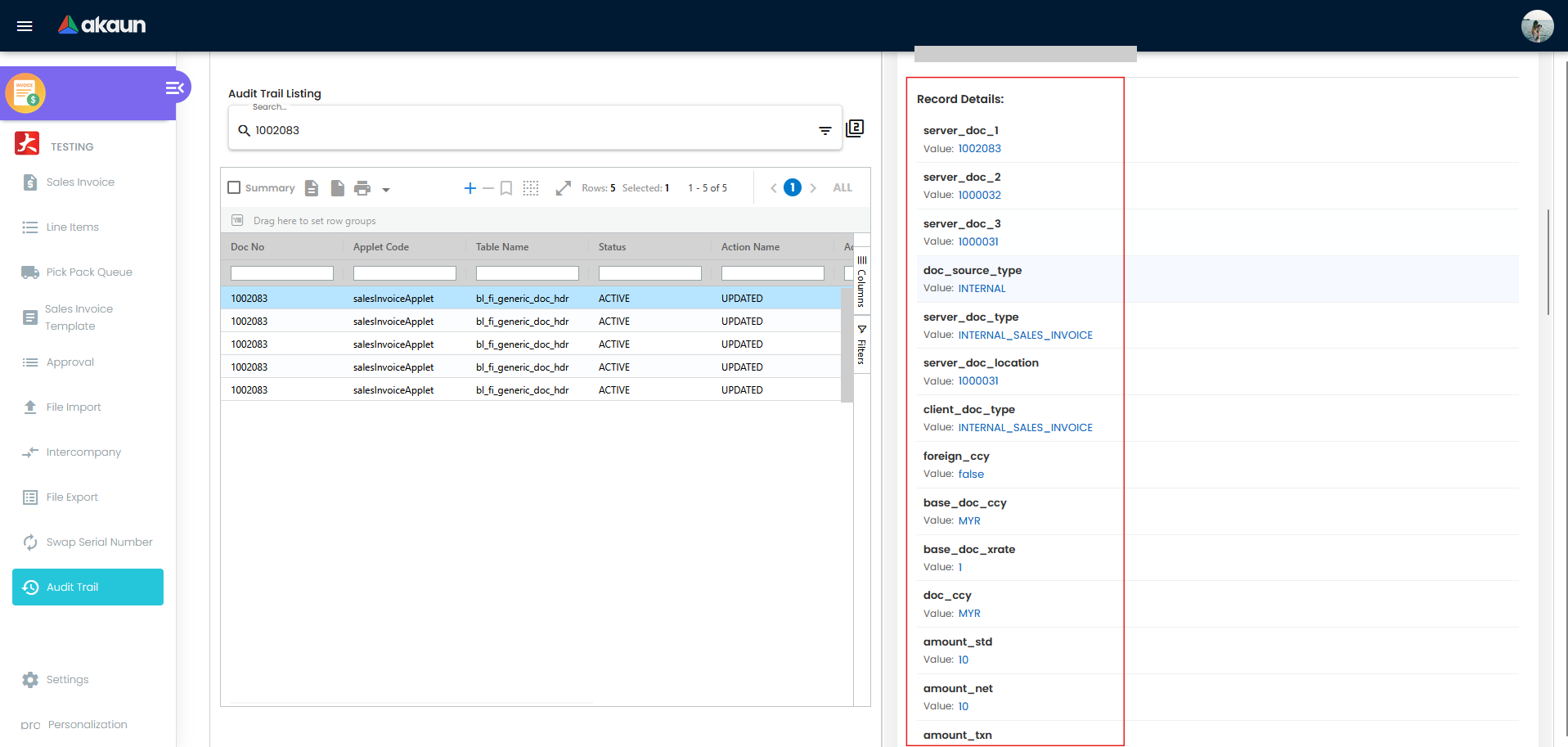
Step 4: Read what changed
For GadgetSphere’s invoice, you are looking for the UPDATED row where the total changes: the amount fields, such as amount_txn and amount_net, showing 12400 as the old value and 11900 as the new one. Read the rest of the list on that row before concluding anything, because a total rarely changes on its own. A header discount such as amount_discount may have moved in the same save, and that tells you what was done rather than only the result. If only the totals moved, the change was on a line, which this screen does not show (see the warning in Step 3).
A few rules for reading the list:
- Field names are the system’s own names, such as
posting_status,date_txnandcode_branch. The use cases translate the common ones. - A field with New Value but no Old Value was empty, or zero, before. It was filled in by this change, not changed from one value to another.
- Fields whose name contains
guidare never shown. Those are internal links between records, and a change to one (a different customer or item picked, for example) shows up through the names and codes that changed with it. revisionandupdated_datechange on every save. Ignore them unless they are all that changed, which means someone saved without changing anything that matters.
Step 5: Confirm who made the change and when
Read Action By and Date Updated in Basic Information. Every audit record takes its actor from the sign-in that made the change, and Action By is that account’s current profile name, so it is the name you will recognise from your user list.
- Unknown User means BigLedger could not find a name for that account in your company’s user records: the account has no user record on this tenant, or its record has no name. That can be an account an integration or a background process signs in with, a user no longer set up on this tenant, or someone working from outside it. The audit trail cannot tell you which.
- An empty Action By in the listing is the same situation seen from the listing, which falls back to the name stored with the record and finds none.
Treat both as a question to answer, not an answer. Start with your integrations and scheduled jobs, and ask BigLedger support who the account is if they are not the cause.
Where the change was made matters too. A record carries an applet code only when the sign-in that made the change came from an applet. A change made from another applet sits in that applet’s trail, and a change made by a process or integration with no applet sits in no applet’s trail at all. If you expected a change and it is not in this applet’s trail, look in Tenant Admin, which shows them all.
What success looks like for this part
You have the UPDATED row where the total changed, with its old and new values and every other header field the screen shows changing in the same save, and a name and a time from Action By and Date Updated. Where Action By reads Unknown User or nothing, you have taken the question to whoever looks after your integrations, or to BigLedger support. Then run the whole task’s success check.
Common mistakes in this part
The mistakes are listed together on the front page. Three belong here: reading Status as the document’s status, reading one field in isolation, and stopping at “who”.
Related documentation
- Tenant Admin Applet is the reference for the tenant-wide Audit Trail screen.
- Audit Trail API covers the endpoints behind these screens, the full field list and the permissions each needs.
- Teams and Permissions explains granting the rank and permissions this guide assumes.