Audit trail use cases: the questions people bring, Tenant Admin, and what the trail will not do
The questions finance and operations teams bring to the audit trail once they can find and read a change: what to look for, what it means and what to do next; then the tenant-wide screen in Tenant Admin, and what the trail will and will not do for you. It builds on Steps 1 and 2 and on Steps 3 to 5. The running example is GadgetSphere’s disputed invoice, RM 12,400 on the customer’s copy and RM 11,900 in BigLedger.
- Audit trail use cases: ten questions, each with what to look for and what to do.
- Using Tenant Admin instead: the tenant-wide screen, for OWNERs and ADMINs.
- Good to know: what the trail records, and what it does not prevent.
Audit trail use cases
Each of these is a question that finance and operations teams bring to the audit trail. Each gives what to look for, what it means, and what to do next.
A customer disputes an invoice total
This is GadgetSphere’s case. Search the invoice number, open the UPDATED rows from newest to oldest, and find the one where the amount fields change.
- What you will see:
amount_txnoramount_netwith the old and new totals, usually with a discount or line field beside them. - What it means: the invoice was edited after the customer received their copy. The Date Updated on that row tells you whether the edit came before or after it was sent.
- What to do: if the edit is legitimate, send the customer the corrected invoice and say why. If nobody can explain it, take it to whoever approves price changes. The audit trail has told you who; it cannot tell you whether they were allowed to.
When did this invoice become final, and who finalised it?
Look for the UPDATED row where posting_status goes from DRAFT to FINAL. That is the moment the document was finalised and BigLedger queued its postings (see the Step 3 screenshot). The postings themselves run after it, so this row proves the finalise, not the journal.
- What else you will see:
date_finalizedfilled in, with New Value only because it was empty before. - Something worth checking: in the Step 3 example,
date_txn, the invoice’s transaction date, moved in the same save, from 09:59:25 to 10:01:21, which is the same second asdate_finalized. If an invoice’s date is later than when it was keyed in, open its finalise row and see whetherdate_txnmoved there. This matters most for an invoice keyed in on the last day of a month and finalised the next morning.
Who voided this invoice?
Look for the UPDATED row where posting_status goes from FINAL to VOID.
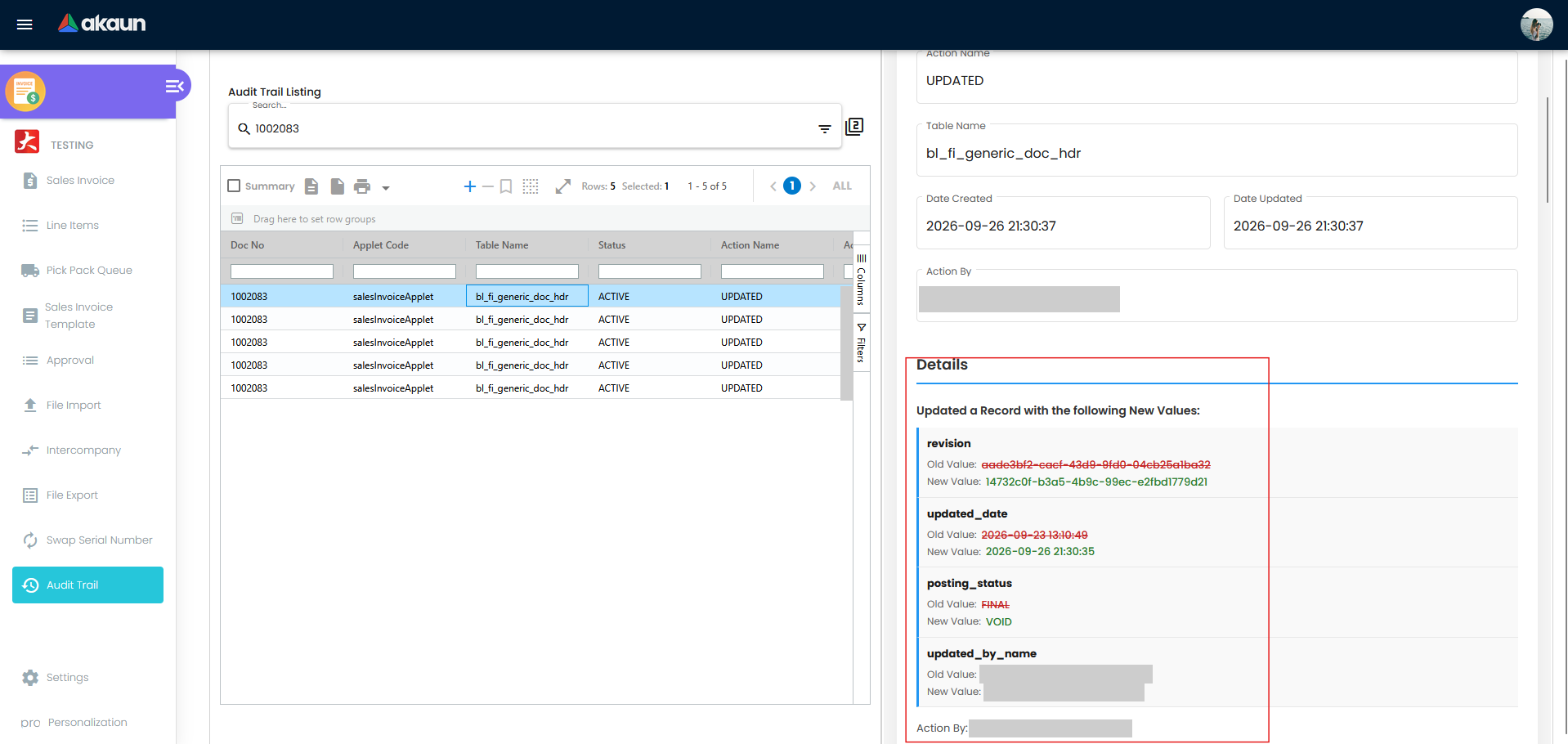
- What it means: Action By on that row is the person who voided it, and
updated_by_nameshows the previous editor as the old value, which is useful when two people have handled the document. - What to do: a void should always have a reason written somewhere else, such as a credit note, a replacement invoice or a note to the customer. The audit trail proves that a void happened. Whether it was justified is for the person who approves voids to check, and the list of FINAL-to-VOID rows for a period is exactly what they need to review.
Who created this document?
Search with Action set to CREATED and a Date Created range around the time the document first appeared.
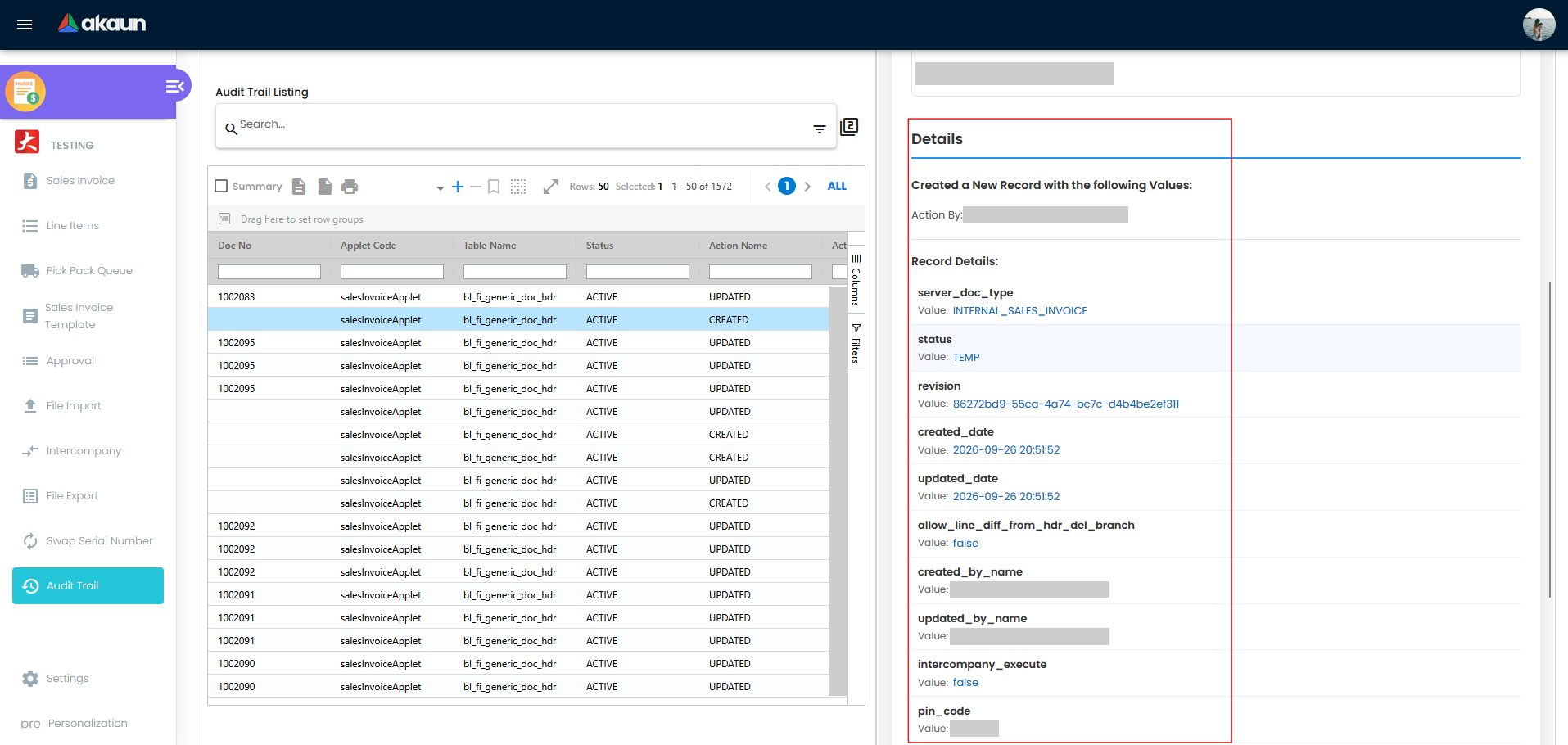
- What you will see: “Created a New Record with the following Values”, then Action By and Record Details, with no changed-fields list because there was nothing before.
- Why the Doc No is empty: the document had no number yet. Match it to its later rows by the time and by Action By.
Stock or sales are showing under the wrong branch
Search the document and look for an UPDATED row where code_branch or code_location changes. The old value is where the document was first raised, the new value is where it sits now, and Action By and Date Updated say who moved it and when.
- What to do: if the move was a correction, nothing more is needed. If it was not, move it back through the document. Either way, anyone who already read branch figures for that period read them before the move, so tell them.
A document seems to have disappeared
Before you assume it was deleted, check whether it was discarded (a draft abandoned) or voided (a final document cancelled), and check that the applet’s listing is not filtered to hide those. Search its number and look for posting_status changing to DISCARDED or VOID before you assume it was deleted. To look for true deletions, set Action to DELETED: the Record Details of a DELETED row is the record as it was when it was removed.
Action By shows Unknown User, or nothing at all
The account that made the change has no name BigLedger can find on this tenant (Step 5). It may be an integration, an import, an e-commerce or POS sync or a background job, but it may also be a person whose user record is not on this tenant. Look at the time: changes landing on the minute, or in a burst of identical rows, suggest a scheduled process. Take it to whoever looks after your integrations, with the Date Updated and the fields that changed, and if they do not recognise it, ask BigLedger support which account it was.
A month-end check: what changed after the books closed?
Once a month is closed, nothing dated in it should change without a reason. The audit trail cannot stop an edit, so the check is a routine that someone runs:
- After closing the month, set Date Updated From to the day after close, and To to today.
- Click ALL, and read down the Doc No column for documents dated in the closed month.
- Open each one and check what changed. An amount, a date or a branch on a closed-month document is worth a question.
Run this in each applet that posts to the ledger, such as sales invoices, purchase invoices, credit notes and payments. Or run it once in Tenant Admin with Table Name bl_fi_generic_doc_hdr and the same Date Updated range, which also catches changes made from other applets and by processes; Tenant Admin has no Doc No column, so open each row to see which document it is. The person who runs it should not be the person whose changes they are reviewing.
Did my save actually store what I typed?
When a user says “I entered it correctly and it came out wrong”, open the UPDATED row from the moment they saved. The changed-fields list shows exactly what that save wrote, and Record Details shows the whole document as it stood straight afterwards. If the value there is what they typed, the problem came later: look for a newer row that changed it again. If it is not, the save itself stored something different, and that is worth reporting to support with the document number and the row’s Date Updated.
Everything one person changed, across every applet
The in-applet trail only shows one applet. For a question like “what did this user change last week?”, use Tenant Admin → Audit Trail, described next.
Using Tenant Admin instead
Tenant Admin → Audit Trail
This screen lists every audited change in the tenant, newest first, ten rows to a page by default. It needs OWNER or ADMIN rank on the tenant. Its columns are Applet Code, Table Name, Status, Action Name, Action By, Date Created and Date Updated: there is no Doc No column, so you find a document by narrowing to its time and opening the rows.
Click the filter icon to search. The boxes behave differently from the in-applet ones:
- Applet Code (for example
salesInvoiceApplet) and Table Name (for examplebl_fi_generic_doc_hdr) are exact matches, sogeneric_docfinds nothing wherebl_fi_generic_doc_hdrfinds your rows. Leave the Applet Code box empty to include changes made with no applet. - Action By finds any stored name that contains what you type, whatever the capitals, so
clerkfindsSales Clerk. - Date Created and Date Updated are ranges, inclusive of both days.
Click a row to open it. The details use the same layout as the in-applet screen described in Step 3: the header fields that changed, old beside new, then Action By and Record Details. A CREATED record lists values only. If your screen instead shows the whole record as text under --- OLD DATA --- and --- NEW DATA --- headings, you are on an older build of the applet: find the same field in both halves and compare them.
Good to know
- Keep a copy of what you found. The file and printer icons above the listing export or print the rows in the grid, which is a quick way to attach the evidence to an e-mail or an audit file. They export the listing, not the detail panel, so take a screenshot of the change itself.
- The screens are read-only; the records are not locked. Neither screen lets anyone edit or delete an audit record. The API does, for anyone holding the audit trail update or delete permission. Keep those two permissions to as few people as you can, and treat the trail as strong evidence rather than proof that nothing was removed.
- It records; it does not alert or prevent. Nothing tells you when a sensitive change is made, and nothing stops one. If voids, price changes or closed-month edits matter to you, and they should, the protection is a person reviewing them on a schedule, using the searches above.
- Each record is a snapshot. It holds the data as it stood at that moment. A later edit adds its own row rather than changing this one, which is why a busy document has several.
- Only audited operations are recorded, and a missing row proves nothing. If you expected a change and cannot find it after the date-range route and a look in Tenant Admin, the operation may not write an audit record. And when the audit write itself fails, the change still stands and nothing tells you, so the absence of a row is not proof that nothing happened.
- The same records serve an API. An integration can read them too. See the Audit Trail API.
What success looks like for this part
For the question you brought, you can name the row that answers it and the field that moved, and either who moved it or, where Action By reads Unknown User or nothing, the question you have taken to your integrations or to support. For the month-end check, every row the search returned for a closed-month document has been opened, and its change explained or questioned, by someone other than the person who made it.
Common mistakes in this part
The mistakes are listed together on the front page; the one that matters most here is trusting an empty Doc No search before trying the Date Updated range and Tenant Admin.
Related documentation
- Tenant Admin Applet is the reference for the tenant-wide Audit Trail screen.
- Audit Trail API covers the endpoints behind these screens, the full field list and the permissions each needs.
- Teams and Permissions explains granting the rank and permissions this guide assumes.