Approve and send a cancellation of a validated e-invoice to LHDN
Steps 2 to 4 of cancelling and correcting a validated e-invoice: raise the cancellation request, approve it with the processing logic that fits, and send it to LHDN, all inside the 72 hours. It follows Step 1, where you read the validation date-time and found you are still inside the window. Check Before you start first: somebody who can approve must be available today. If the e-invoice is a consolidated one, read Step 5 before you press anything. The running example is GadgetSphere’s RM 12,400 laptop invoice that should have been RM 9,920, validated at 21:40 last night (Meet GadgetSphere).
- Step 2: raise the cancellation request.
- Step 3: approve the request and choose what happens to the source document.
- Step 4: send the cancellation to LHDN.
Step 2: Raise the cancellation request
Outcome: a cancellation request exists against the e-invoice, waiting for approval.
My E-Invoice Admin Applet → Internal Submission → To IRB E-Invoice → Request for Rejection
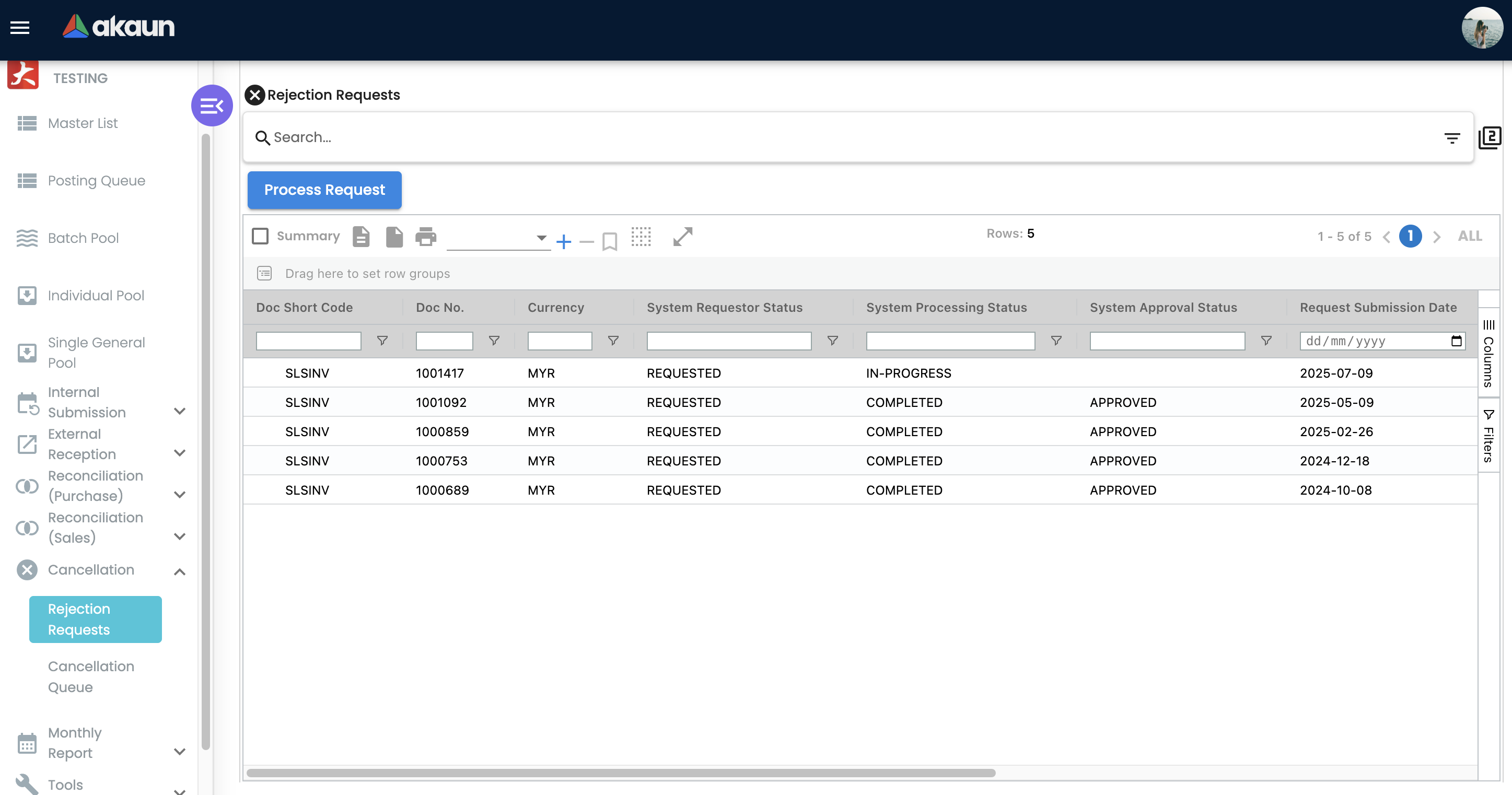
Select the e-invoice and use Request for Rejection. The button lights only on a Valid e-invoice that is still under 72 hours old by your computer’s clock when the record opens — so a lit button is a good sign, not a guarantee: the count that decides comes later, on the server. The request lands in Cancellation → Rejection Requests as requested and in progress, and from here it waits for a person.
A buyer can also start this from the My E-Invoice Portal Applet — a customer who spots the error before you do can raise the rejection themselves. It arrives in exactly the same list and needs exactly the same approval from you.
Step 3: Approve the request and choose what happens to the source document
Outcome: the request is approved with a decision recorded about the sales document behind it.
My E-Invoice Admin Applet → Cancellation → Rejection Requests
This is the step everyone misses.
Open the request, set the approval status to Approved, and choose a processing logic — what BigLedger should do when you process the request. Three of the four cancel the e-invoice at LHDN first and then act on the sales document. The fourth never talks to LHDN at all:
| What you want to happen | Choose | Use it when |
|---|---|---|
| Void the original sales document too | Void original document (VOID_ORIGINAL_DOC) | The sale itself is wrong — wrong amount, wrong customer, order withdrawn — and you will raise a fresh document. This is the only way a sales invoice on an e-invoice-enabled company ever gets voided |
| Cancel and immediately re-issue from the same document | Regenerate new e-invoice (REGEN_NEW_EINVOICE) | The document is right and the e-invoice was built wrong — never on a consolidated e-invoice, see Step 5 |
| Cancel at LHDN only, and fix it yourself afterwards | Cancel for edit and resubmit (CANCEL_FOR_EDIT_AND_RESUBMIT, shown as CANCEL_EINVOICE) | The buyer’s identity or a reference on the e-invoice was wrong and the sale is right — see “After cancel for edit” below. The only choice that works for a consolidated e-invoice |
| Leave the e-invoice standing and raise a reversing document instead | New reversal document (NEW_REVERSAL_DOC) | This one does not cancel anything at LHDN. BigLedger clones the sales document into its reversal type — a sales return for an invoice or cash bill, a credit note for a debit note, a debit note for a credit note, a receipt voucher for a refund note — finalises it, and gives it an e-invoice of its own. The original e-invoice stays Valid. It is the route the screen leaves you once the 72 hours have gone (Step 6) |
Two of these look alike on the screen and are not. Void original document first checks — before anything is sent to LHDN — that the sales document can actually be voided: it must still be Final, and nothing may have been raised from it (a payment matched to it, a return against it). If that check fails you see Can not void the generic document in the Cancellation Queue, and LHDN was never called. Cancel for edit and resubmit skips that check entirely, cancels at LHDN, and leaves the sales document exactly as it was, Final. It never voids anything.
For GadgetSphere’s over-invoiced laptop order the amount is wrong, so cancel for edit and resubmit is the wrong tool: the resubmit step can correct who the e-invoice is addressed to and what it references, never a quantity or an amount. On the cancellation route the logic that fits is void original document — LHDN cancels, the invoice is voided with your reason recorded, and the branch raises a fresh invoice for eight machines, which gets its own e-invoice at Final. (If your group corrects this kind of error by credit note instead, that is Step 6, for RM 2,480, with the original left standing.)
After cancel for edit and resubmit. Open the now-Cancelled e-invoice in Internal Submission → To IRB E-Invoice, correct the buyer’s details or the reference there, and use Save and Resubmit. The button refuses a Valid or Submitted e-invoice and accepts a Cancelled one: it copies the corrected buyer and supplier identity, the original-invoice reference, the submission type and the billing period back onto the sales document, and puts the same e-invoice record back into the submission queue; LHDN issues a new identifier when it validates. Nothing on that screen edits a line — every line field is read-only — and editing the sales document in its own applet does not resubmit anything, because the e-invoice gate fires once, at Final. For a consolidated e-invoice, Save and Resubmit fails with Generic Document Not Found (there is no single document behind it); see Step 5 for what happens instead.
Correcting the buyer here changes who LHDN sees as the buyer, and nothing else. The customer account the invoice was billed to, and the amount it owes you, stay exactly as they were. That separation is deliberate: the buyer on an e-invoice does not have to be the account you billed — a walk-in who paid as a cash customer and wants the e-invoice in their company’s name, say — and this applet is where that buyer is completed or corrected. If the account itself has to change, that is a different job: a return and a fresh invoice under the right customer.
What void original document sets off in your books
Voiding through a cancellation is an ordinary void once LHDN has said yes: the invoice turns Void and the same reversal any void runs starts behind it. On a tenant subscribed to them, that is the journal reversed line for line, the stock it took out put back with the cost of every later movement recalculated, the tax and cashbook entries reversed and membership points taken back; it also drops out of the historical ageing. What a void undoes lists each one and its thirty-second check.
The reversing journal carries the original invoice’s date, not today’s. Most of the time the two fall in the same month. The case to watch is the invoice dated on the last day of the month, validated overnight and voided on the 2nd: its reversal lands in the month you were closing, while the fresh invoice lands in the new one. Tell whoever closes the month before you press Process Request, not after.
Step 4: Send the cancellation to LHDN
Outcome: LHDN has cancelled the e-invoice and the status on your record says so.
My E-Invoice Admin Applet → Cancellation → Rejection Requests → Process Request
With the request approved and a processing logic set, use Process Request. BigLedger builds a cancellation queue row and calls LHDN there and then — inside the same request, not on a schedule, so LHDN’s answer is recorded by the time the screen returns. What follows from it (a void’s reversing entries, a reversal document) runs in the background a moment later.
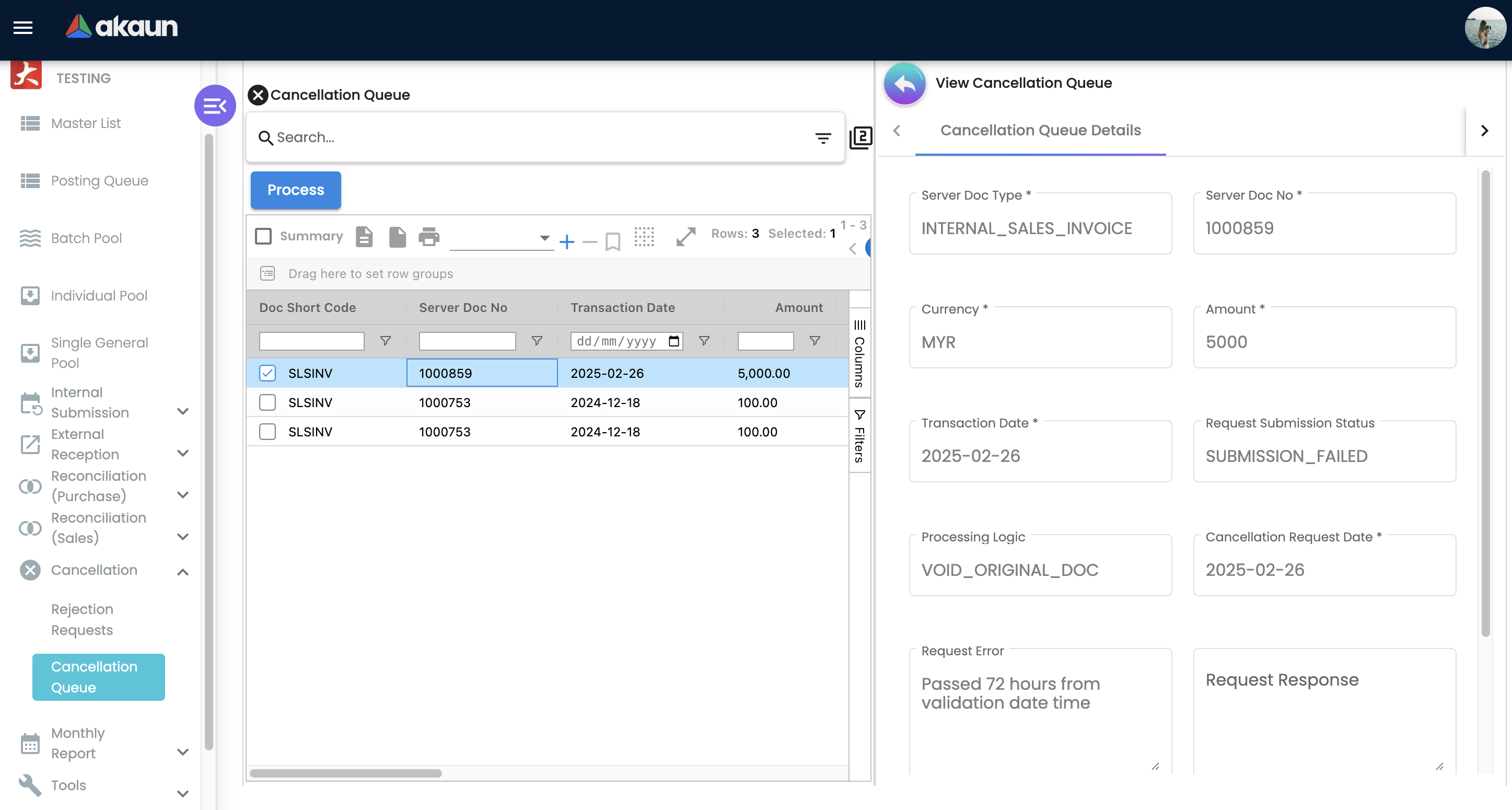
Before it calls LHDN, BigLedger checks three things, and refuses on any of them: the e-invoice must be Valid, it must actually have an LHDN document reference, and fewer than 72 hours must have passed since validation — counted in whole hours, so 71 hours 59 minutes passes and 72 hours 0 minutes does not. If you see “Passed 72 hours from validation date time”, the window closed while the request was waiting for approval — go to Step 6.
What the answer looks like. When LHDN accepts the cancellation, BigLedger immediately asks LHDN for the document again and writes Cancelled and the cancellation time onto the e-invoice record, the Cancellation Queue row disappears, and the request reads completed with cancellation status Cancelled. A queue row you can still see is a row that failed: its Request Error carries either BigLedger’s own refusal or LHDN’s response text verbatim, and the request reads completed with cancellation status FAILED.
Two things follow from “completed”. Process Request will not pick that request up again — it only takes requests that are still in progress. If the failure is one you can fix (the wrong logic on a consolidated e-invoice, say), correct the logic on the request and use Process on the Cancellation Queue row itself; that re-runs the row with whatever the request now says. And do not wait for an e-mail: BigLedger does send one for every outcome, but it goes to the buyer’s e-mail address on the e-invoice, not to you. On a consolidated e-invoice it goes nowhere at all — consolidation fills the buyer’s e-mail with the placeholder NA, the address will not parse, and the send fails quietly after the statuses have already been saved. The Cancellation Queue row is your notification, and on a consolidated e-invoice it is your only one.
Two other parties hear about it, or do not. If your company has the e-invoice lifecycle feed switched on for an integration, every attempt also publishes cancellation events to it (Webhooks) — and accepted in that feed means BigLedger found the request eligible to send, before LHDN has answered; a failure arrives afterwards as an event of its own. Your customer gets at most that “Dear User” e-mail, so telling them what was cancelled, and what replaces it, is yours to do the same day.
What success looks like for this part
Cancellation → Rejection Requests shows your request as completed and approved, and the e-invoice and the sales document behind it are in the state the processing logic you chose leaves them in: for the three logics that cancel, the e-invoice reads Cancelled on Internal Submission → To IRB E-Invoice and no Cancellation Queue row is left for it; for new reversal document, it still reads Valid, with a finalised reversing document beside the sales document. When you are done, run the whole task’s success check.
Common mistakes in this part
| Mistake | What you see | Fix |
|---|---|---|
| Raising the request and waiting | The request sits at requested / in progress for days, then fails on the 72-hour rule | Approve it and choose a processing logic the same day — nothing advances it for you |
| Choosing new reversal document expecting the e-invoice to be cancelled | The original e-invoice still reads Valid, and a finalised sales return or credit note has appeared beside the document | That is what the option does — it never calls LHDN. Inside the window pick one of the other three; past it, this is the only one the screen offers |
| Choosing cancel for edit and resubmit to fix an amount | LHDN cancels, and then nothing on the To IRB screen lets you change a line | The resubmit corrects identity and references only. For a wrong amount use void original document and raise a fresh document, or a credit note for the difference |
| Waiting for the confirmation e-mail | Nothing arrives, or the customer forwards you a “Dear User” e-mail about your own request | The e-mail goes to the buyer’s address on the e-invoice. Read the Cancellation Queue row instead |
| Pressing Process Request again after a failure | Nothing happens | A failed request is already completed. Fix the logic on the request, then use Process on the Cancellation Queue row |
The mistakes that span the whole task are on the front page.
Related documentation
- Cancelling and Correcting a Validated E-Invoice: the whole task, with its success check.
- What a void undoes: every consequence of void original document, and its check.
- My E-Invoice Admin Applet: field-level reference for the Rejection Requests and Cancellation Queue screens.