A supplier sent us an e-invoice. What do we do with it? Incoming supplier e-invoices
“A supplier sent us an e-invoice. What do we do with it?” Check that it carries an LHDN identifier and a QR code, check the buyer, amount, date and tax number against the purchase you booked, file it with that purchase document, and clear the purchase off the matching list — BigLedger pairs a supplier e-invoice for you only when it arrived over PEPPOL, and most do not.
Your suppliers are e-invoicing too, and sooner or later somebody will ask you to prove that every purchase in your books has a validated supplier e-invoice behind it. This guide shows you the screens where incoming documents arrive, how to pair one with your own purchase document, and — just as important — which supplier e-invoices BigLedger will not pair for you, so you can put a manual check in place instead. Budget about twenty minutes to read it and fifteen minutes a month to run the routine at the end.
Incoming supplier e-invoices, at a glance
- See which purchases BigLedger expects a supplier e-invoice for on PD Matching Q., and check the supplier’s tax number when a regular supplier is missing (Step 1).
- See what has actually arrived, and what never will (Step 2).
- Pair a supplier document that did arrive with your purchase document, checking the pair yourself before you press Match (Step 3).
- Check the rest by hand and clear them off the list — for most suppliers, this is the real work (Step 4).
- Self-bill where the supplier will not issue one and LHDN puts the obligation on you (Step 5).
- Read the month-end report for what it can and cannot prove (Step 6).
The routine runs across three pages: Step 1 is on this one, Steps 2 and 3 (what arrives, and pairing it) are on What arrives, and pairing it, and Steps 4 to 6 (the manual check, self-billing and month-end) are on The manual check.
Meet GadgetSphere
GadgetSphere Sdn Bhd buys from around 1,200 suppliers — authorised distributors for the major smartphone and computing brands, accessory wholesalers, a few regional distributors in Singapore and Hong Kong billing in US dollars, plus the rental, utility and marketing suppliers every business has. Around 20 authorised distributors account for the overwhelming majority of the spend, which is what makes the routine below workable: you check the big suppliers properly and spot-check the rest.
What you need to know first
One idea from elsewhere in this section carries over: validation and clearance — what it means for a document to be Valid at LHDN, and why a validated e-invoice carries an LHDN identifier and a QR code. That is the thing you are looking for on your supplier’s document.
Two words are used here in ways that will mislead you if you carry over their meaning from elsewhere:
- A matching queue is not a submission queue. A submission queue holds a document that is on its way to LHDN and will move on its own. A matching queue holds a row that waits for a counterpart to turn up, and if none ever does, it waits forever. That is normal, not a fault.
- Matching here is not three-way matching. Comparing a purchase order, a goods received note and a supplier invoice is a purchasing job and lives in the purchasing guides. Matching in e-invoicing means pairing your purchase document with the supplier’s e-invoice as a tax document.
Before you start
- You can open the My E-Invoice Admin Applet, and its left menu shows both External Reception and Reconciliation (Purchase). If either group is missing, an applet setting is hiding it — ask whoever administers the applet.
- Last month’s purchase invoices are finalised. A purchase document still in draft has not entered any part of the e-invoice pipeline.
- Your supplier records carry a tax number wherever the supplier has one. This decides more than it looks like it should — see Step 1.
Step 1: See which purchases BigLedger expects a supplier e-invoice for
Outcome: you have an exportable list of the purchases that ought to have a validated supplier e-invoice behind them.
My E-Invoice Admin Applet → Reconciliation (Purchase) → PD Matching Q.
When you finalise a purchase document, BigLedger records a row here — but only when all of the following are true. It is worth reading these slowly, because each one is a silent exclusion:
- The company has e-invoicing switched on.
- The document is a purchase invoice, purchase credit note, debit note, refund note or purchase return. A Purchase Invoice No Stock In, the invoice you key against a goods received note that already took the stock in, is a document type of its own and is not on that list.
- The document is not flagged self-billed. (If it is, you are issuing the e-invoice — see Step 5.)
- The supplier has a tax number on their record: the e-invoice tax number (TIN) on the supplier record that every company in your group books against.
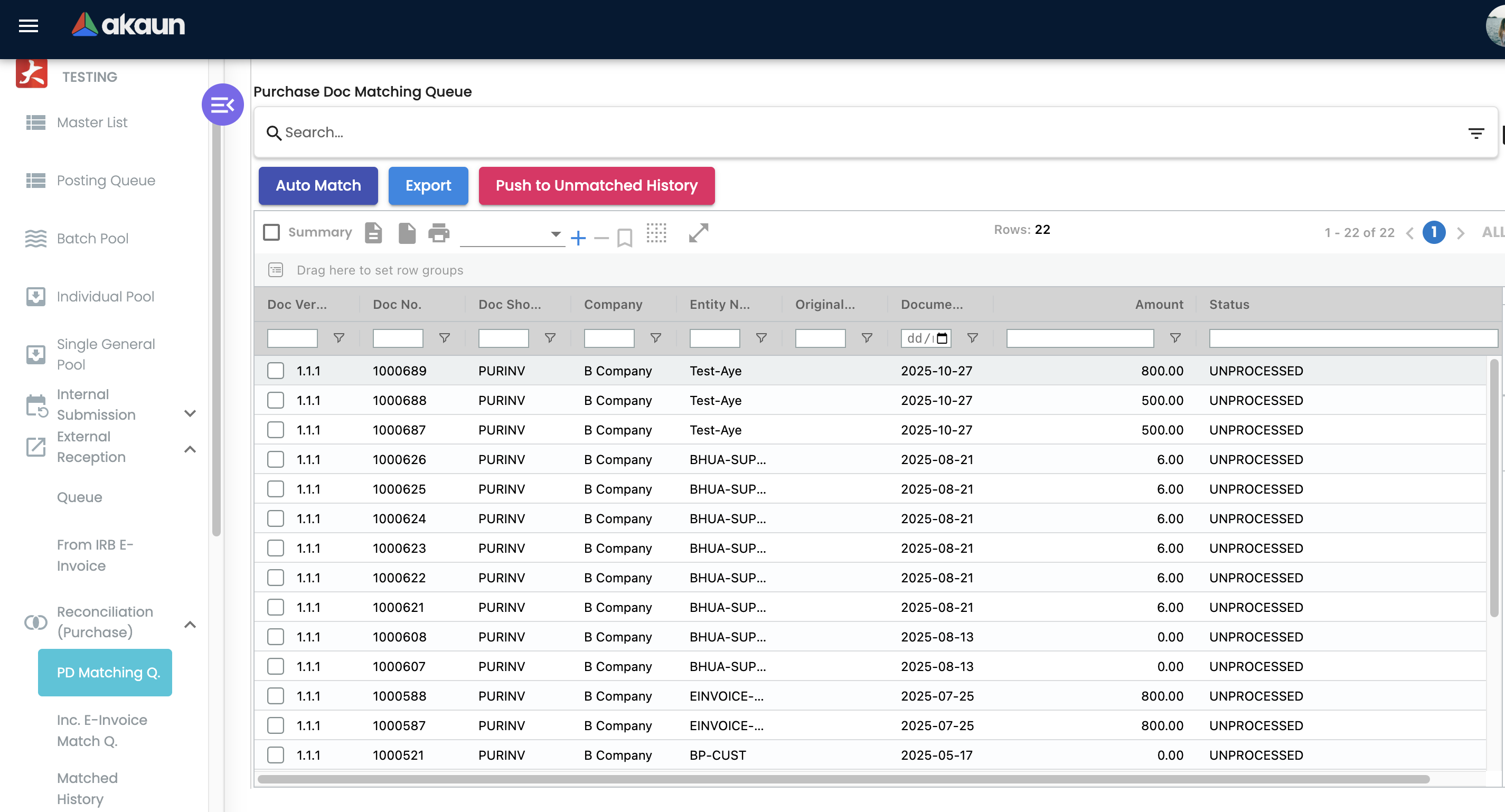
To take the month away as a spreadsheet, use the grid’s own tool panel — the Export button above the grid renders but has no click handler on any reconciliation listing in either e-invoice applet, so pressing it does nothing at all (My E-Invoice Admin Applet).
GS, GSO and GSD alike.Where the row and its figures come from
The row is not written when you save, and not by the Finalise button itself. Finalising starts a chain of background jobs, and one of them writes this row a moment later. That job is switched on for your tenant together with the job that queues your sales e-invoices, so the list depends on the same set-up: if your sales e-invoices are reaching LHDN, this list is being filled too. It tests the four conditions above once, when it runs. If you switch e-invoicing on for GSD in June, or add a missing tax number to a supplier in June, the purchases finalised before that do not appear later. Check those by hand (Step 4).
The columns you see are read each time the screen opens from the document the row belongs to: its number, company, supplier, date and total. For a purchase in another currency, that is not the invoice you keyed. Finalising a US-dollar purchase from your Singapore distributor makes a ringgit copy of it, converted at the document’s rate, and the job that writes this row runs on the copy. So the row shows the ringgit total, not the dollar figure on the distributor’s bill (the same invoice followed through, row 5). Auto Match (Step 3) does not read the screen. It compares a snapshot taken when the row was written: the reference you keyed on the purchase document, its date and its total, which is again the ringgit total. A supplier e-invoice issued in dollars therefore never pairs with it automatically; pair the two by hand in Step 3, or clear the row in Step 4. A purchase finalised through an integration is the exception: that route makes no ringgit copy, so its row carries the dollar total.
Voiding a purchase document does not take its row off this list. The voided purchase stays here, looking exactly like a live one, until you clear it (Step 4).
Next: Steps 2 and 3, what arrives and pairing it.
Step 2: See what has actually arrived
In brief: two screens on the receiving side answer different questions. Inc. E-Invoice Match Q. lists the supplier documents it can pair with your purchases, which in practice means PEPPOL only; From IRB E-Invoice is meant to show what LHDN holds with your company as the buyer, but as installed it asks MyInvois’s sandbox, a tenant created before its clocks existed may not have them, and nothing pairs it with your purchases either. The full step is Step 2 on What arrives, and pairing it.
Step 3: Pair a supplier document with your purchase document
In brief: Auto Match pairs only where every value the incoming row holds agrees exactly, and usually finds nothing; expect to pair PEPPOL documents by hand from the Match Incoming Doc tab. BigLedger checks nothing when you press Match, so compare the supplier’s tax number, the total and the buyer before you press it. The full step is Step 3 on What arrives, and pairing it.
What Matched History records, and what Pushback gives back
In brief: a pair you make with Match lands on Matched History without your purchase document in it, and Pushback to Queues does not put things back as they were. Treat Match as final. See the full section.
Step 4: Check the rest by hand — and clear them off the list
In brief: for each purchase you review, check the supplier’s document for an LHDN identifier and QR code, the buyer, the amount, the date and the supplier’s tax number; file it with the purchase document; then clear the row with Push to Unmatched History. This is the step that does the real work. The full step is Step 4 on The manual check.
Step 5: When the supplier will not issue one
In brief: for certain transactions LHDN puts the obligation on the buyer, and in BigLedger those are purchase documents flagged as self-billed, which go out through the same submission pipeline as your sales e-invoices, unless they are also marked Skip E-Invoice. Which transactions you must self-bill is LHDN’s rule, not BigLedger’s. The full step is Step 5 on The manual check.
Step 6: Know what month-end can and cannot prove
In brief: on the Discrepancies Report, From E-commerce (self billed) and From Supplier (Matched) always read zero, and your suppliers’ e-invoices are not counted anywhere on the report; you cannot reject a supplier’s e-invoice from BigLedger either. The full step is Step 6 on The manual check.
What success looks like
Thirty seconds, at the end of a month:
- Reconciliation (Purchase) → PD Matching Q. holds only the purchases you have not yet reviewed — everything you have checked has been pushed to Unmatched PD Hist. or matched.
- Every supplier you expected to see is on that list, and any that is missing turned out to be missing a tax number rather than missing an e-invoice.
- For every purchase above your own review threshold, the supplier’s validated e-invoice — the one with the LHDN identifier and QR code — is filed with the purchase document, and every pair you made with Match has the purchase document number written on it.
Common mistakes
| Mistake | What you see | What to do instead |
|---|---|---|
Treating UNPROCESSED as a backlog you caused | A list that only grows | It is the normal state of a row waiting for a counterpart. Work the list and clear each row with Push to Unmatched History |
| Assuming a missing supplier is not e-invoicing | A regular distributor never appears in PD Matching Q. | Check the tax number on the supplier record first — without one, no row is ever created. Then check how the purchases were booked: a Purchase Invoice No Stock In never gets a row either (Step 1) |
The mistakes that belong to one part are on that part’s page: waiting for From IRB E-Invoice to fill up, pressing Auto Match repeatedly, and pressing Match then Pushback to Queues to undo it are with Steps 2 and 3; chasing the zero in From Supplier (Matched) is with Steps 4 to 6.
Related documentation
- The Month-End E-Invoice Cycle — the reconciliation Step 6 feeds into
- Cancelling & Correcting an E-Invoice — the outgoing side of the same rejection blind spot
- My E-Invoice Admin Applet — every screen named above, field by field
- Purchase Invoice Applet — where a purchase document, self-billed or not, is created
- Supplier Applet — the tax number and identity fields that decide whether a purchase reaches the matching queue
- Purchasing guides — three-way matching of orders, goods received notes and invoices, which is a different job entirely