Month-end e-invoicing: work the Invalid list and reconcile with LHDN
Steps 4 to 7 of the month-end e-invoice cycle: pull the export that shows LHDN’s live verdict, work the Invalid list, chase what is still queued, and reconcile. It follows Steps 2 and 3. Two of these steps cannot wait: work the Invalid list before the consolidation run fires for last month (Step 5 says why), and start on the 1st, not the 6th, because the queue sends one document at a time. GadgetSphere’s month includes 112 invoices of RM 10,000 or more, and each of those goes to LHDN on its own.
- Step 4: pull the export that shows live status.
- Step 5: work the Invalid list.
- Step 6: chase anything still IN_QUEUE the next morning.
- Step 7: reconcile, and understand the five reasons a tally does not balance.
Step 4: Pull the export that shows live status
Outcome: you have one spreadsheet of last month’s e-invoices with LHDN’s current verdict on each.
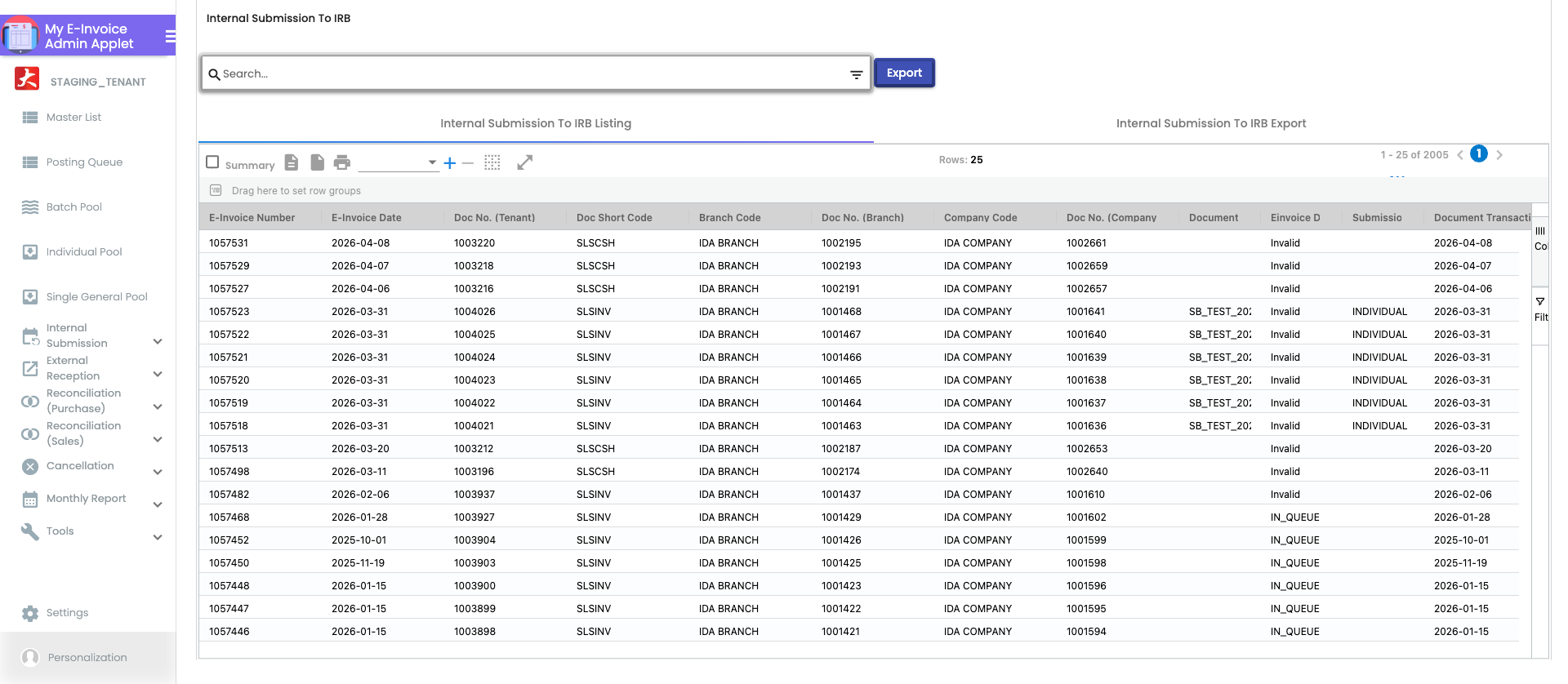
My E-Invoice Admin Applet → Internal Submission → To IRB E-Invoice → Export
This is the screen and the export to work from. Each row is one e-invoice, with a status you can act on:
| Status | What it means | What to do |
|---|---|---|
| Valid | LHDN accepted and validated it | Nothing |
| Invalid | LHDN accepted the submission and then rejected the content | Fix and resubmit — Step 5 |
| Submitted | At LHDN, validation still in progress | Wait; it usually settles within minutes |
| IN_QUEUE | Still with BigLedger, not yet sent | Wait, then read Step 6 |
Also open Monthly Report → Discrepancies Report and create the report for last month. It compares your finalised documents against your e-invoice records per company and period, and it is the only self-service reconciliation tool in the applet. You will use it in Step 5.
Step 5: Work the Invalid list
Outcome: every Invalid row from last month is either Valid or has a known, owned reason for not being.
Nothing fixes these for you, and since 13 October 2026 something does take them. Once the consolidation run fires for the month, an Invalid row under RM 10,000 that you have left alone is swept into the consolidated e-invoice under the General Public buyer, and its row leaves this list. That is fine for a walk-in. For a business customer who asked for an e-invoice of their own it is the wrong result, because their purchase is then reported without their name, and the run does not check the submission type the document carried. So work this list before the run fires for last month: fix and resubmit every row whose buyer needs their own e-invoice, and let the rest go into the consolidated one on purpose. An Invalid row of RM 10,000 or more is never swept; it stays here, unreported, until somebody fixes it.
My E-Invoice Admin Applet → Internal Submission → To IRB E-Invoice
The loop is the same for each row, and it is quick once you have the rhythm:
- Sort the export on status and take the Invalid rows.
- Read the rejection reason on the row. Most of them will be the buyer’s identity — a foreign customer keyed as Malaysian, a national identity number stored with hyphens, or a company registration number typed into the wrong field. Validation Rules & Troubleshooting has the full list with fixes.
- Look the correct tax number up on the MyInvois portal.
- Correct it on the customer record in the Customer Applet, so the next sale to that customer is right too.
- Back on the To IRB E-Invoice row, use Save and Resubmit.
If a row keeps failing on a field you can see is correct on the customer record, the document is carrying its own copy of the buyer’s details and the customer record is never being read — fix it on the document’s own e-invoice block instead. Which record does BigLedger actually send? has the rule.
If dozens of customers have a missing or wrong tax number, Tools → Bulk TIN Validation will not correct them for you. Its CSV carries name, e-mail, phone and customer code, and no tax numbers. Each row starts a request that e-mails the matched customer a link to fix their own details. Only the customer’s answer changes the record, and it may come after your month-end, or never. Correct urgent rows yourself on the customer record or on the document’s e-invoice block. Read what the upload actually starts before you upload: one row can match several records.
One trap before you cancel anything. If two rows in the listing show the same document number, that is very often not a duplicate: sales invoices and self-billed purchase invoices draw their numbers from two independent sequences that both start at the same value, and the listing does not show which direction a document went. Check the document type first. Cancelling a genuine e-invoice because a report looked odd is unrecoverable once its 72 hours are up — see Cancelling and Correcting an E-Invoice.
Step 6: Chase anything still IN_QUEUE the next morning
Outcome: you know whether a queued row is simply waiting its turn or has quietly failed.
My E-Invoice Admin Applet → Internal Submission → Individual Submission
Submission is a background queue. BigLedger sends one document per call to LHDN, serially — there is no burst mode — and each pass of the submitter sends at most 49 documents before it stops until its next turn. So a big month-end batch is measured in hours, not minutes. Measured across every BigLedger customer from August 2026, the busiest single hour anywhere carried about 1,900 submissions, and even the busiest days averaged no more than about 640 an hour. Plan on a few hundred documents an hour and start on the 1st, not the 6th.
That said, waiting is not the same as retrying:
Step 7: Reconcile, and understand the five reasons a tally does not balance
Outcome: for each sales document type, what you invoiced last month equals what reached LHDN.
My E-Invoice Admin Applet → Monthly Report → Discrepancies Report
Compare, per document type and per month, the sales you finalised against the e-invoice records BigLedger holds for them. A document counts as reconciled here as soon as an e-invoice record exists for it — including one still sitting in the consolidated queue, which LHDN has not seen yet — so a balanced report is not by itself proof that the month reached LHDN. Internal Submission → To IRB E-Invoice is the screen that tells you that. When the two sides do not match, work through these five in order — this is the order support checks them, cheapest first:
- Documents still in the Individual Pool. Step 1 missed some, or new ones arrived after you worked the list.
- Batch Pool rows marked processed but failed. The trap from Step 2. They are not waiting for the consolidation; they are stranded.
- Documents in the Single General Pool. Same shape as the Individual Pool, different routing — check it separately, it is easy to forget.
- Documents that never entered the pipeline at all. A document finalised while the company’s e-invoice setting was still switched off is dropped silently — no pool row, no queue row, no error. This is why the enable-then-finalise order matters so much during onboarding. If you find these, raise a support request with the document numbers; they have to be pushed in by hand.
- Sales that fell through — and sales voided after submission. A finalised sale that did not happen, such as an order keyed twice or a customer who walked away before paying, is still FINAL, so the Discrepancies Report counts it as missing until the sale itself is corrected. Skip E-Invoice does not correct it. Skipping stops the e-invoice and nothing else: no journal, stock or receivable job reads the flag, so the revenue, the stock movement and the amount owed all stay in your books for a sale that never happened. Correct the books through the document instead. A cash bill can be voided before its e-invoice goes out: the void reverses what finalising posted and removes the bill from the submission queue, but it leaves the bill’s Batch Pool row where it is. The by-document consolidation run reads final documents only and passes over it; the by-branch run reads the Batch Pool row alone. So if your company consolidates by branch, use Skip E-Invoice on that row after the void. That is what skipping is for: a document that must not be e-invoiced, once the books are already right. A sales invoice cannot be voided at all while e-invoicing is on (nor can a return, credit note, debit note or refund note). Once its e-invoice is Valid, the route is a cancellation request with void original document inside 72 hours, or a credit note after that, with a sales return as well if goods came back (Cancelling & Correcting an E-Invoice). For an invoice LHDN has never seen, for example one still waiting in the Individual Pool, BigLedger offers no void, and we have not established which correcting document is right. Take it to whoever owns the books before the run. A sale voided after its e-invoice went out is the mirror image: it drops off the report’s ERP side, which counts FINAL documents only, while its e-invoice stays on the LHDN side, so the two summaries disagree by that amount until it is cancelled or credited. A cash bill can still be voided at that point, and LHDN keeps its e-invoice. Treat a void after submission as a cancellation job.
What success looks like for this part
Internal Submission → To IRB E-Invoice, filtered to last month, shows no Invalid rows, and nothing still waiting to be sent: no IN_QUEUE rows, and no consolidated e-invoice still sitting in the consolidated queue; and the Discrepancies Report for the month matches, document count and totals, per document type. Then run the whole cycle’s success check, which starts with the pools.
Common mistakes in this part
| Mistake | What you see | Fix |
|---|---|---|
| Treating a repeated document number as a duplicate | Two rows, same number, and an urge to cancel one | Check the document type — a sales invoice and a self-billed purchase invoice can share a number legitimately |
| Starting on the 6th | Thousands of rows still IN_QUEUE with hours of submission left and no time to fix rejections | Start on the 1st; the queue sends one document at a time |
| Marking a sale that fell through Skip E-Invoice and stopping there | The pool row goes and no e-invoice is ever sent, but your sales, stock and receivables still include a sale that never happened, and the Discrepancies Report still lists it as missing | Correct the sale itself: void a cash bill before its e-invoice goes out; for a sales invoice, void original document on a cancellation request inside 72 hours or a credit note after. An invoice LHDN has never seen goes to whoever owns the books |
| Voiding a sale after its e-invoice went out and stopping there | A Valid e-invoice at LHDN with no sale behind it, and the two sides of the Discrepancies Report disagree by that amount | Cancel it inside 72 hours or credit-note it after — Cancelling & Correcting an E-Invoice |
The mistakes that span the whole cycle are on the front page.
Related documentation
- The Month-End E-Invoice Cycle: the whole cycle, with its success check.
- Validation Rules & Troubleshooting: the rejection reasons you will meet in Step 5, and how to fix each one.
- Cancelling & Correcting an E-Invoice: the 72-hour window, and the credit-note path after it closes.
- My E-Invoice Admin Applet: field-level reference for every screen used here.