LHDN rejected it. Where do I find out why? E-invoice validation rules & troubleshooting
Watch this as a presentation — 1 on this page, slides with narration.
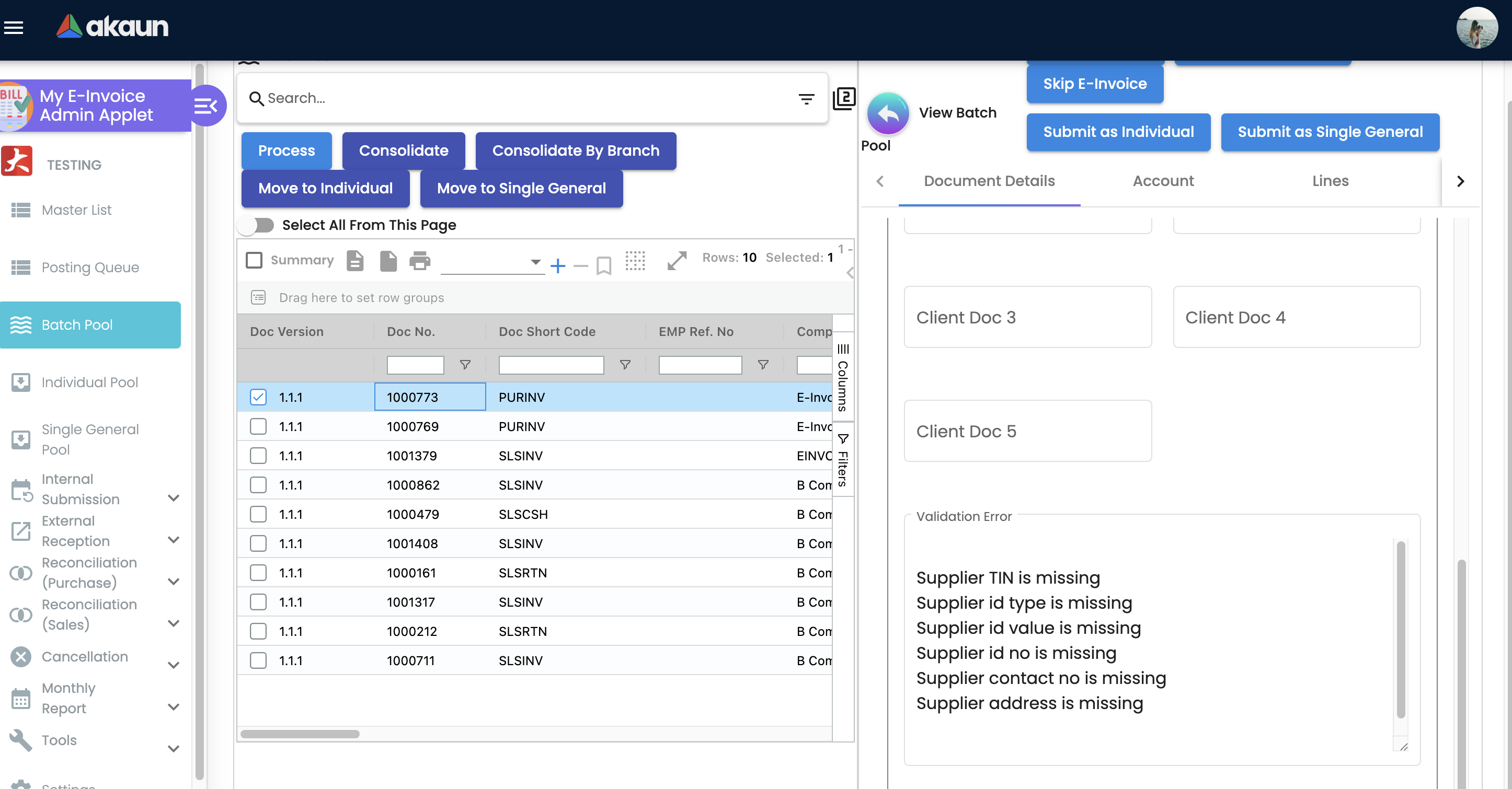
“LHDN rejected it — where do I find out why?” On the e-invoice record itself: open it in My E-Invoice Admin > Internal Submission > To IRB E-Invoice, and its Validation Error Table lists what LHDN returned — the field, the error code and the message in English and Malay. If the document is waiting in a pool instead, LHDN never saw it, and the pool’s Validation Error panel names the missing fields.
E-invoice validation fails in one of two ways, and telling them apart is most of the battle. By the end of this page you will be able to read any rejection, know which of your records to fix, and get the document through. Most rejections come down to a single field group. It is written for whoever owns the rejected and pooled e-invoices in My E-Invoice Admin.
This guide runs across four pages, in this order. The first is this one:
- Tell the two kinds of failure apart, and work the fix loop — this page.
- What BigLedger and LHDN check — the buyer’s identity, the mandatory fields BigLedger checks before anything is sent, and the General TINs.
- Which record and which address BigLedger sends — before you correct a customer record, and when the buyer is not the customer you billed.
- Common errors and their fixes — foreign currency, General TIN misuse, credit-note references, duplicates and backdated documents.
Meet GadgetSphere
GadgetSphere Sdn Bhd sells across 22 branches, so its customer list runs from walk-in shoppers who give nothing but a phone number, through corporate buyers with a registration number, to tourists paying with a passport. Nearly every rejection GadgetSphere sees comes from that mix being keyed inconsistently at the counter — and the examples below are the ones its finance team works every month.
The two kinds of failure
An e-invoice passes two checks, not one — BigLedger’s own completeness check first, LHDN’s content check second. Both produce the same complaint from a distance, “my e-invoice isn’t at LHDN”, and they need completely different fixes. So check the status before you touch anything:
- Held in a pool — a mandatory field was missing, so the document was never sent. Nothing reached LHDN and nothing will until you complete it. Pools & Submission Routing says which pool and why.
- Submitted, then marked Invalid — everything mandatory was there, LHDN accepted the submission and rejected the content. There is an LHDN error code on the record, and that code is what tells you which of your records to correct.
The fix loop
Whatever the error, the recovery is the same four moves:
- Find the document. In a pool (never submitted) or in Internal Submission → To IRB E-Invoice (submitted and Invalid). The LHDN error code and message are shown on the record.
- Fix the record, then the source. On a record LHDN marked Invalid, correct the buyer on the record’s own Account tab: Save and Resubmit sends the buyer that record already holds and never reads the customer again.
- Before you correct a customer record at all, check that the e-invoice was built from it: buyer details typed onto the sales document win over the customer record, and a block with even one field filled wins whole (Which record does BigLedger actually send?).
- Then correct the customer record as well, or the same error is waiting for the next sale. Type a tax number by hand; never paste it.
- For a document still in a pool, the pool row’s Account tab is read when it holds any buyer field, and the customer record otherwise.
- Currency and lines belong on the sales document.
- Save and Resubmit.
- Watch it to Valid. Not to “Submitted” — that only means LHDN is still deciding.
Get the buyer’s identity right — this is where most rejections come from
Every e-invoice carries, for both parties, a tax identification number (TIN) plus an identity document type and its value: a business registration number for a company, a passport for an individual who is not Malaysian, and a national identity number only for a Malaysian individual, as 12 digits with no dashes — typed, never pasted. The three shapes of mistake behind most refusals, the invisible character a paste brings along, and the two error codes CF324 and CF358 are on What BigLedger and LHDN check.
Mandatory fields
If address line 1, city or state is missing, the document is not submitted at all — it goes to a pool for you to complete. The full lists are on What BigLedger and LHDN check.
Document header
The supplier, the buyer, the document and its amounts each have fields every e-invoice needs, and a contact number must be 8–20 characters: the list.
Line items
Only the item name has to be on a line — the classification, price, tax type and tax amount are filled in before anything checks — and classification code 004 is reserved for consolidated e-invoices: the line rules.
Addresses
Both the supplier and the buyer address need an address line 1, a city and a state, and the postcode is never checked against any list on the way to LHDN: the address rules.
Which record does BigLedger actually send?
Details typed onto the sales or purchase document win over the customer or supplier record, and an on-document block with even one field filled wins whole. Before you correct a customer record, make sure the e-invoice was built from it: Which record and which address BigLedger sends.
Which address
From the customer record, BigLedger sends the first address flagged as the e-invoice address, looking in this order: shipping, then billing, then main; an address typed onto the document is used exactly as entered. Flag exactly one: Which address.
Another buyer, or another address, on one sales invoice
The buyer on an e-invoice does not have to be the customer you billed, and the E-Invoice tab of a sales invoice has a button for this — which button depends on one switch: the two buttons, and what to check before you rely on them.
Malaysian state codes
LHDN wants the state as a numeric code. A state BigLedger cannot match goes out empty, and LHDN rejects the submission with the state-code error CV317 (two exceptions, NA and the General Public party of a consolidated e-invoice, are on that page): the codes, and the abbreviations that resolve on their own.
General TINs — when you don’t have the buyer’s TIN
LHDN publishes four General TINs for cases where a real one is not available. EI00000000010 on an individual e-invoice needs identity type NRIC and a valid 12-digit national identity number, and with a passport BigLedger never substitutes it and consolidation does not give the buyer an e-invoice of their own; the foreign-buyer TIN EI00000000020, if used, is keyed by hand: the four, and the rules that trip people up.
Common validation errors and fixes
Five validation and reporting problems, each with its symptom, cause and fix, are on Common errors and their fixes.
1. Wrong currency setup on foreign-currency invoices
On a foreign-currency document the base currency must be MYR; with both set to the foreign currency LHDN rejects it (DC511). A foreign-currency sale leaves two documents, and which one is reported is a per-company setting with no control on any screen: error 1.
2. General TIN misuse
One of the General TIN rules was broken — most often EI00000000010 with an identity type other than NRIC — or a line carries classification 004: error 2.
3. Credit or debit note references an original that is no longer valid
DR303 means the referenced e-invoice’s status is not one that can be referenced — often an original that was resubmitted under a new LHDN reference — and DR308 that the note names a different buyer from it: error 3.
4. The same sale looks like it is at LHDN twice
Work out whether the duplicate is real or apparent before you act: acting on an apparent one destroys valid e-invoices, and only a pair where both read Valid is a real duplicate: error 4.
5. Backdated documents rejected for their issue date
BigLedger writes the issue date and time itself, as the clock time when it builds the submission; on documents from an external integration, check that the integration is not overriding it with the transaction date: error 5.
What success looks like
Thirty seconds, one screen. Open My E-Invoice Admin Applet → Internal Submission → To IRB E-Invoice, filter to the document you just fixed, and check that:
- Its status reads Valid — not Submitted, not IN_QUEUE, not Invalid.
- The customer record you corrected now shows the right identity type and a clean tax number, so the next sale to that customer submits first time.
Common mistakes
| Mistake | What you see | Fix |
|---|---|---|
| Fixing the customer record but not the e-invoice record | Save and Resubmit comes back Invalid with the same error | Correct the buyer on the record’s Account tab in My E-Invoice Admin, then Save and Resubmit — the record sends its own copy of the buyer |
| Fixing the e-invoice record but not the customer record | The same rejection returns on that customer’s next sale | Correct identity, tax number and address in the Customer Applet too |
| Pasting a tax number from a browser or PDF | A field that looks perfect and is rejected every time | Delete the field and retype the digits by hand |
| Keying a foreign customer as NRIC | CF324 — invalid national identity number | Identity type Passport for an individual who is not Malaysian; a foreign company still takes its business registration number |
| Storing a national identity number with dashes | CF324 again, on a number that looks correct | 12 digits, no separators |
| Cancelling on the strength of repeated document numbers | Valid e-invoices destroyed for no reason | Check the document type first — sales and self-billed purchase numbers can collide |