E-Invoice Validation: Five Common Errors and Their Fixes
Part 4 of LHDN rejected it — e-invoice validation rules and troubleshooting: five validation and reporting problems, each with its symptom, its cause and its fix. It follows Which record and which address BigLedger sends; each says its own recovery, and where that is a correction it is the fix loop on the first page.
Two cautions before you act on any of them. Save and Resubmit stops working once LHDN says Valid: from then on you have 72 hours from the validation time recorded on the e-invoice to cancel it, and after that only a credit note will do. And check the document type before cancelling anything that looks like a duplicate (error 4).
- Wrong currency setup on foreign-currency invoices
- General TIN misuse
- Credit or debit note references an original that is no longer valid
- The same sale looks like it is at LHDN twice
- Backdated documents rejected for their issue date
Common validation errors and fixes
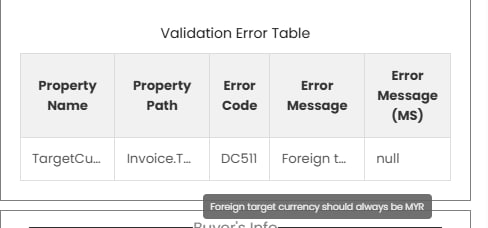
1. Wrong currency setup on foreign-currency invoices
Symptom: A US dollar (or other foreign-currency) invoice is rejected with a currency error.
Cause: On a foreign-currency document the document currency should be the foreign currency and the base currency must be MYR. The error appears when both are set to the foreign currency.
Fix: Correct the base currency to MYR on the source document, then reprocess the e-invoice.
The part that is not on the screen. A foreign-currency sale leaves two documents behind in BigLedger — the ringgit one and the foreign-currency one — and only one of them is reported to LHDN. Which one is a setting held per company, and the default is the foreign-currency document, so your e-invoice shows USD with the exchange rate against it rather than the ringgit equivalent. There is no control for this on any screen; if your accountant needs e-invoices filed in ringgit instead, that is a request to BigLedger support, and it is worth settling before your first foreign-currency month rather than after. Either way, check one submitted foreign-currency e-invoice early and confirm the currency on it is the one you expected — nothing warns you that you are on the other setting. Read its exchange rate while you are there. On the default setting the e-invoice carries the document’s stored rate, the figure in the 1 MYR = … USD box (about 0.23 for US dollars), in the place LHDN reads as ringgit per dollar, so a validated e-invoice shows the rate upside down — a known defect BigLedger is tracking. Do not re-key the rate on the document to make the e-invoice look right: your ringgit amounts are worked out by dividing by that same figure. The Forex applet’s troubleshooting has the check and who to ask.
Example: GadgetSphere invoices a Singapore distributor USD 4,800. Keyed with document currency USD, base currency MYR and the exchange rate recorded, it submits cleanly. Keyed with base currency USD by mistake, LHDN rejects it with error DC511.
2. General TIN misuse
Symptom: LHDN marks the document Invalid with a TIN-related message such as “Only General TIN (010)…”, shown against the buyer TIN field in the validation error panel.
Cause and fix: one of the six rules in General TINs was broken — most often EI00000000010 used with an identity type other than NRIC, or with an invalid national identity number. Correct the buyer’s TIN and identity combination and use Save and Resubmit.
Watch for the second half of this one: even with a correct buyer TIN, a line carrying classification 004 makes an individual e-invoice Invalid, because 004 means “consolidated”. Fix the classification on the line as well.
3. Credit or debit note references an original that is no longer valid
Symptom: A credit note, debit note, refund note or sales return is rejected even though its own data looks correct.
Cause: These documents reference the original e-invoice. If the original was first rejected as Invalid and then resubmitted successfully, it received a new LHDN reference — and your note may still be pointing at the dead one.
There are two error codes here, and they mean different things:
DR303— the referenced e-invoice’s status is not one that can be referenced.DR308— the buyer on your note is not the same buyer as on the referenced e-invoice. Getting the reference number right is not enough; the identity has to match too.
Fix: either update the note’s reference to the currently valid e-invoice and Save and Resubmit, or clear both reference fields and submit the note without a reference. Full walkthrough in Cancelling and Correcting a Validated E-Invoice.
4. The same sale looks like it is at LHDN twice
Before you act on this, work out whether the duplicate is real or apparent. Acting on an apparent one destroys valid e-invoices.
Apparent duplicate — the same number, two different documents. Sales invoices and self-billed purchase invoices draw their document numbers from two independent sequences that both start at the same value, so the same number legitimately exists twice: once on a sale, once on a purchase. The submission listing does not show which direction a document went, so the two rows look like one document submitted twice.
Real duplicate — one sale inside two Valid e-invoices. This does happen: for example, a receipt submitted individually while a copy of it was still waiting in the Batch Pool, so the monthly consolidation reported it a second time; or a manual push to the Batch Pool performed twice. LHDN’s records then overstate your sales.
How you find it: by reconciling, not by reading Submission History. See The Month-End E-Invoice Cycle.
The test that separates a real duplicate from the ordinary case. When you do find one sale attached to two e-invoices, look at the status of both before you do anything. If one of them reads Invalid, this is not a duplicate at all — it is the ordinary shape of a rejection that was fixed and resubmitted, and LHDN counts only the valid one. Only a pair where both read Valid is a real duplicate, and only that pair needs cancelling or crediting. Cancelling on the strength of “there are two rows” is how a correct month gets broken.
How you fix it: inside 72 hours of validation, cancel the e-invoice that carries the duplicate and re-report the legitimate documents. Past 72 hours, issue a credit note for the duplicated amount and involve your accountant — usually your ledger is right and only the LHDN reporting is overstated. Both routes are in Cancelling and Correcting a Validated E-Invoice.
5. Backdated documents rejected for their issue date
Symptom: A document dated in the past is rejected because of its date and time.
Cause: LHDN requires the e-invoice issue date-time to be the actual submission time, not the original transaction date. The transaction date is preserved separately on the document, so you lose nothing.
Fix: nothing to do by hand — BigLedger writes the issue date and time itself when it builds the submission, as the clock time at that moment (in UTC), and never copies the transaction date into it. If you see this on documents from an external integration, check that the integration is not overriding the issue date-time with the historical transaction date. To consolidate backdated B2C receipts from earlier months, see Pools & Submission Routing.
What success looks like for this part
It depends on the problem you worked. A document you corrected reads Valid; your first foreign-currency e-invoice shows the currency you expected; a credit or debit note references the e-invoice that is currently Valid, or carries no reference; for a real duplicate, the legitimate e-invoice still reads Valid and the duplicate is cancelled or credited; and for an apparent one, nothing was cancelled. When you are done, run the whole page’s success check.
Common mistakes in this part
Cancelling on the strength of repeated document numbers is in the table of common mistakes on the first page; error 4 above is how you avoid it.