Tidy the master data and send your first e-invoice to LHDN
Steps 5 to 8 of the MyInvois setup guide: clean up the records that decide whether a document is accepted, check the background jobs, and prove the chain on one real sale. It follows Steps 2 to 4, and those must be finished for the company first: a sale finalised before e-invoicing is switched on is not picked up later and has to be found and pushed in by hand, and one sent while LHDN Environment is blank goes to the sandbox wherever a test-side configuration exists for the company. For GadgetSphere the long part is here, in its ~85,000 customer records.
- Step 5: clean up your customer and supplier records.
- Step 6: set the codes on your items.
- Step 7: confirm the background plumbing is switched on.
- Step 8: send one document end to end.
Step 5: Clean up your customer and supplier records
Outcome: documents flow straight through instead of piling up in pools.
Customer Applet / Supplier Applet → each record → E-Invoice details
This is the long part, and it is worth every hour. Each counterparty needs:
- Tax number
- Identity document type — business registration number for a company, Malaysian or foreign; passport for an individual who is not Malaysian; national identity number (NRIC) only for a Malaysian individual. The passport rule is about people, not about foreignness
- Identity value — and if it is a national identity number, 12 digits with no dashes
- An address flagged as the e-invoice address, complete with line 1, city and state
- Contact number and e-mail
The passport and 12-digit rules are LHDN’s, and LHDN applies them after BigLedger has sent the document, so a mistake here comes back as an Invalid e-invoice rather than as a pool reason.
One thing to know before you start correcting records later: a document can carry its own copy of the buyer’s e-invoice details, typed straight onto it, and when it does the customer record is not read at all. See Which record does BigLedger actually send? — it explains the one rejection that otherwise makes no sense.
You do not need every walk-in customer to be perfect — counter sales without buyer details are reported through consolidated e-invoices instead (see Pools & Submission Routing). Since 8 October 2026 a sale sent as Single General is no longer held for missing buyer details either; its supplier, document and line details are still checked. What you do need is every customer who buys RM 10,000 or more at a time, because those sales cannot be consolidated and will sit in a pool until somebody chases the details.
Step 6: Set the codes on your items
Outcome: lines are accepted instead of being rejected on their codes.
Doc Item Maintenance / Tax Configuration Applet
Each item needs an item classification code from LHDN’s list, an e-invoice unit of measure, and a tax type. BigLedger fills in two defaults where you leave them blank — classification 022 Others and unit H87 piece — but a wrong classification or unit that you have entered is sent exactly as entered. The tax type is different: BigLedger works it out again from the line’s tax amount at the time of submission, so a line with no tax always goes as Not Applicable, and a taxed line goes as Sales Tax unless you have set one of the other taxable types.
Step 7: Confirm the background plumbing is switched on
Outcome: you know the pipeline behind the screens is running for your tenant.
E-invoicing runs on a set of background jobs — the one that picks up finalised documents, the one that submits to LHDN, the one that polls for the validation result, the one that refreshes your authorisation token, and the one that consolidates each month. This is normally done for you: BigLedger installs a set of default clocks when your tenant is created, all switched on, so there is usually nothing for you to configure. A clock added to that set after your tenant was created, or one somebody switched off, is the exception, which is why this step is a check rather than a task.
Each job can be in one of four states, and only the last one matters to you:
| Job | Shipped and registered | Scheduled by default | Working |
|---|---|---|---|
| Picks up a finalised document | Yes | Not a clock: it runs on finalise, as a subscription | A row on the Posting Queue |
| Turns it into an e-invoice record, queues it, sends it | Yes | Three clocks, each every 10 minutes | The record moves from IN_QUEUE to Submitted |
| Polls LHDN for the result | Yes | Every 10 minutes | Submitted becomes Valid or Invalid |
| Refreshes the authorisation token | Yes | Every 20 minutes | Submissions are not refused for authorisation |
| Consolidates and sends the month’s walk-in sales | Yes | Every 20 and 30 minutes | A consolidated e-invoice after the month ends |
The Scheduler applet shows the clocks your tenant actually has, with their timetables. Two cautions from that page: a clock’s Last Run Date says it fired, not that the job worked, and a clock you deleted does not come back by itself.
What matters to you is knowing the symptom if one is missing: documents stop at one stage and never move on, with no error anywhere. If you see that — everything sitting in the posting queue, or everything Submitted and never becoming Valid — say exactly that to support. It is a much faster diagnosis than “e-invoicing is broken”.
Step 8: Send one document end to end
Outcome: proof, on a real sale, that the whole chain works.
Your sales applet → finalise one invoice, then My E-Invoice Admin Applet → Internal Submission → To IRB E-Invoice
Pick one straightforward sale — a named customer whose record you completed in Step 5, an ordinary amount, no foreign currency — and finalise it. Then watch it:
- It appears in the Posting Queue — the holding area every finalised document passes through before BigLedger decides where it goes. It should not stay there long.
- It becomes an e-invoice on Internal Submission → To IRB E-Invoice with status IN_QUEUE, then Submitted.
- It becomes Valid, with an LHDN reference and a QR code on the printable version.
How long to wait. Each of those steps waits for its own clock. On BigLedger’s default timetable that is three or four ten-minute clocks in a row, so allow up to about forty minutes before you worry, and longer if your tenant’s timetable differs. BigLedger sends one document at a time, up to 49 in a run, so anything already queued ahead of it goes first.
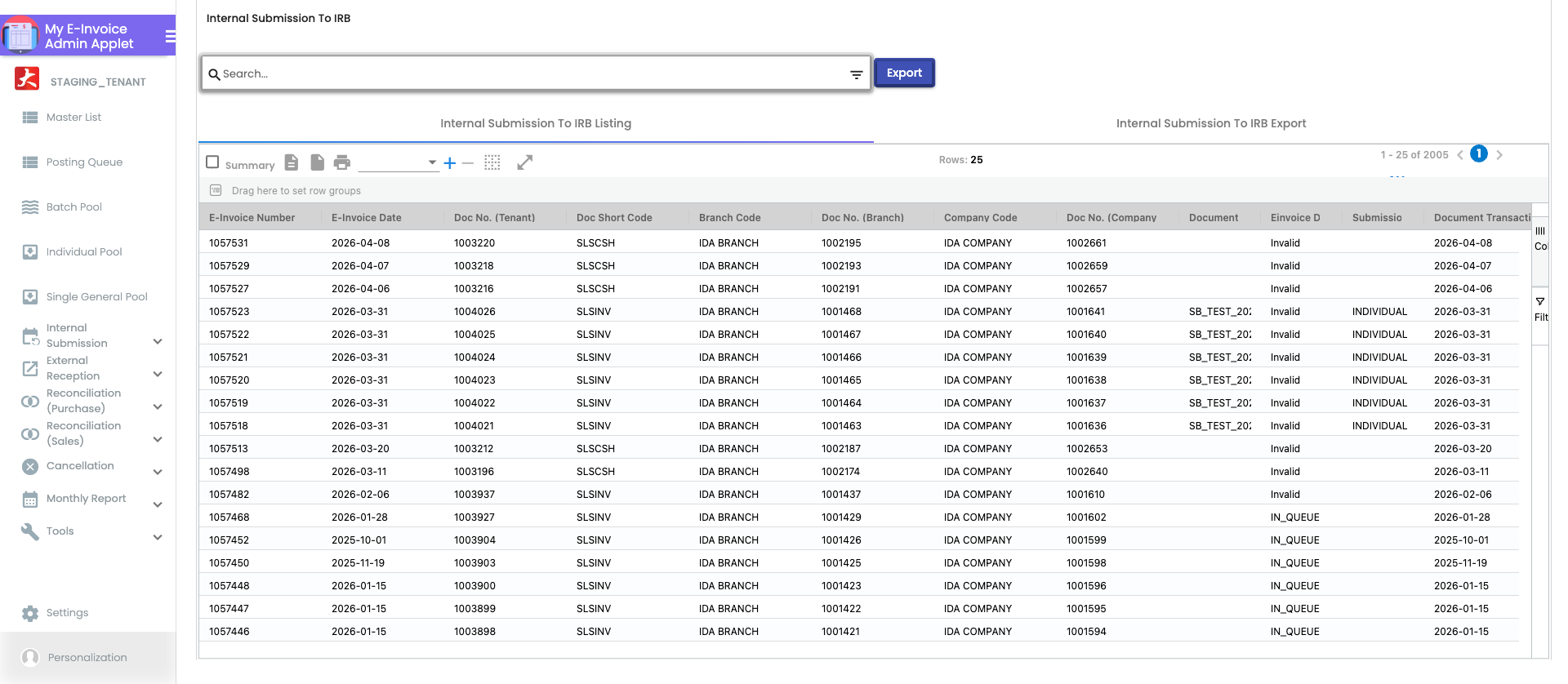
The status in that column is a snapshot: it is stored on the record by the last poll, not looked up when you open the screen. If you want LHDN’s answer now, open the record and press Refresh. A record left at Submitted for three days is no longer polled at all, so Refresh is then the only way to update it.
If it stops at IN_QUEUE, read the error on the submission queue row. If it comes back Invalid, the reason is on the record and Validation Rules & Troubleshooting will name it. Fix it before its month is out. Since 13 October 2026 the monthly consolidation run also takes a finished month’s rejected e-invoices under RM 10,000 and reports them inside the consolidated e-invoice under the General Public buyer, whatever the company’s Disable Consolidated Submission switch says. A business buyer who needed an e-invoice of their own then has none. Whether the run is meant to do this in every case is an open question with BigLedger.
What success looks like for this part
Every supplier, and every customer who buys RM 10,000 or more at a time, has a tax number, an identity in the right shape, a contact number and e-mail, and one address flagged as the e-invoice address; your items carry the classification and unit you meant, because a blank is sent as 022 and H87; the Scheduler applet shows the e-invoice clocks on your tenant; documents move from the Posting Queue to Submitted to Valid without stopping at one stage; and one real sale reads Valid on Internal Submission → To IRB E-Invoice. Then run the whole setup’s success check, which starts with the one check every other passes just as convincingly in the sandbox.
Common mistakes in this part
| Mistake | What you see | Fix |
|---|---|---|
| No address flagged as the e-invoice address | Documents pile up in a pool for a customer whose record looks complete | Flag one address per customer — shipping, billing or main |
The mistakes that span the whole setup are on the front page.
Related documentation
- MyInvois Setup Guide: the whole setup, with its success check.
- Validation Rules & Troubleshooting: the reason behind an Invalid.
- Pools & Submission Routing: where your first documents go, and why.
- Scheduler Applet: the clocks your tenant actually has.