Send your first Peppol document and follow it through
Steps 5 to 8 of the Peppol configuration guide: follow one real sale as far as BigLedger can show it. You check which documents can travel at all, put the order reference on the invoice, send one real, small invoice your partner expects and follow it to History, the receipt the partner’s access point signed, and find where documents sent to you arrive. It follows Steps 2 to 4, where both participant IDs were recorded. Your partner’s own confirmation is the last part of the whole setup’s success check.
- Step 5: know which documents can actually travel.
- Step 6: carry the order reference onto the invoice.
- Step 7: send one document and follow it through.
- Step 8: see where the documents other participants send you arrive.
Step 5: Know which documents can actually travel
Outcome: you do not spend a morning wondering why a debit note never arrived.
BigLedger builds four Peppol documents, and nothing else:
| What you raise | What travels |
|---|---|
| Sales invoice, cash bill | Peppol invoice |
| Sales credit note, sales return | Peppol credit note |
| Purchase invoice flagged self-billed | Peppol self-billed invoice |
| Purchase debit note or purchase return flagged self-billed | Peppol self-billed credit note |
Step 6: Carry the order reference onto the invoice
Outcome: your partner’s system accepts the invoice on its business rules, not just on transport.
If the sale started life as a purchase order or a sales order, make sure that number is on the invoice. It is carried onto the Peppol document as the order reference, and the Malaysian profile’s validation looks for it. A document can cross the network perfectly and still be turned down at the far end for nothing but a missing order reference — which reads as “Peppol is broken” and is not.
Step 7: Send one document and follow it through
Outcome: proof on a real sale that the whole chain works.
Finalise one straightforward invoice to the partner you set up in Step 3, then walk it through the three screens in order:
- My Peppol Admin Applet → Waiting Queue — the finalised document, which arrives here the moment you finalise it, with a blank Status (the column reads a field the queue does not have — nothing is wrong). It leaves when the scheduled sweep builds it — typically a daily run, twenty documents at a time, and only if the sweep has been scheduled for you at all (see Step 1). Process runs one such sweep now — twenty rows in database order, not the row you selected — so on an empty test queue it moves your invoice, and on a busy one it may not. (The Posting Queue beside it stays empty; see the warning on How Peppol fits beside MyInvois.)
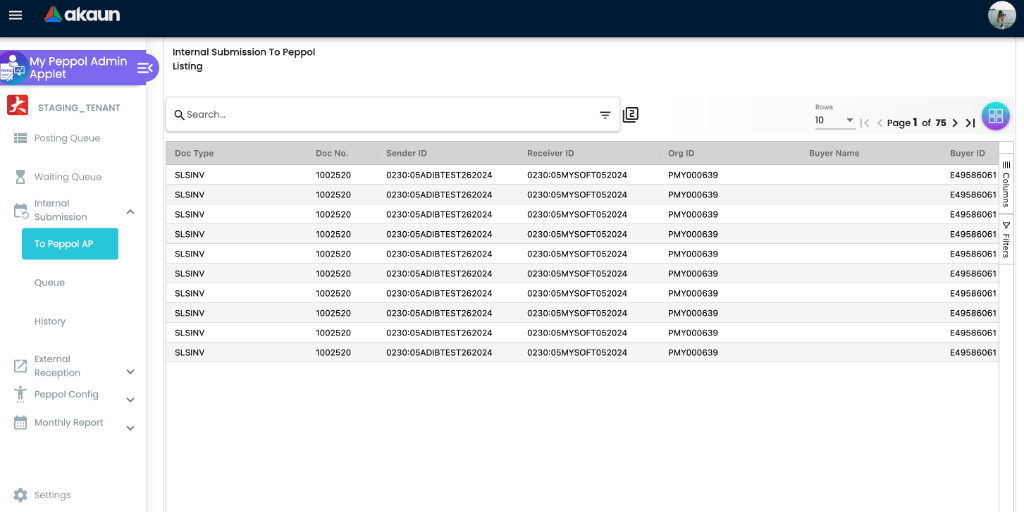
- Internal Submission → To Peppol AP — the Peppol document itself, with the sender and receiver participant IDs on the row. The document vanishes from the Waiting Queue the instant this row is created, before anything is checked, so this is the screen to look at when it disappears. Read the Validation Error:
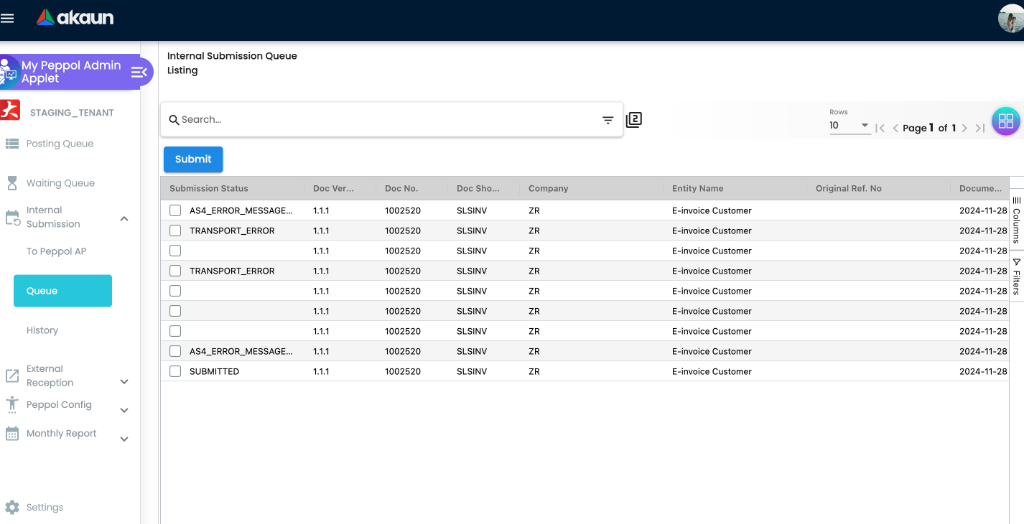
[THIS_DOCUMENTS_IS_VALID]means it passed; Missing Peppol Sender or Receiver ID means a default flag from Step 2 or 3 did not take; anything else is a rule of the Malaysian Peppol profile the document broke. SUBMITTED on this row means handed to the sender, not delivered. - Internal Submission → Queue, then History — the transmission, which starts the moment the document passes validation. A row in Queue with a blank status is in flight; a row with an error status failed and stays until you Submit it again (one at a time) or delete it. A row in History means the partner’s access point signed for it — the only proof of arrival BigLedger can show you.
When a transmission does not succeed, the queue row says which kind of failure it was:
| What the row says | What happened | What to do |
|---|---|---|
| AS4 error message received | The transmission arrived and the receiving access point turned it down — most often the receiver is not registered for that document type, or their own validation rejected the business document | Confirm the participant ID and the document types your partner can receive, correct the customer record, resend |
| Transport error | A network or access-point outage during sending | Resend from Internal Submission → Queue. If it keeps happening, the outage is at the access point rather than in your data and there is nothing in the applet that will fix it — send the document numbers, the UTC times of the failed attempts and your tenant (what to send) |
| Nothing — the row sits in the Waiting Queue for days | The sweep has no schedule on your tenant — none is set up by default — or it runs once a day and takes twenty rows | Process runs one sweep now, for twenty rows of the queue’s choosing, which clears today’s backlog and tells you nothing about tomorrow’s. For that, open the Scheduler applet: a row for EINVOICE_WAITING_QUEUE_TO_XAP_DOC_PROCESSOR with Status ACTIVE and a recent Last Run Date is the answer. No such row, and the picker offers the code, means you can add it yourself |
| The row left the Waiting Queue and is not in Queue or History | It stopped at validation — a missing default flag, or a profile rule | Open To Peppol AP and read the row’s Validation Error |
Stored once or read live: each figure on those three screens
Every status and identifier you read in Step 7 was either copied once by a background job or is read afresh each time the screen loads. Knowing which is which tells you whether a correction you make today will show on the row you are looking at.
| What you read | Stored once, or read live | Written by | At which moment |
|---|---|---|---|
| A row in the Waiting Queue | Stored — but the row holds only a pointer to your document, its type and a status | The finalise’s Peppol follow-on job | Seconds after you press Finalise |
| Doc No., customer, date and amount on the Waiting Queue, Queue and History | Read live from your document each time the screen loads | — | Now; a document edited after FINAL shows its current values here |
| Sender ID and Receiver ID on To Peppol AP | Stored | The sweep — scheduled, or Process | When the document was built: the ID flagged default on your company, and on the customer, at that moment |
| Buyer name and tax number inside the Peppol document | Stored | The sweep | At build, from the customer record as it stood then — not from the e-invoice details saved on the document |
| Validation Error on To Peppol AP | Stored | The sweep, in the same run | Just after build: [THIS_DOCUMENTS_IS_VALID] is the whole result list when the Malaysian profile’s rules all pass; Missing Peppol Sender or Receiver ID is stamped before any rule is tried |
| SUBMITTED on To Peppol AP | Stored | The sweep | When the Queue row is created — before the send starts |
| Submission Status on Queue | Stored | The sender, after the AS4 exchange | Only when a send fails; a blank status is a send not yet finished, or not yet attempted |
A row in History, status SUCCESS | Stored, and the Queue row is deleted in the same step | The sender | When the receiving access point returns its signed receipt |
| The Peppol document’s own creation time | Stored | The sweep | Copied from the Waiting Queue row — the moment that row was written, not the moment of the build |
Two things follow. A correction reaches the partner only if it lands before the sweep builds the document — a default flag, a customer tax number or a PO reference changed after the build changes the next document, not this one, and there is no screen that builds this one again. And a figure that looks fresh may be old: the amount on a History row is read from your document today, while the invoice the partner holds carries the amount as it was on the day of the build.
Step 8: Watch what arrives from the other direction
Outcome: you know where a supplier’s Peppol document lands.
My Peppol Admin Applet → External Reception → Docs Queue / Docs History / From Peppol AP
Documents other participants address to your participant IDs are delivered by the access point into these screens. They also feed the purchase-side matching queue with a match source of PEPPOL — which is one of only two ways a supplier’s document ever reaches BigLedger at all. Incoming Supplier E-Invoices explains what that queue can and cannot do for you.
What you see on From Peppol AP is the supplier’s file as it arrived, parsed and stored at that moment: the names, tax numbers and amounts are the supplier’s own, not your supplier record’s, and the Process ID is their invoice number. The row appears within moments of arrival, with no schedule and no setting on your side; the Docs Queue row that preceded it is removed once processing completes, so a row that stays there is a document whose processing stopped midway, and Docs History is written by nothing on this path, so an empty Docs History is not a missing document. For an integration that wants the same documents, the received records are the one piece of Peppol with a read-only query route on the integration endpoint; sending over Peppol has no integration route of its own and happens through Finalise.
When you are done, run the whole setup’s success check.
What success looks like for this part
One real invoice is in Internal Submission → History, its To Peppol AP row shows your participant ID as sender and your partner’s as receiver, and your partner confirms they received it.
Common mistakes in this part
| Mistake | What you see | Fix |
|---|---|---|
| Pressing Process and expecting it to send the document you ticked | The document you were looking at is still in the Waiting Queue; twenty other rows moved | Process runs one sweep of twenty rows in database order and no row can be selected. Wait for the schedule, or press it again |
| Reading SUBMITTED under To Peppol AP as delivered | The partner has nothing; the row is in Internal Submission → Queue with an error | SUBMITTED is written before the send. Only a row in History is a receipt |
| Sending a debit note, a refund note, or a self-billed credit or refund note | The document never appears in To Peppol AP and nothing says why | Only invoices and credit notes — plain and self-billed — have a Peppol shape. Deliver those the way you did before |
| Leaving the purchase-order number off the invoice | The transmission succeeds and the receiver rejects the document | Carry the PO or SO number onto the sales document so it becomes the order reference |
| Fixing a default flag or a customer’s tax number after the sweep has built the document | The next invoice travels; the one you were chasing still shows the old ID or the placeholder on To Peppol AP | The sweep copies the IDs and the customer’s details at the moment of the build, and no screen builds that document again. Correct the record, then re-issue, or let the partner have it outside Peppol |
| Expecting Peppol to wait for LHDN | Confusion about why a document went to a partner while its e-invoice is still Invalid | The two pipelines are independent. Fix each on its own screen |
Related documentation
- Peppol Configuration Guide: the whole setup, with its success check.
- My Peppol Admin Applet: field-level reference for the queues.
- Organisation Applet: the Peppol Config tab.
- Incoming Supplier E-Invoices: where a Peppol document from a supplier ends up.