How do I move stock between branches? Stock transfer procedures
“How do I move stock between branches?” With two documents: a Transfer Out at the sending branch, which takes the stock off its shelf and parks it in a transfer queue, and a Transfer In at the receiving branch, which knocks that queue off and puts the stock on the new shelf; quantity moves, and no journal is posted.
By the end of this guide you will have moved stock from one branch to another, seen it disappear from the sending branch, found it sitting in the transfer queue, and received it at the other end. The whole thing takes about five minutes once you know where the queue is — and the queue is the part nobody is told about.
It is for the stock controller moving stock between branches of one company, and the storekeepers who finalise each end.
Stock transfer, at a glance
- Ask for the stock, if your branches ask rather than head office pushing: a Stock Requisition records the request and moves nothing (Step 1).
- Raise and finalise the Transfer Out at the sending branch (Step 2).
- Find the lines in the transfer queue (Step 3).
- Receive them with a Transfer In at the destination (Step 4).
- Confirm the quantity moved at both ends, and read the MA Price column as the location’s moving average, not the company’s (Step 5).
The single most useful thing to understand first: between the two documents, the goods are counted
at neither branch — they sit at the company’s stock-in-transit location. That is not a bug. BigLedger
creates one location per company — code L-SIT-<company>, name L-STOCK-IN-TRANSIT-<company> — and
every Transfer Out moves the quantity
there until the Transfer In moves it on. It is the in-transit record, and it is the only reason you can
tell “sent but not arrived” from “never sent”.
Meet GadgetSphere
GS-KV-03 has sold out of a popular wireless earbud model; GS-KV-01 has 40 in the back store. Head
office wants 15 moved across. Both branches belong to GadgetSphere Sdn Bhd, so this is an ordinary
stock transfer.
(If the stock were moving to GadgetSphere Distribution Sdn Bhd, a different company, a stock transfer would not do it — see When a stock transfer is the wrong document, after the steps.)
Before you start
- Both locations exist in Organization and both are
ACTIVE. A deactivated location is not selectable. - The item is a stock item: a basic item (linked to an inventory item the first time it posts, if it is not already), or an alias that points at an inventory item — otherwise the transfer will finalise and nothing will move.
- Someone at
GS-KV-01can update Outbound Stock Transfers, and someone atGS-KV-03Inbound ones (that is all FINAL needs). Ideally not the same person. - The company’s Knock Off flow from outbound to inbound transfer is switched on: Organization › Company › Knock Off Config › Knock Off. Without it the Transfer Out finalises and nobody can receive it (Step 4). A new row is added switched off (how).
Stock transfer: how it actually works
    flowchart LR
  REQ["Stock Requisition<br/>raised by GS-KV-03<br/><b>moves nothing</b>"] -.->|"optional"| OUT
  OUT["<b>Transfer Out</b><br/>at GS-KV-01"] -->|FINAL| Q["Transfer queue<br/>quantity at the company's<br/>stock-in-transit location"]
  Q -->|"knocked off by"| IN["<b>Transfer In</b><br/>at GS-KV-03"]
  IN -->|FINAL| DONE["GS-KV-03 +15<br/>GS-KV-01 already −15"]
Two documents, two branches, one queue. Quantity only — a transfer posts no journal and changes no cost. The value of the stock never leaves your balance sheet; it simply sits somewhere else.
Step 1 (optional): Ask for the stock
Inventory > Stock Requisition (Internal) > Create
If your policy is that a branch asks rather than head office pushes, GS-KV-03 raises a Stock
Requisition: the items, the quantities, the sending location and the receiving location.
A requisition moves nothing. Its quantity signum is 0. It is a request on the record, and the transfer is raised against it afterwards — either from the transfer applet’s Search Document > Stock Requisition tab, or with the CREATE ST button on the requisition itself.
Do not expect the requisition to be approved. BigLedger’s approval engine does cover this document type in the backend, but the Stock Requisition applet has no approval tab on the document, no Approval Request screen and no Approval History screen. A setting you create under its Approval Settings menu cannot be used from that applet. See Document Approvals.
No permission gives a sign-off before stock moves: FINAL needs only update, and hiding the listing’s FINAL leaves it inside an opened draft. Give the applet only to the people whose sign-off you want.
Step 2: Raise the Transfer Out at the sending branch
Inventory > Stock Transfer > Outbound > +
On Main Details: Location From (GS-KV-01), Location To (GS-KV-03), the transfer date, a
reference number, remarks, and a tracking ID if you use one.
On Line Items: add the item and the quantity, 15. Two ways in:
- Standard view — one line at a time, with Item Details, Serial Number, Batch Number and Bin Number sub-tabs. Use it for serialised stock, where you have to name every unit going on the van.
- Spreadsheet view — grid entry, for a long list of plain items.
There is also a Scan Serial No or Item Code box, which adds lines from a scanner, and an Outbound File Import for bulk.
Turn on the negative-stock check if you have not, and know which FINAL it covers. The transfer
applet has a setting labelled Disallow negative stock for basic item (validate stock balance). With
it on, the line shows the item’s balance at the sending location, and FINAL pressed inside the
Transfer Out is refused if it would send more than the location holds. It is off by default. With it
off, a Transfer Out finalised from inside the document goes through, so GS-KV-01 can send 40 of
an item it has 12 of.
The setting covers only that one button. FINAL on rows ticked in the Outbound listing, and FINAL on any Transfer In, always check the balance. So with the setting off, the same transfer is refused from the listing and goes negative from the document. If a colleague says “it would not let me” and you finalised the same transfer without trouble, this is why.
SAVE keeps it as a draft — nothing has moved. FINAL takes the 15 out of GS-KV-01, puts them into the company’s stock-in-transit location, and
puts every line in the queue.
Watch out for: the location on a line follows a precedence — line delivery location, line store, header store, then the branch’s default location. On a transfer that usually does not bite, but if a line somehow carries an old location the stock will leave from there instead.
Step 3: Find them in the queue
Inventory > Stock Transfer > Queue
The Queue is every finalised outbound line that has not been fully received. Your 15 earbuds are
here. On the Stock Balance they show against the
L-SIT-<company> location, not against either branch.
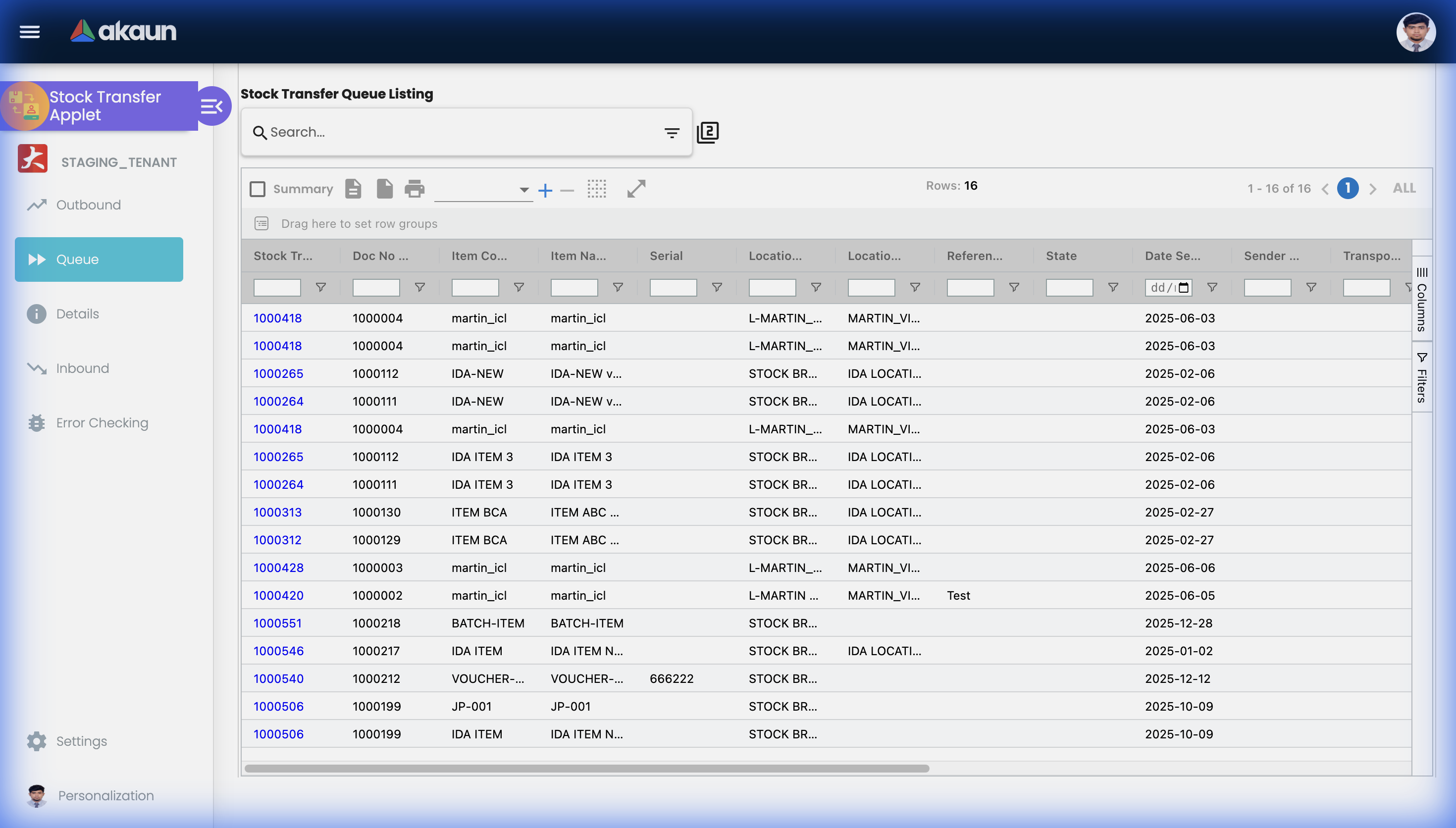
Details shows each outbound line’s quantity sent, received and outstanding: the screen to live in.
Step 4: Receive them at the destination
Inventory > Stock Transfer > Inbound > +
Create an Inbound Stock Transfer at GS-KV-03 and knock off the queue lines it covers. Check the
quantity against what physically arrived before you save: the queue line is reduced the moment the
inbound is saved, so a draft that took all 15 already hides the transfer from anyone else who opens
KO For (the queue).
FINAL takes the quantity out of the in-transit location and puts it into GS-KV-03. The stock has
not moved until then, even though the queue line is already gone.
If fewer arrived than were sent — 13 of 15 — receive 13. The remaining 2 stay outstanding in the queue and at the in-transit location, which is exactly what you want: the discrepancy is now visible and attributable, rather than being absorbed silently at one end. Investigate, then receive the last 2 when they turn up.
If they are lost for good, still receive them through KO For on a second inbound at GS-KV-03, so the
queue line closes and the in-transit location empties. Then write the 2 off with a Stock Adjustment
at GS-KV-03, with a GL code that says why. An adjustment on its own, at either branch, leaves that
branch 2 too low and the 2 in transit for good.
Step 5: Confirm the quantity moved — and read the cost column correctly
Open Stock Balance for the item. GS-KV-03’s
quantity is up by 15 and GS-KV-01’s is down by 15. That is the check: quantity at both ends.
A transfer never changes your company’s unit cost. The transfer document types are not in the list that moves the company cost pool, so the calculation is a cost-neutral relieve — the company amount falls in exactly the same proportion as the quantity, and the unit cost comes out unchanged. Nothing you type in the unit-price field on a transfer line affects it. No value moved, because no journal was posted.
Do not read the MA Price column as the company’s cost. It is hidden by default, and when you tick it in the Columns tool panel it shows the location’s moving average, not the company’s. That number seeds from the previous inventory line at that location, so it behaves in three different ways after a transfer in:
- the location already holds the item — its unit cost stays exactly where it was;
- the location holds none now but has held some before — the amount is re-seeded from its own last unit price;
- the location has never held the item — there is no previous line, the seed is zero, and the arrival is valued at zero there.
GS-KV-03 in this example has sold out, so it is in the second or third case and the number you see
will very likely not be the company figure. That is not a bug. Company-level value is correct
throughout; a per-location valuation straight after a transfer is not a number to hand an auditor
without knowing which of the three cases produced it.
The Stock Balance grid has no company moving-average column at all — its only company-level cost is Last Purchase Company, a different basis. If you need the company moving average as a number, it is on the Reset Moving Average screen in the Stock Adjustment applet, which fetches the company-wide quantity and moving average as at a date. That screen writes when you finalise it, so read and leave.
When a stock transfer is the wrong document
| Situation | Use instead |
|---|---|
| Moving stock to another company in the group | Not a stock transfer. A transfer moves stock between branches and locations of one company, and this screen offers only locations of the transfer’s company. Another company of the group is another owner: GS sells to GSO, and the matching purchase lands in GSO’s books, which BigLedger can create from the sale (intercompany pairing). If ownership is not changing, use the consignment documents |
| Moving stock to a partner showroom, dealer or customer site while you still own it | Consignee Stock Transfer. It is a single document with no queue: finalising takes the quantity out of one location and puts it into the other in the same posting |
| Receiving stock a supplier still owns | Consignment GRN (Internal) |
| Correcting a quantity that is simply wrong | Stock Adjustment — a transfer moves stock, it does not create or destroy it |
What success looks like
Five minutes, one item, four checks:
- Stock Balance at
GS-KV-01is 15 lower. - Stock Balance at
GS-KV-03is 15 higher. - The Queue no longer lists those lines, Details shows 15 sent, 15 received, 0
outstanding, and the company’s
L-SIT-<company>location no longer holds any of the item. Look for the code, not the name: the Location column on Stock Balance and the Stock Report showsL-SIT-GS, neverL-STOCK-IN-TRANSIT-GS, so a search by name wrongly suggests the in-transit location does not exist. - The general ledger has no new entry for the transfer. That is correct — transfers post nothing.
If check 1 passes and check 2 does not, the Transfer In was never raised (the lines are still in the Queue) or never finalised (look for a draft in the Inbound listing).
Every week, the stock controller watches the open ends: transfers out with no transfer in, and sales orders nobody will deliver that keep Available low. You know it is done when every open transfer and every open order on the list is one somebody still means to complete.
Common mistakes
| Mistake | What you see | Fix |
|---|---|---|
| Nobody raises the Transfer In | Stock missing from both branches and piling up at the in-transit location; the Queue grows | Check Details weekly; make receiving somebody’s named job |
| Expecting an approval to route the transfer | Nothing routes. Whoever holds finalise, moves stock | Control it with permissions, at both ends separately |
| Negative-stock check left off | A Transfer Out finalised from inside the document sends more than the branch has, and the branch goes negative. The same transfer finalised from the listing is refused | Turn on Disallow negative stock for basic item |
| Receiving the full quantity when less arrived | The discrepancy vanishes into the receiving branch’s balance | Receive what arrived; leave the rest outstanding and investigate |
| Using a transfer between two companies | Quantity moves with no sale, no purchase and no journal — two sets of accounts now disagree | Use sales and purchase documents, or consignment |
| Expecting the cost to follow the goods | It does not. The company cost is unchanged, and the receiving location’s MA Price comes from that location’s own history — zero if it has never held the item (see Step 5) | Expected. Nothing posted, nothing to correct; read company cost from Reset Moving Average, not MA Price |
| Looking for the transfer in a stock report and not finding the value | Transfers are quantity only; the Stock Summary Report By Location shows them under Others and Stock In Transit | Use those columns |
Related documentation
- Stock Transfer applet — every field, setting and error message
- Stock Requisition (Internal) — the request half, and why its approval screens do nothing
- Consignee Stock Transfer — the single-document variant for partner locations
- Inventory core concepts — the ledger, the signum and the balance
- Stock Management Guide — the setup this assumes