Ring a cash sale, take the payment and finalise it
Steps 2 to 4 of the cash sales workflow: ring the sale, take the payment and press FINAL. It follows Step 1, where you opened your session and counted your float. FINAL is the whole thing: the items come out of stock, the sale is posted to the ledger, and each payment is written into the cashbook behind its payment method, with no separate step afterwards, so this page is mostly about what to check before you press it.
Strictly, FINAL starts all of that rather than doing it: background jobs do it a moment later, and a posting job can fail after the bill reads FINAL, which is why the whole task’s success check has finance run a posting check.
If the settlement panel is empty, or FINAL refuses the location, the cause is one of the set-up items in Before your first shift. Two of those items fail quietly rather than at the till, so check them before your first FINAL: without a rounding item, cash bills that need rounding cannot balance; and a default GL code that is not mapped does not stop FINAL — depending on which one, the posting job fails, or the line is left out and the customer’s receivable takes up its amount.
The running example is a sale at GS-KV-01: a pair of wireless earbuds at RM 249 and a USB-C cable at RM 39 — RM 288 net, RM 17.28 SST at 6%, RM 305.28 to collect. The customer wants to pay RM 100 in cash and the rest on a card.
Step 2: Ring the sale
POS General > Create Cash Bill
The counter screen opens with the walk-in customer already filled in and the cursor in the item box. Scan the earbuds. Scan the cable. The lines appear with their retail price from the pricing scheme linked to your branch.
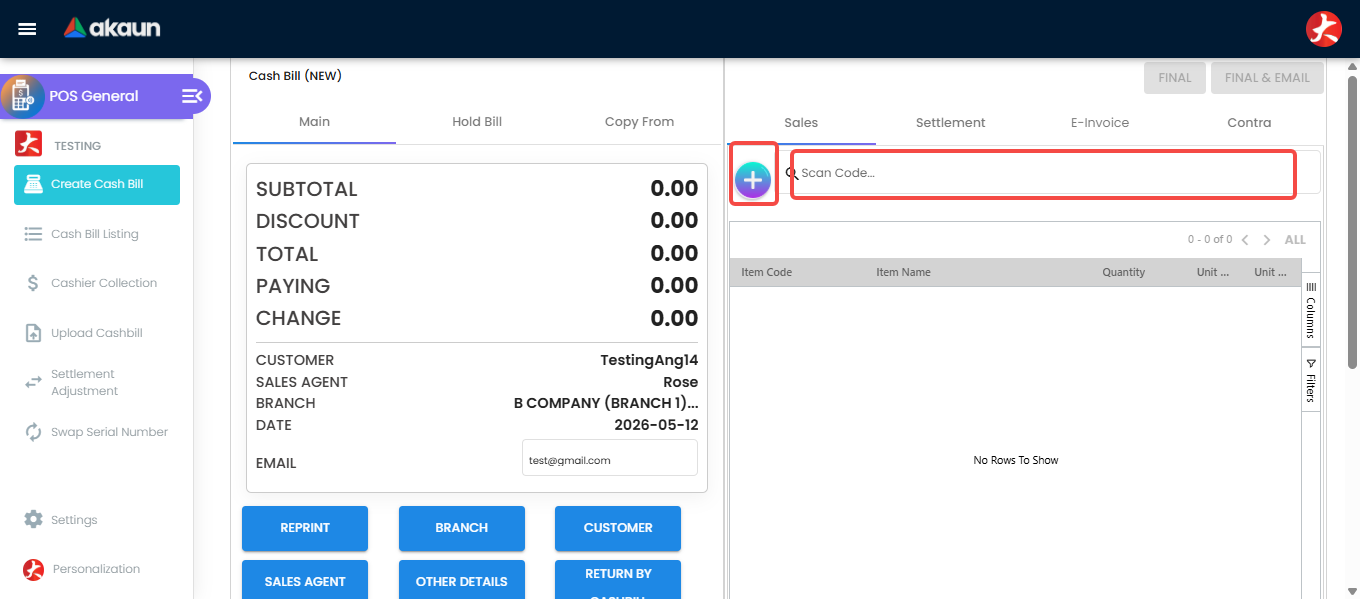
Three things worth knowing while you are here:
- To change quantity or price, click into the line. Price edits are permission-controlled; if the price box is read-only, that is deliberate, and a supervisor can do it.
- If the customer is a member, click the customer field and search for them. Points earned are worked out on save, and points can be used as a payment method later. Do this before you finish the bill — adding a member afterwards means voiding and starting again.
- If the item is serialised — phones, laptops — scan the serial on the line’s Serial Number tab. The number of serials must equal the quantity, or FINAL is refused. This is the single most common counter error on high-value items.
Need to park this customer and serve someone else? Hold Bill keeps the draft and gives you a clean screen. Pick it back up from the same tab.
Step 3: Take the payment
POS General > Create Cash Bill > settlement panel
Each payment method your branch accepts is a button. Click Cash, enter RM 100 — or use one of the quick-cash buttons — then click the card method and enter RM 205.28. The card method may ask for an approval code, the last digits, the issuer; which of those are required is set per method.
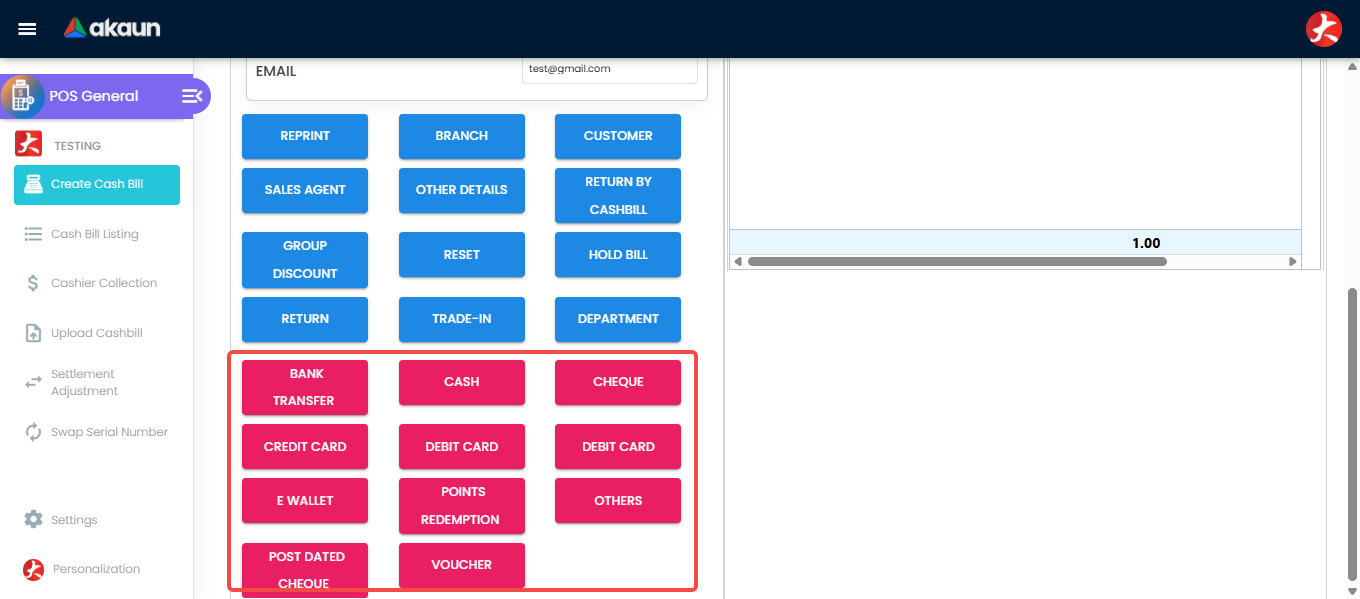
The rule that catches people out: the payments must add up to the bill exactly. If they do not, FINAL is refused. Nine times out of ten the missing amount is rounding — a cash bill of RM 305.28 paid entirely in cash needs a RM 0.02 rounding line to make RM 305.30.
You can also settle against something the customer already has with you — a credit note, an overpayment — using Contra, if your branch has it switched on. Contra is not a payment line: it is a link between this bill and the customer’s own open documents, which is why it settles a bill without money moving, why it never appears on Cashier Collection, and why the Z Report carries it as a figure of its own.
What you cannot do here is put it on the account. A cash bill must be settled in full — the payments plus any contra have to equal the bill to the cent, and the till refuses FINAL otherwise. There is no part-payment, no deposit against the balance, and no “bill me later” at this screen. If the customer wants terms, the sale is not a cash bill: it leaves the counter and becomes a Sales Invoice (Internal) raised by whoever owns credit control, on that customer’s account, and the Credit Sales Workflow guide is theirs. Tell the customer that, and hand them to a named person — it is a two-minute conversation at the counter and an afternoon if a cashier improvises around it.
Step 4: FINAL
POS General > Create Cash Bill > FINAL
Read the total back to the customer, then press FINAL.
BigLedger now checks, in one pass: that the payments match the total; that the location is the branch’s default; that the customer is not blacklisted; that serials, batches and bins add up; that there is stock at the location; that any points being redeemed are actually in the member’s balance; and that the date is not in a locked accounting period. If anything fails you get all the failures at once, and the bill stays open so you can fix it.
When it passes, the receipt prints and the posting happens behind the scenes:
Dr  Cash — primary bank, KV01            RM 100.00
Dr  Card receivable — card acquirer      RM 205.28
    Cr  Sales — accessories                       RM 288.00
    Cr  SST output tax                            RM  17.28
and two items leave the shelf at GS-KV-01 at their moving-average cost. There is no cost-of-sales line on the bill: cost of goods sold is written once a month by the Financial Report applet’s month-end processing.
What success looks like for this part
The bill reads FINAL on Cash Bill Listing, the receipt has printed, and nothing you rang is still showing as a held draft. Whether each bill’s journal was written is not on your screen, because a bill whose posting failed reads FINAL too; that is the posting check finance runs. At the end of your shift, run the whole task’s success check.
Common mistakes in this part
Waiting for something else to reduce the stock. The cash bill did it, at FINAL. There is no picking document, no delivery note, no second step. If your stock figures look high, check whether bills are sitting on hold rather than finalised.
Adding the member after the bill is finalised. Points are generated on save for a bill that has a member. Finalise without one and the points are gone — the fix is to void and re-ring, which nobody enjoys at a busy counter. Ask for the member card first, every time.
Scanning the wrong number of serials. The count must equal the quantity. Two phones means two serials. The error at FINAL names the item, but by then the customer is waiting.
Reading an identity number back out loud. A counter is a public room. When an e-invoice needs the buyer’s tax number, identity-card number or address, take it from the customer’s own screen or paper, key it, and confirm it by showing rather than announcing. The till checks only that those fields are filled in, never that they are right, so a mistyped number passes you and fails later at the authority — and repeating it aloud to be sure is the one confirmation method that costs the customer something.
Forcing a bill to balance by changing the price. When the payments do not match the total, the answer is almost always a missing rounding line or a mistyped payment amount — not the price. Changing the price to make it fit posts the wrong revenue and the wrong SST.
Backdating a bill for yesterday. POS only lets you backdate about a week, and even then the money lands in the wrong day’s Z Report. For anything older, finance raises a Sales Invoice (Internal) instead.
Next: fix a mistake without panicking, and close the day.
Related documentation
- POS General — the full applet reference: every setting, every field, every error message
- Sales Return (Internal) and Returns and Exchanges
- Cashbook and Bank Reconciliation — where your takings land and how they get matched