How do I take goods back — refund, credit note or exchange? Returns and exchanges workflow
“How do I take goods back — refund, credit note or exchange?” If the goods physically come back, raise a sales return (or a sales refund note when you are paying the money out now; a till sale is returned on the till), because only those bring the stock back in; a credit note is for an overbilling or a discount where nothing comes back; and an exchange is recorded as two transactions, a return and a new sale.
A customer brings a laptop back. Whether that is a two-minute job or a three-week mess depends entirely on which document you raise in the next thirty seconds. This guide is for whoever takes the goods back, at the counter or in the back office. By the end of this guide you will know which of BigLedger’s three return documents fits the situation in front of you, how to settle the money either way, and how an exchange is actually recorded. Reading it takes ten minutes. Getting it wrong takes a stock count to discover.
Returns at a glance
- Decide whether you are taking it back at all — that is your returns policy, not a BigLedger setting (Step 1).
- Goods coming back: raise a Sales Return from the original sale (or a Sales Refund Note when you are paying the money out now), at the location the goods are really going to — a quarantine or RMA location for anything faulty (Step 2). A till sale is returned on the till (after Step 3).
- Settle the money: a refund on the Payment tab before FINAL, a contra against open invoices, or a credit left on the account (Step 3).
- Nothing coming back: raise a Credit Note (Step 4).
- An exchange: record it as a return and a sale (Step 5).
- Put returned goods somewhere sensible — a quarantine location for anything faulty (Step 6).
Steps 1 to 3 are on this page; Steps 4 to 6 are on Credit notes, exchanges and where returned goods go.
Meet GadgetSphere
GadgetSphere Sdn Bhd sells consumer electronics from 22 Malaysian branches, so returns are daily business. Today there are three of them at GS-KV-01:
- A customer bought an ultraportable laptop at RM 4,200 (RM 4,452 with 6% SST) last Tuesday on a credit invoice. It is faulty and they want their money back.
- A corporate customer was billed for 26 handsets and only received 24. Nothing is coming back; the invoice was simply wrong.
- A walk-in wants to exchange a pair of wireless earbuds (RM 249) for the model up (RM 399), paying the difference.
Three situations, three different documents.
Start here: which document?
| Does something physical come back? | Are you paying money out? | Use |
|---|---|---|
| Yes | Not now — the customer keeps a credit, or you offset it against what they owe | Sales Return (Internal) |
| Yes | Yes, now | Sales Return with a Payment line, or Sales Refund Note (Internal) |
| No — an overbilling, a retrospective discount, a fee | Either | Sales Credit Note (Internal) |
What makes this a real decision rather than a preference is what each document does to your stock:
| Document | Stock | Money |
|---|---|---|
| Sales Return | comes back in, at moving-average cost | Reduces what the customer owes |
| Sales Refund Note | comes back in | Reduces what the customer owes, and pays it out |
| Sales Credit Note | never moves — the backend forces every line’s quantity to zero | Reduces what the customer owes |
Sold on the till? Return it on the till, on a new bill (after Step 3).
Step 1: Decide whether you are taking it back at all
Your own returns policy — not a BigLedger setting
BigLedger does not enforce a return window, a restocking fee or a condition test, and the return documents themselves carry no authorisation and no approval routing. A service desk’s return authorisation is a Customer RMA, which posts nothing; the Sales Return still brings the stock back. On the return itself, the only policy object is the Return Reasons list, which you configure yourself.
So write the policy down somewhere your counter staff can see it — how many days, what condition, what proof of purchase — and make the reason codes match it. If your policy is “14 days, unopened, receipt required”, then your reason list should read Faulty, Wrong item supplied, Changed mind — within policy, Goods damaged in transit, and so on. That list is what you will group by when someone asks why returns doubled last quarter.
Settings → Return Reasons in the Sales Return applet is where they live. The Reason dropdown on the return header is empty until you add them.
Step 2: Goods coming back — raise a Sales Return
Sales > Sales Return (Internal) > Internal Sales Return > Create
The outcome: the laptop back in stock, RM 4,452 off the customer’s account.
The Search tab is the whole trick. Do not type the lines. Search by:
- Customer — everything they have bought;
- Invoice or Cashbill — a specific document;
- Serial Number — the fastest route when the unit is in front of you and the customer has lost the receipt.
Tick the line and click Add Selected. The item, the price, the tax and the proportion of any discount all copy across, apportioned to the quantity you are returning.
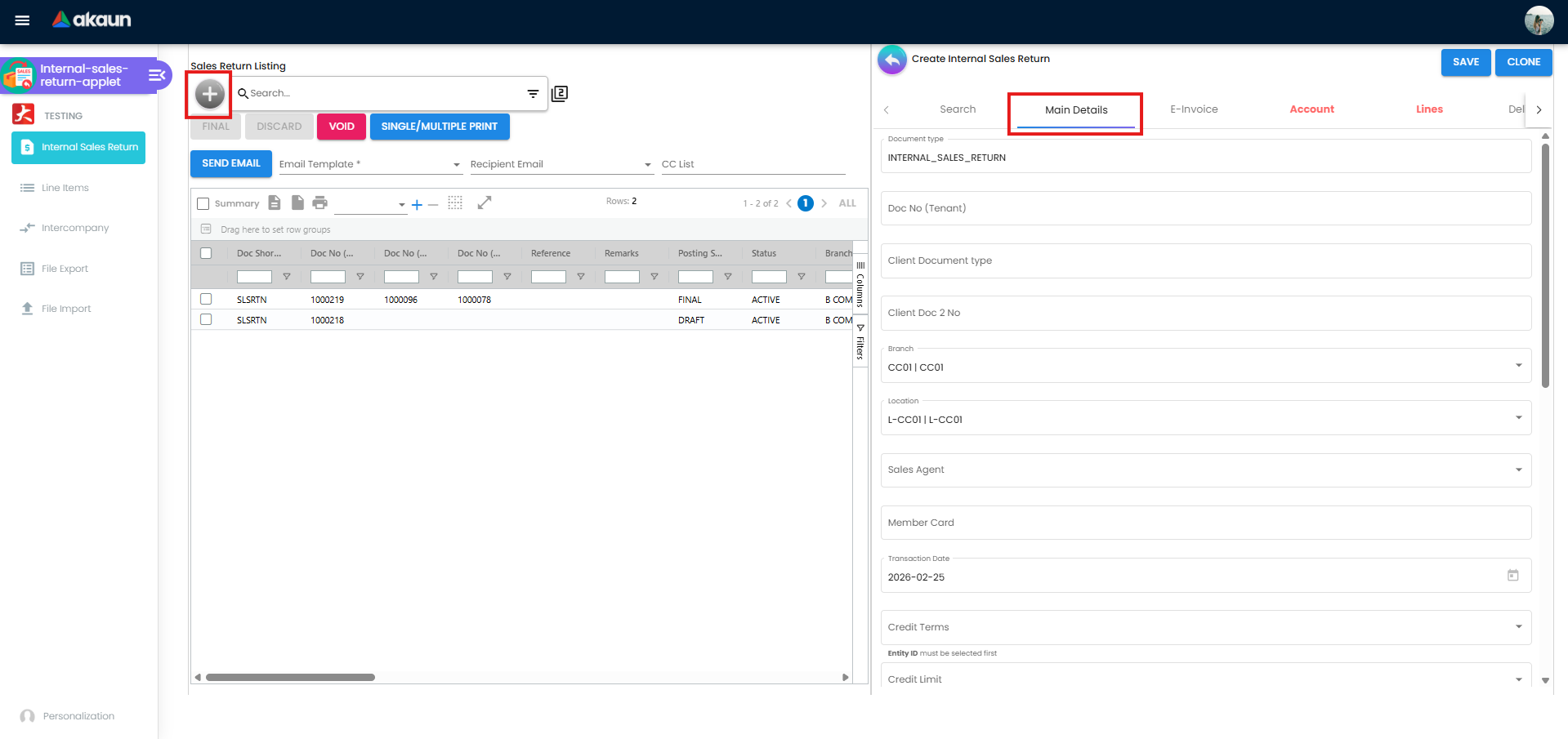
On Main Details: the branch and location the goods are physically going back to, the transaction date, and the Reason. Fill the reason in properly; it is the only structured field that will ever tell you why this happened.
SAVE, then FINAL.
Dr  Sales return — laptops               RM 4,200.00
Dr  SST output tax                       RM   252.00
    Cr  Debtor — trade retail                     RM 4,452.00
That is the whole journal. One laptop is back at GS-KV-01 — as an inventory transaction in the stock ledger, at moving-average cost, with its serial number re-activated at that location — but no Dr Inventory / Cr Cost of goods sold line posts with it. BigLedger does not post cost of sales document by document; the cost-of-goods-sold journal is the month-end job in the Financial Report applet, which picks the return up through the closing stock figure. The return posts to a separate Sales Return account rather than being netted off sales, which is what lets you see the return rate on the profit and loss.
If FINAL goes through but the Trace Document tab shows no journal a minute later, the posting job failed afterwards — almost always a missing default GL code for Sales Return or the customer’s receivable. FINAL is not blocked by that; repair it in Financial Report > Error Checking > Trace Document.
Step 3: Settle the money
The return has created a credit on the customer’s account. Three ways to clear it, and the right one depends on the customer.
Refund them now — add a line on the return’s Payment tab before you finalise, choosing the settlement method the money is going out through. The journal then includes Dr Debtor / Cr cashbook, and the cashbook line will appear in Bank Reconciliation. Add it before FINAL; afterwards it takes both a setting and a permission.
Offset it against what they owe — use the Contra tab to tick their open invoices. Standard for a credit customer who is going to buy again next month. The contra posts on the latest of the document dates involved.
Leave it as a credit — finalise with neither, and the credit sits on their account until someone contra’s it or pays it out with a Sales Refund Note or a payment voucher. Fine for a corporate account; a good way to annoy a walk-in customer.
When to use a Sales Refund Note instead
The Sales Refund Note does the same two things a Sales Return does — brings the stock back and reverses the sale — and is built around the money going out. BigLedger submits it to LHDN as an e-Invoice refund note (type 04), which refers to the original e-Invoice when the refund note is linked to it; a Sales Return and a Sales Credit Note go as a credit note (type 02). Use it where the refund, not the goods, is the point: a cash sale refunded later from the back office, a marketplace order reversed after settlement, a return where the money actually goes back to the buyer.
If you are unsure, use a Sales Return with a Payment line. It is the more general document, it has the Search tab (Step 2), and it posts where you expect.
Sold on the till? Take it back on the till
A sale rung up in POS General is returned there, on a new bill; the old bill and Cash Bill Listing offer no return. Start a bill, press RETURN BY CASHBILL, scan or type the original bill’s number and pick the lines: they come across tied to the original, at its price; a bill already returned in full is refused. Record the refund on the payment screen as a negative amount, then FINAL. Cash comes out of the drawer. A card or e-wallet refund is made with the terminal or provider and only recorded here: an integrated terminal will not send a negative amount. Return lines post to the same Sales Return account as Step 2.
Four things catch a counter out:
- A refund with nothing bought in its place will not finalise unless the till setting that allows a return higher than the sale (
POS_ALLOW_SALES_RETURN_HIGHER_THAN_SALES) is on. An exchange (return and new sale on one bill) needs nothing. - The unit goes back into the counter’s own location; the till offers no other. Move a faulty unit to your quarantine location afterwards with a stock transfer, the same day.
- The old bill still offers Void. Do not use it after a return: the return already reversed what was returned.
- On e-invoicing, the till return is filed as an invoice, not a credit note. BigLedger files every cash bill as type 01, returns included: a known defect. If the original sale had an e-invoice of its own, return it instead with a Sales Return, searching by Cashbill (Step 2): that is filed as a credit note (type 02).
Success at the till is the new bill FINAL with its return lines and the refund line, and the faulty unit moved on to quarantine.
What success looks like
- Stock Balance for the item at the return’s location is one higher, and it is the location you meant.
- The customer’s Statement of Account shows the original invoice and the return, and the balance is what you told the customer it would be.
- The return’s Reason field is filled in. If it is blank, go back and fill it — the return is the only place that question gets asked.
- If you refunded, the cashbook line for the refund is there waiting for the bank statement.
- Nothing went out on a credit note that physically came back. Search your credit notes for stock item codes; a credit note carrying a serialised product is a return that was raised on the wrong document.
Common mistakes
Credit note for returned goods. Goods back means Sales Return, Sales Refund Note or a till return. Always.
Typing the return lines by hand instead of searching the original sale. The Search tab copies the price, the tax and the apportioned discount. Typed lines get the list price, so you refund more than was paid on anything discounted.
Returning faulty stock to the sales floor. It goes straight back out to the next customer. On a Sales Return, set the location deliberately; after a till return, transfer the unit out the same day.
Adding the refund payment after FINAL. Afterwards the Payment tab needs a setting and a permission most users lack. Add it before you finalise.
Finalising a return with no Reason. Six months later you have a returns rate and no idea what is driving it.
Trying to void the original invoice instead. Voiding reverses everything — including settlements and knock-offs — and leaves no trace that a customer returned something. Void is for a document that should never have existed. A return is a real event and deserves its own record.
Forgetting the e-Invoice. If the original invoice went to LHDN, the return or credit note has to go too, referencing the original.
Expecting to void a return once e-invoicing is on. With the company enabled, Void refuses every sales return (“Generic Document cannot be changed to VOID because e-invoice is enabled”), sent to LHDN or not, and cancelling the e-invoice does not unlock it. The route is a rejection request in the My E-Invoice Admin applet with Void original document, inside LHDN’s 72-hour window; it is refused if anything was raised from the return. We have found no way to void a return LHDN has never seen, so check the lines before you finalise.
Related documentation
- Credit notes, exchanges and where returned goods go — Steps 4 to 6 of this guide
- Sales Return (Internal) — the full reference, including Return Reasons and every error at FINAL
- Sales Credit Note (Internal) — contra versus settlement, side by side
- Sales Refund Note (Internal) — the money-out document and its e-Invoice refund note
- POS General — counter returns, Swap Serial Number and Return Remarks Settings
- Cash Sales Workflow and Credit Sales Workflow
- E-Invoice: cancel and correct