Do I have to raise a sales order before I can invoice? Standard sales workflow
“Do I have to raise a sales order before I can invoice?” No: the order is optional. It posts nothing and moves no stock (only the sales invoice does), so which documents you use is a decision about how your business sells, and this page walks the full path for when a quote, an order and a delivery are worth having.
A customer wants twelve laptops delivered to their office next Tuesday, and they want a quote first. This guide is for the order desk: whoever quotes, takes the order and invoices it. By the end of this guide you will have taken that from a priced offer to money in the bank, using the five documents BigLedger actually has for it. Allow about twenty minutes the first time you walk it through; after that, a routine order takes five.
This is the long path. If the customer is standing at your counter paying now, you want Cash Sales instead — one document, sixty seconds.
Quote to cash, at a glance
- Quote the customer (Step 1).
- Turn the accepted quote into an order (Step 2).
- Take the deposit (Step 3).
- Send the lines for fulfilment (Step 4).
- Invoice — the step that does everything (Step 5).
- Collect the balance (Step 6).
The order runs across three pages: Steps 1 and 2 are on this one, Steps 3 and 4 are on Deposit and Fulfilment, and Steps 5 and 6 are on Invoice and Collect.
Meet GadgetSphere
GadgetSphere Sdn Bhd sells consumer electronics from 22 Malaysian branches. A corporate customer has asked for twelve ultraportable laptops for a new office, delivered to Klang Valley. The price is RM 4,200 each: RM 50,400 net, RM 3,024 SST at 6%, RM 53,424 in total. They will pay a 20% deposit — RM 10,684.80 — and settle the balance 30 days after delivery. You are selling from branch GS-KV-01.
The shape of the workflow
    flowchart LR
  Q["Sales Quotation<br/>posts nothing"] --> SO["Sales Order<br/>posts nothing<br/><i>reduces available stock</i>"]
  SO -->|"Send To Queue"| PP["Pick Pack Queue<br/>the sent lines wait here"]
  PP -->|"Create Delivery Job"| DJ["Delivery job<br/>Delivery and Installation"]
  PP -->|"Send To Warehouse Picking Queue"| WMS["Warehouse picking list<br/>Warehouse Management"]
  SO -->|"knock off"| SI["<b>Sales Invoice</b><br/><b>stock out · journal · receivable</b>"]
  SI --> RV["Receipt Voucher<br/>money in · clears the debt"]
  SO -.->|"deposit"| RV
Read the labels carefully, because this is where every previous version of this guide went wrong: of the documents in this flow, the Sales Invoice is the one that moves stock and posts money. The quotation and the order are both zero-effect documents. Finalising a sales order does not deduct inventory, does not create a journal, and does not open a receivable. What it does do is reduce your available stock, so the available figure already counts those twelve laptops as spoken for. It does not send anything to the Pick Pack Queue either: that is a separate button, Send To Queue, on the finalised order’s Delivery Details panel (Step 4).
Before you start
- The customer exists in Customer Maintenance, with credit terms set (Net 30 here) and not blacklisted.
- The items exist and have a price in the pricing scheme linked to your branch.
- Company default GL codes are mapped —
SALES,DEBTORandOUTPUT_TAXfor the invoice, andCOGSandSTOCK_BALANCEfor the month-end cost-of-sales journal. GadgetSphere usesSALES-LAPTOP,DEBTOR-TRADE-RETAIL,LIAB-SST-OUTPUT,COST-LAPTOP. - Your company’s Knock Off Configuration has a Sales Order → Sales Invoice row (Organisation > Company > Knock Off Configuration). Without it the invoice cannot find the order in Step 5.
- Settlement methods exist with a cashbook behind each one, if you are taking a deposit.
- There is stock, or you know when there will be. The invoice will refuse to finalise if there is none at the location.
Step 1: Quote the customer
Sales > Sales Quotation (Internal) > Sales Quotations > Create
The outcome of this step is a priced, numbered offer you can send.
Create the quotation, pick the branch and location on Main Details, choose the customer on Account, and add the twelve laptops on Line Items. The price comes from the pricing scheme; override it if you have negotiated.
Press SAVE, read it back, then FINAL. FINAL assigns the document numbers and locks the header — that is all it does. Nothing is reserved, nothing is committed, and the quotation does not even reduce available stock. Print or email it from the Export tab.
Step 2: Turn the accepted quote into an order
Sales > Sales Order (Internal) > Sales Order > Create > KO For > Sales Quotation
The outcome: a committed order (FINAL). Nobody in the warehouse or dispatch sees it yet — that is Step 4.
Create the sales order, then open the KO For tab and search for your finalised quotation. Select it. The customer, the lines and the prices copy across — you are not retyping anything.
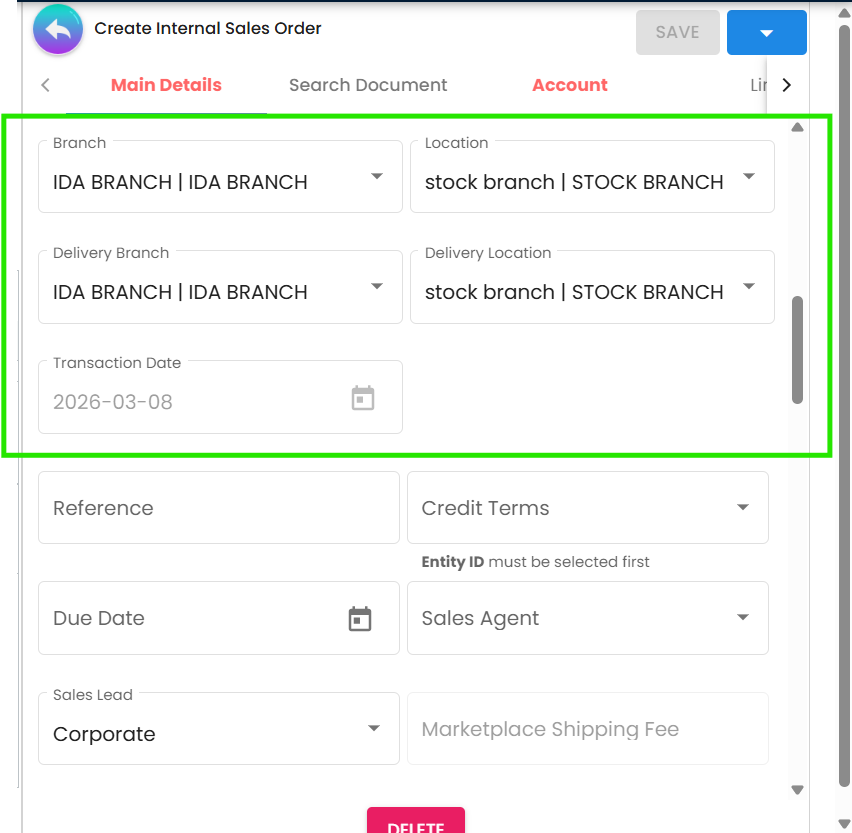
On Main Details, set the things the quotation did not care about:
- Credit terms and due date — Net 30, pulled from the customer record.
- Sales Order Status, if your tenant keeps its own status list (Settings → Sales Order Status). This is how you tag an order as Awaiting stock or Ready to pick and find it again.
- Reference — the customer’s purchase order number. Put it here; it is what they will quote when they ring about the invoice.
On Delivery Details, set the delivery branch and location and the requested delivery date.
Press SAVE, then FINAL.
What FINAL on a sales order actually does: it numbers and locks the order, subtracts twelve laptops from available stock at GS-KV-01, and — through the company’s Knock Off Configuration — makes the order visible in the KO For lists of the invoice and delivery documents. It writes no journal and no inventory transaction, and it puts nothing in the Pick Pack Queue; that is Step 4’s button.
Next: take the deposit and send the lines for fulfilment.
Step 5: Invoice — the step that does everything
In brief: the sales invoice, knocked off the order, is the one document in this flow that moves stock and posts money. Once it is FINAL, background jobs take the twelve laptops out of GS-KV-01 at their moving-average cost and post RM 53,424 owed to you, with the revenue and the SST; there is no cost-of-sales line. A missing GL code never stops FINAL, so a posting can fail, or come out incomplete, after the invoice already reads FINAL. Step 5 walks it, with the refusals you will meet and what an unmapped code does.
What success looks like
Five checks, about a minute:
- Open the invoice’s Posting tab. Journal and Inventory both show as posted. (An empty Journal status with Inventory posted means the posting failed — usually an unmapped GL code, Step 5’s callout.)
- Stock Balance for the item at
GS-KV-01is twelve lower than it was this morning — and it moved at Step 5, not Step 4. - Open the order and look at SO Line with SI KO. The ordered quantity and the invoiced quantity are both 12, and nothing is left open.
- Open the customer’s Statement of Account. The invoice, the deposit and the final receipt are all there, and the balance is zero.
- Open the invoice’s TraceDocument tab, Journal Txn. It holds the three lines Step 5 shows: debit trade debtors, credit sales, credit output tax, and no cost-of-sales line, because month-end processing writes that. If trade debtors is debited less than the invoice total, or a credit line is missing, a sales or tax code is unmapped: map it, then press Repost beside Posting Journal in Trace Document.
The document, the customer’s balance and the journal are three separate records, which is why one check is not enough. FINAL sets the document’s status. The customer’s balance is recalculated each time you run the statement, from the open amount stored on the invoice when it was saved and the contras against it. The journal is written by a background job after FINAL. So the statement can read right while the journal is wrong. And one sale checks only the company’s defaults: an item that carries its own sales GL code at that company posts to that code instead, so the first sale of such an item needs this check of its own.
Common mistakes
The mistakes in the deposit and the fulfilment are with Steps 3 and 4, and those in the invoice and the receipt with Steps 5 and 6. These belong to the quote and the order:
Expecting the sales order to reduce stock. It reduces available stock — what you can still promise — not the stock balance. If you are reconciling a physical count against BigLedger, the number you want is the stock balance, and on the sales side it moves on invoices, cash bills and returns (and on a Sales GIN Stock Out, if an integration raises one) — never on an order. At a single location, a consignment Transfer Out to a customer moves it too.
Taking the deposit through the quotation’s Convert button and losing the quote. Convert creates the receipt voucher and then deletes the quotation. Take deposits on the order, or raise the receipt voucher directly.
Leaving orders open that will never ship. Every open FINAL order line holds available stock hostage. Use SO Line with SI KO to close the lines that are done with, so the availability figure means something.
Related documentation
- Sales Quotation (Internal), Sales Order (Internal), Sales Invoice (Internal), Receipt Voucher (Internal) — the applet references for each step
- Goods Delivery Note (Internal) — the delivery paperwork, which moves no stock
- SO Consolidation — one invoice for a month of orders, per customer
- Partial Delivery Workflow — when the order ships in pieces
- Credit Sales Workflow — selling on terms, and what credit control really does
- Delivery and Installation Scheduling — getting it to the customer’s door
- E-Invoice guides — what happens to the invoice after FINAL