Invoice the order and collect the balance
Steps 5 and 6 of the standard sales workflow: invoice the order, the step that moves the stock and posts the money, then collect the balance and clear it against the invoice. It follows Steps 3 and 4, where you took the deposit and sent the lines for fulfilment.
Check Before you start first: without the Sales Order → Sales Invoice row in your Knock Off Configuration the invoice cannot find the order. Separately, the invoice refuses to finalise if there is no stock at the location. The company’s default GL codes (SALES, DEBTOR, OUTPUT_TAX) must be mapped: a missing one does not stop FINAL, and the posting afterwards goes wrong (the callout in Step 5). Invoice when the goods leave, not before: the invoice takes the stock out the moment it finalises.
The running example is twelve ultraportable laptops at RM 4,200 each from branch GS-KV-01: RM 50,400 net, RM 3,024 SST at 6%, RM 53,424 in total. The customer has paid a 20% deposit, RM 10,684.80, and settles the balance 30 days after delivery.
Step 5: Invoice — the step that does everything
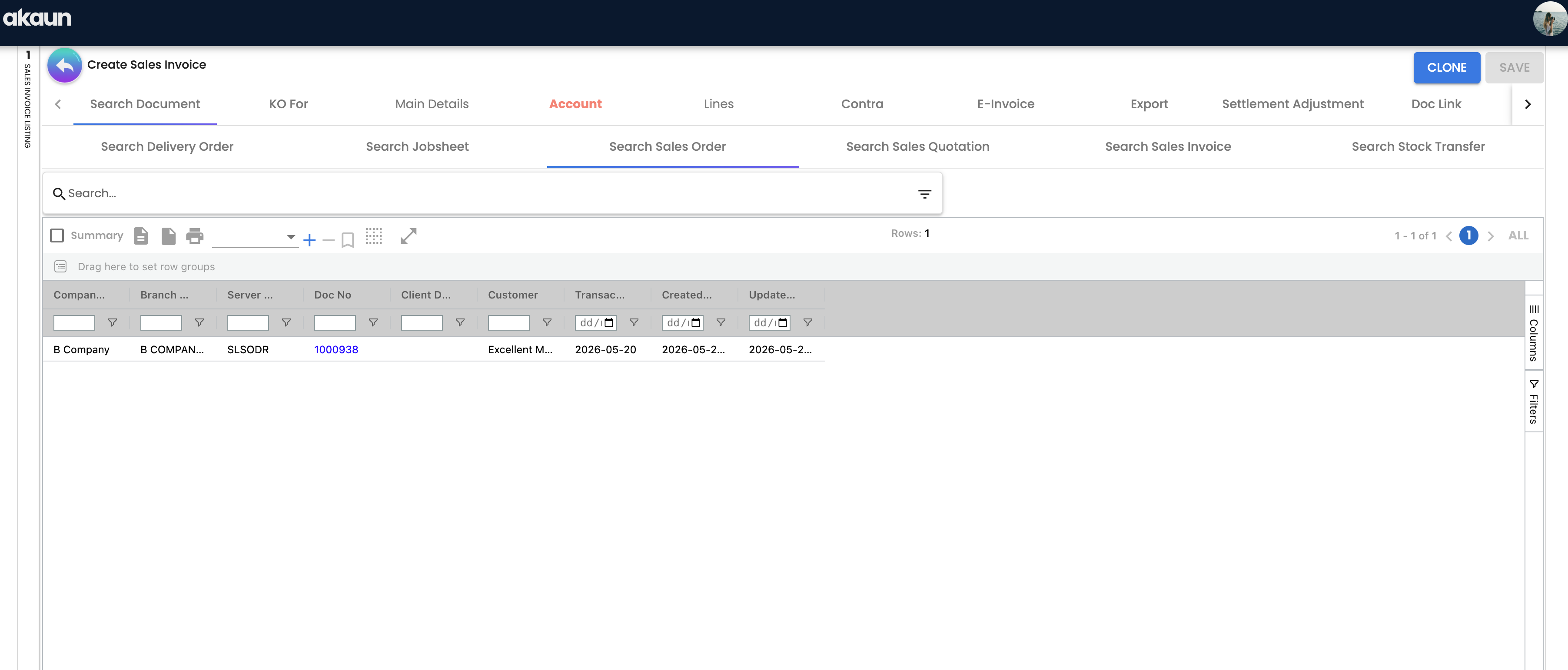
Finance > Sales Invoice (Internal) > Sales Invoice > Create > KO For > Sales Order
The outcome: stock out, revenue booked, SST booked, and RM 53,424 owed to you.
Create the invoice, open KO For, search for the sales order and knock it off. The lines and the customer come across, with the serials attached.
Because the order holds the deposit, BigLedger asks Transfer Available Credit? Answer Yes. The deposit moves from the order to the invoice by contra, and once the invoice is final it shows RM 42,739.20 outstanding rather than RM 53,424. Answer No and the invoice shows the full amount, while the deposit stays on the order until somebody applies it from the invoice’s Contra tab.
Check three things on Main Details before you go further: the branch and location (stock leaves from here), the transaction date (this is the accounting date), and the currency. Then check the E-Invoice tab if your company is registered with LHDN — the buyer identification has to be right before submission, and fixing it afterwards means a cancellation.
Press SAVE, then FINAL.
BigLedger now runs every check at once and reports all the failures together. The ones you will meet in practice:
| What you see | What it means |
|---|---|
| “Not Enough Stock for item …” | There is no stock for that item at the line’s delivery location — the location the goods are delivered from, which may not be the location shown. If the shelf is full, look at Delivery Location in Main Details: a value left over from another branch is the usual cause, and re-picking the Branch and saving puts it right. For a real shortage, transfer stock in — do not switch the check off |
| “Customer is blacklisted due to credit limit / overdue credit term” | The customer’s blacklist flag is set. See the credit guide |
| Serial number quantity does not match | The serials on a line do not add up to its quantity |
| “The selected date falls within a locked fiscal period.” | Finance has locked that month. Change the date or ask them to reopen it |
When it passes, the invoice is FINAL and, a moment later, the posting job writes:
Dr  Debtor — trade retail                RM 53,424.00
    Cr  Sales — laptops                           RM 50,400.00
    Cr  SST output tax                            RM  3,024.00
and the stock processor takes twelve laptops out of GS-KV-01 at their moving-average cost. The invoice is queued for e-Invoice submission, the sales-contract, commission and membership-points processors run, and the order’s open quantity drops to zero.
There is no cost-of-sales line here, and that is by design. Cost of goods sold is written once a month by the Financial Report applet’s month-end processing — opening stock plus purchases less closing stock, into COGS against STOCK_BALANCE. Until then the Profit Loss Report works the margin out live from the sales lines.
A missing GL code never stops FINAL — and one kind never fails at all. An unmapped DEBTOR fails the posting job with MISSING_DEFAULT_GL_CODE: DEBTOR: the Posting tab shows no journal status while Inventory reads posted. Map the code in Chart of Account, then go to Financial Report > Error Checking > Trace Document, find the invoice under Missing Journal, and Resolve it.
An unmapped SALES or OUTPUT_TAX is worse: the job leaves that line out, builds the customer’s line from what is left, and the journal balances and posts. On a RM 106 invoice (RM 100 of goods, RM 6 SST) with no SALES code it posts debit trade debtors RM 6, credit output tax RM 6 — sales RM 100 short, and after the customer pays RM 106, trade debtors is RM 100 in credit. How you would notice: the receivable GL account stops agreeing with the debtor ageing; the customer statement and the ageing are built from documents and look right, and Trace Document finds nothing because a journal exists. Only a customer with no AR/AP type turns this into a failure (TOTAL_DEBITS_AND_TOTAL_CREDITS_NOT_BALANCES), and an invoice where nothing resolves fails with NO_JOURNAL_CREATED. Before go-live, check every sales, return and tax code has a company default (or every item its own), and read the journal of your first invoice after any chart-of-accounts change.
Step 6: Collect the balance
Finance > Receipt Voucher (Internal) > Internal RCT Voucher > Create
The outcome: the customer’s balance cleared and the money reconciled.
Thirty days later the customer pays RM 42,739.20 — the invoice less the deposit. Create a receipt voucher, pick the customer on Account, add a Settlement line for the amount and the method they used, then open Contra and tick the invoice.
That contra link is the part that matters. A receipt finalised without a contra is real money in the bank but an unapplied credit on the customer’s account — the invoice still shows as outstanding on the ageing report, and someone will chase a customer who has already paid.
Press FINAL. The cashbook line is created (this is what Bank Reconciliation matches against the statement), the journal posts Dr cashbook / Cr debtor, and the Outstanding figure on the invoice’s ARAP tab goes to zero. Its Doc Open Amount stays at RM 53,424.00, the invoice’s own total, because a contra never changes it.
What success looks like for this part
The invoice’s Posting tab shows Journal and Inventory both posted, its TraceDocument tab’s Journal Txn holds the three lines Step 5 shows, Stock Balance for the item at GS-KV-01 is twelve lower, and once the receipt is contra’d the invoice’s Outstanding reads zero. The whole order’s success check has all five checks.
Common mistakes in this part
Invoicing before the goods are picked. The invoice takes the stock out the moment it finalises. Invoice a week early and your system says the goods have gone while they are still on the shelf, which makes every stock report wrong until the goods actually leave.
Finalising a receipt voucher without contra-ing it to the invoice. The money is in the bank and the invoice is still outstanding. This is the single most common cause of “we chased a customer who had already paid.”
Turning off the stock-balance check to get an invoice out. The check exists because an invoice for stock you do not have gives you a negative balance and a cost of goods sold figure built on nothing. Transfer the stock, or invoice what you actually have and leave the rest open — that is what Partial Delivery is for.
Related documentation
- Sales Invoice (Internal) and Receipt Voucher (Internal) — the applet references for these steps
- Partial Delivery Workflow — when the order ships in pieces
- Credit Sales Workflow — selling on terms, and what credit control really does
- E-Invoice guides — what happens to the invoice after FINAL