Claims Management Module
The Claims Management Module is BigLedger’s employee expense reimbursement and policy entitlement engine. It manages employee business expenses, OCR receipt capture, entitlement caps by job grade, multi-tier managerial approval matrices, and automated Accounts Payable disbursements integrated with Financial Accounting.
Architecture & Data Flow
Claims Management operates between employee expense submissions and company financial ledgers. When an employee submits a business receipt, the system validates entitlement limits, routes the request through manager sign-offs, and posts approved expense reimbursements directly to Financial Accounting.
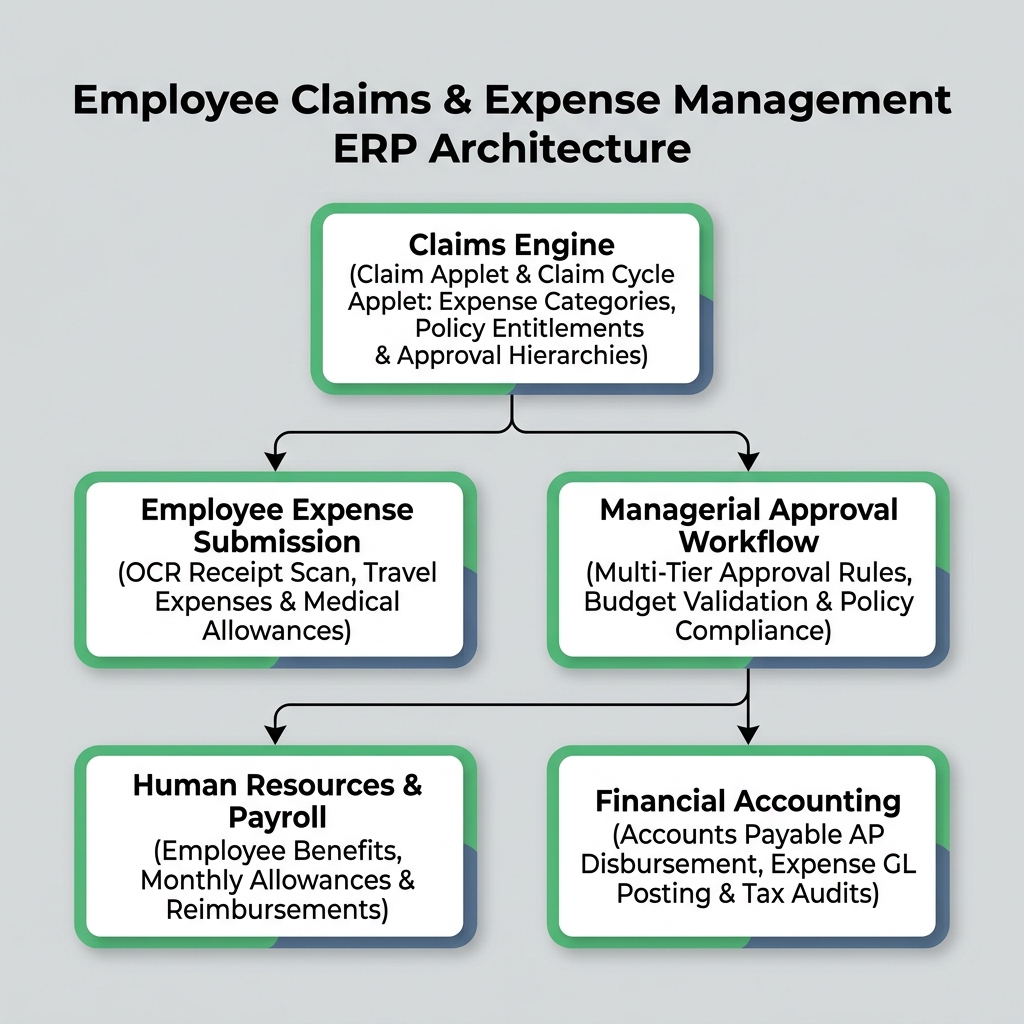
| Architecture Layer | System Component | Primary Role in Claims Operations |
|---|---|---|
| Claims Engine | Claim Applet | Central management of expense categories, employee entitlement limits, and receipt submissions. |
| Cycle & Approvals | Claim Cycle Applet | Defining monthly claim submission windows, approval routing matrices, and verification cycles. |
| Human Resources Sync | HR & Employee Profiles | Synchronization of employee job grades, department managers, and monthly benefit allowances. |
| Financial Disbursement | Accounts Payable (AP) & Banking | Automated GL expense posting, tax deductibility logging, and direct employee bank reimbursements. |
Who Uses This Module
| Role | Primary Responsibilities | Core Applets Used |
|---|---|---|
| Employee / Claimant | Submit out-of-pocket business expenses, scan receipts via OCR, track reimbursement status | Claim Applet |
| Department Manager | Verify employee expense receipts against business justification, approve claim requests | Claim Applet |
| HR / Claims Administrator | Configure expense entitlement caps by employee grade, manage claim cycles and policies | Claim Cycle Applet |
| Finance / AP Officer | Audit tax deductibility, approve final expense payouts, post GL allocations and bank disbursements | Claim Applet |
Four Expense Claim Types Every Team Must Differentiate
Confusing expense claim types leads to policy non-compliance and tax audit disallowances:
| Claim Category | Business Purpose | Entitlement Rule | Financial Accounting Impact |
|---|---|---|---|
| Travel & Lodging | Business travel hotel stay, flights, and public transit | Capped per night based on employee job grade | Debits Travel Expense GL, Credits Employee AP |
| Medical & Wellness | Outpatient clinic visits, dental care, and hospitalization | Annual fixed entitlement balance per employee | Debits Staff Welfare GL, Credits Employee AP |
| Entertainment & Meals | Client entertainment dinners and business networking | Requires client name and business purpose log | Debits Entertainment GL (Tax Deductible / Non-Deductible split) |
| Mileage & Mileage Fuel | Private vehicle usage for company business travel | Calculated via fixed distance rate (e.g., $0.60 per KM) | Debits Transport Expense GL, Credits Employee AP |
Applet Map
| Applet | What it does in this module |
|---|---|
| Claim Applet | Employee expense submission portal — OCR receipt scanning, claim entry, and manager approval tracking |
| Claim Cycle Applet | Claims administration — defining monthly cut-off windows, batch disbursement processing, and policy rules |
ERP Dependency Table
| Connected Module | What Claims needs from it |
|---|---|
| Core | Employee master profiles, department structures, organization branches, tax codes |
| HR & Payroll | Employee job grades, supervisor reporting hierarchies, monthly payroll integration |
| Financial Accounting | Chart of accounts expense mapping, Accounts Payable clearing, tax GL ledgers |
Go-Live Checklist
- Employee master records and department reporting lines configured in Core / HR
- Expense categories (Travel, Medical, Entertainment, Mileage) defined with GL account codes
- Employee grade entitlement limits and annual caps established in Claim Cycle Applet
- Managerial approval hierarchies and multi-tier sign-off rules mapped
- Finance reimbursement payment methods (Bank GIRO / Direct Payroll inclusion) configured
- Employees trained on mobile receipt scanning and claim submission
Module Learning Roadmap
Follow the documentation in this sequence to master the Claims Management Module:
- Core Concepts (Next Step) — Understand expense entitlement structures, approval lifecycles, and tax deductibility rules.
- Configuration — Step-by-step setup guides for expense categories, entitlement caps, and approval matrices.
- Use Cases — Real-world reference architectures for corporate travel reimbursements, medical benefits, and sales mileage.
- API Reference — Direct reference link to official developer claims APIs.
- Best Practices — Operational recommendations for receipt auditing, policy enforcement, and anti-fraud controls.
- Reports & Analytics — Scenario guide for choosing the best expense analytics and departmental budget reports.
- Related Applets — Complete guide to native applet dependencies across the BigLedger ecosystem.
Proceed to Core Concepts → to understand claim processing lifecycles and entitlement policies.