Core Module
1. Module Overview
The Core Module is the foundation of the entire BigLedger ecosystem. It contains the master data and configuration applets that every other module depends on — organization structure, chart of accounts, customers, suppliers, employees, products, pricing, tax, and system administration.
No other module can function without Core. It must be implemented first.
Business Value:
- Single source of truth for all master data across the organization
- Centralized configuration eliminates duplication and inconsistency
- Role-based access via Tenant Admin enforces security from day one
- Visual workflow design enables custom approval chains for any business process
2. Key Concepts & Terminology
| Term | Definition |
|---|---|
| Tenant | A self-contained BigLedger account representing one business entity. |
| Organisation | The hierarchical structure defining the company, its branches, and locations. |
| Chart of Accounts (COA) | The master list of all financial accounts used for recording transactions. |
| Cashbook | A register representing a bank account, cash drawer, or payment method. |
| Pricebook | A curated price list assigned to specific customer groups, tiers, or channels. |
| Inventory Item | A product or service record in the item master (SKU, pricing, tax, stock settings). |
| Doc Item | Document-level item configuration controlling how items behave on transactional documents. |
| Workflow Design | A visual rule builder defining multi-step approval or automation chains. |
3. Applet Dependency Map
Core’s applets stack into four layers. Each layer depends on the one above it — configure top-down during implementation.
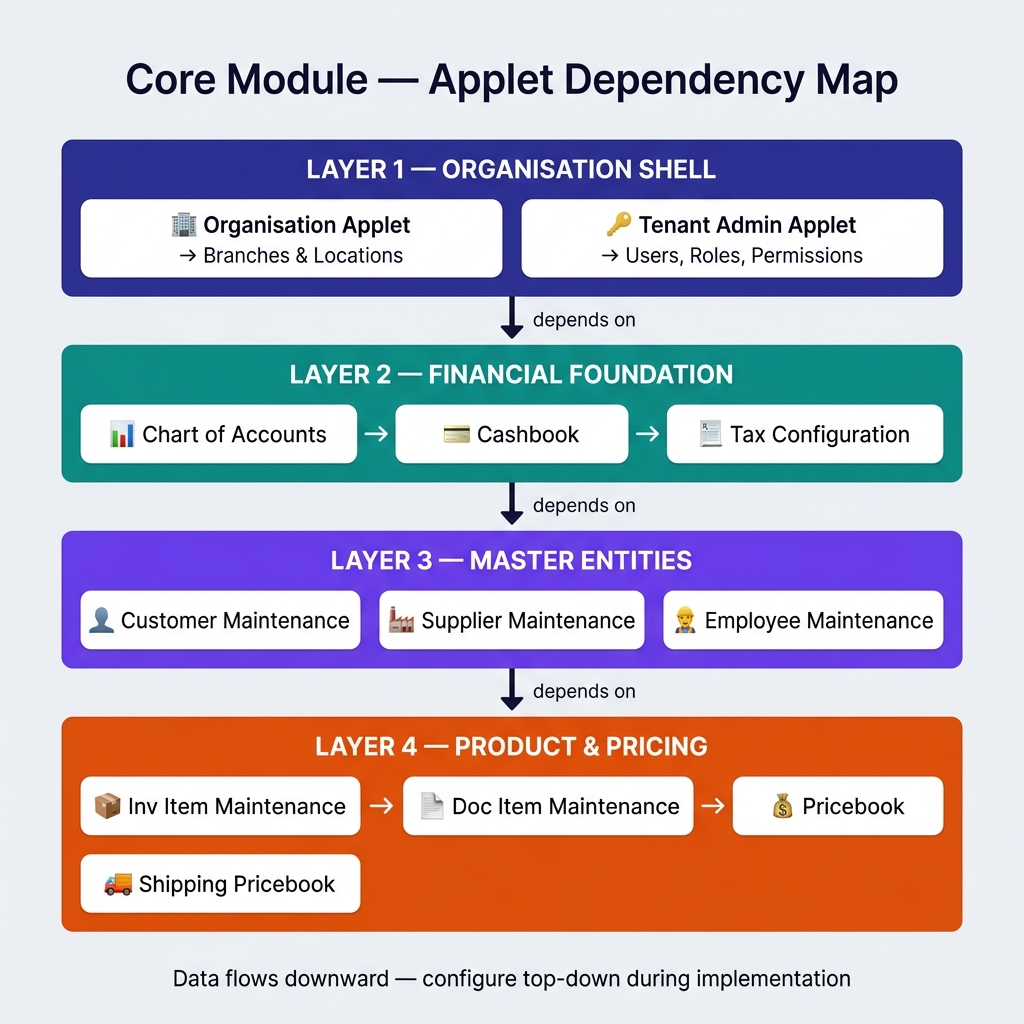
Data flows downward — every layer below depends on what is configured above.
4. The Applet Layers Explained
Layer 1 — Organisation Shell
The skeleton of what exists in your business and who can access it.
| Applet | Purpose |
|---|---|
| Organisation Applet | Define the company hierarchy — entity, branches, locations, departments. |
| Tenant Admin Applet | Manage users, roles, permissions, and system-wide configuration. |
Layer 2 — Financial Foundation
How money is classified, stored, and taxed. Required before any financial transaction can post.
| Applet | Purpose |
|---|---|
| Chart of Accounts Applet | Build the hierarchical account structure for all financial transactions. |
| Cashbook Applet | Set up bank accounts, petty cash, and payment method registers. |
| Tax Configuration Applet | Define tax codes, rates, and rules for sales and purchase transactions. |
Layer 3 — Master Entities
Who you do business with.
| Applet | Purpose |
|---|---|
| Customer Maintenance Applet | Create customer master records with credit terms and contacts. |
| Supplier Maintenance Applet | Manage supplier/vendor master records with payment terms and banking. |
| Employee Maintenance Applet | Manage employee profiles and department assignments. |
Layer 4 — Product & Pricing
What you sell and at what price. Items flow from master record to document behavior to price list.
| Applet | Purpose |
|---|---|
| Inventory Item Maintenance Applet | Maintain the item master catalogue — SKUs, descriptions, classifications. |
| Doc Item Maintenance Applet | Configure document-level item behavior — tax mapping, UOM, discount rules. |
| Pricebook Applet | Create segmented price lists per customer tier or channel. |
| Shipping Pricebook Applet | Define shipping and delivery rate cards. |
5. Who Uses This Module?
Six roles use the Core Module — each owns a specific layer of master data.
| Role | Owns |
|---|---|
| System Administrator | Tenant configuration, users, workflows |
| Finance Controller | Financial foundation (COA, Cashbook, Tax) |
| Sales Administrator | Customer records and pricing tiers |
| Purchasing Administrator | Supplier records and payment terms |
| HR Administrator | Employee records |
| Product Manager | Item catalogue, doc item behavior, pricebooks |
6. Role-Based User Journeys
Journey: System Administrator (Day-One Setup)
[Tenant Admin] ──▶ [Organisation] ──▶ [Group Maintenance] ──▶ [Workflow Design]- Open Tenant Admin Applet and create the System Administrator account.
- Move to Organisation Applet — create the company entity, branches, and locations.
- Use Group Maintenance Applet to define role groups (Finance, Sales, Procurement, etc.).
- Configure approval chains in Workflow Design Applet.
Journey: Finance Controller (Financial Skeleton)
[Chart of Accounts] ──▶ [Tax Configuration] ──▶ [Cashbook]- Import or build the account tree in Chart of Accounts Applet.
- Set up tax codes and rates in Tax Configuration Applet.
- Register every bank account and petty cash fund in Cashbook Applet.
Journey: Sales Administrator (Customer Onboarding)
[Customer Maintenance] ──▶ Credit terms ──▶ [Pricebook] ──▶ Ready for Sales Module- Create the customer in Customer Maintenance Applet.
- Set credit limit and payment terms (Net 30, etc.).
- Assign the customer to the right tier in Pricebook Applet.
Journey: Purchasing Administrator (Vendor Onboarding)
[Supplier Maintenance] ──▶ Payment terms ──▶ Banking ──▶ Ready for Purchasing Module- Create the supplier in Supplier Maintenance Applet.
- Set payment terms and banking details.
Journey: Product Manager (New Product Launch)
[Inv Item Maintenance] ──▶ [Doc Item Maintenance] ──▶ [Pricebook] ──▶ Tax mapping- Create the SKU in Inventory Item Maintenance Applet.
- Configure document behavior in Doc Item Maintenance Applet — tax category, UOM, discount rules.
- Add prices in the relevant tiers in Pricebook Applet.
- Confirm tax mapping in Tax Configuration Applet.
Journey: HR Administrator
[Employee Maintenance] ──▶ Hands off to HR-Payroll ModuleCreate and maintain employee profiles in Employee Maintenance Applet. Downstream HR processes (payroll, claims) consume these records.
7. Cross-Module Touchpoints
| Direction | What Flows |
|---|---|
| Receives from | Nothing — Core is the root of every implementation. |
| Sends to | Finance (COA, Cashbook, Tax), Sales (Customers, Pricebooks), Purchasing (Suppliers), Inventory (Items), HR-Payroll (Employees), POS, E-Commerce, Claims, Manufacturing — every module. |
8. Prerequisites & Setup
Core has no external prerequisites — it is module #1 in every BigLedger implementation.
Recommended Setup Sequence
- Organisation Shell — company, branches, locations, Tenant Admin user
- Financial Foundation — COA, Tax Codes, Cashbooks
- Master Entities — Customers, Suppliers, Employees
- Product & Pricing — Items, Doc Item rules, Pricebooks
- Automation Glue — Workflows, Permission Groups
Implementation Checklist
- Create the company entity in the Organisation Applet
- Define at least one branch and one location
- Import or build the Chart of Accounts
- Configure all applicable tax codes
- Create at least one Cashbook
- Create the System Administrator in Tenant Admin
- Set up initial user roles and permission groups
- Import or create customer master records
- Import or create supplier master records
- Import or create the item catalogue
- Set up at least one Pricebook
Naming Conventions
- Accounts (COA): structured numbering —
1000-1999Assets,2000-2999Liabilities,3000-3999Equity - Items: category-based codes —
ELEC-001,FURN-001 - Customers / Suppliers: systematic codes —
CUS-001,SUP-001 - Employees: department-prefixed —
HR-001,FIN-001
Data Integrity
- Enable Audit Trails in Tenant Admin from day one
- Set up approval workflows for critical master changes (credit limits, new suppliers)
- Plan naming schemes before configuring — retroactive renames are painful
9. FAQs & Troubleshooting
Q: Can I change the Chart of Accounts structure after going live? A: You can add new accounts at any time. Renaming or deleting accounts that already have posted transactions is restricted. Plan your COA carefully during initial setup.
Q: How many branches and locations can I have? A: There is no hard limit. BigLedger supports multi-branch, multi-location setups of any scale.
Q: A new employee was added but they can’t log in. What’s wrong? A: Employee Maintenance Applet holds HR data. Login access is managed separately in Tenant Admin Applet. Create the user there with the correct role assignments.
Q: How do I set different prices for different customer groups? A: Create multiple pricebooks (Retail, Wholesale, VIP) in Pricebook Applet and assign customers to the correct one in their customer record.
Q: Can one item have different tax treatments in different branches? A: Yes. Tax codes are configurable at the document item level and can be overridden per branch through Doc Item Maintenance Applet.