Financial Accounting Module
1. Module Overview
The Financial Accounting Module is the financial backbone of BigLedger. It records every accounting transaction — from journal entries and payment vouchers to bank reconciliation and financial reporting. It is the destination where every other module posts its financial impact.
Business Value:
- Real-time financial position visible at any moment — no waiting for month-end close
- Complete audit trail from source document to general ledger entry
- Multi-currency and multi-entity support for regional and international operations
- Integrated budgetary controls prevent unauthorized spending before it happens
📌 Important relationship: Financial Accounting does not own master data. The Chart of Accounts, Cashbooks, Tax Codes, Customer and Supplier records all live in the Core Module. Finance uses them. Read Section 3 — Master Data Dependencies to understand this critical relationship before going further.
2. Key Concepts & Terminology
| Term | Definition |
|---|---|
| General Ledger (GL) | The master record of all financial transactions, organized by account. |
| Journal Entry | A manual or system-generated double-entry record that debits and credits accounts. |
| Payment Voucher (PV) | A document authorizing and recording an outgoing payment to a supplier or employee. |
| Receipt Voucher (RV) | A document recording an incoming payment received from a customer. |
| Bank Reconciliation | The process of matching bank statement lines to internal records to ensure accuracy. |
| Statement of Account | A periodic summary of all transactions between the company and a customer or supplier. |
| Budget | A planned financial target set for specific accounts, departments, or projects. |
| Vote Book | A budgetary commitment register tracking allocated vs. spent amounts per budget line. |
| SST | Sales and Service Tax — Malaysia’s indirect tax regime. |
| Transaction Reconciliation | The matching of related transaction records across modules (e.g., invoice to payment). |
| Posting Status | A document state — DRAFT (editable, not in GL) or FINAL (posted to GL, immutable). |
| Period Cut-off | The date after which no transactions can be backdated into a closed period. |
| Dr (Debit) | The accounting side that receives value — increases assets and expenses, decreases liabilities, equity, and revenue. Always the left side of a journal entry. |
| Cr (Credit) | The accounting side that gives value — increases liabilities, equity, and revenue, decreases assets and expenses. Always the right side of a journal entry. Every entry must have Total Dr = Total Cr. |
| Reversing Entry | A journal posted with opposite signs to cancel a previous incorrect or accrual entry. BigLedger requires this approach because posted entries cannot be edited or deleted. |
| Accrual | Revenue or expense recognized in the period it is earned or incurred, regardless of when cash moves. Requires a manual journal at period-end and a reversing entry in the next period. |
| Moving Average (MA) Cost | The weighted average unit cost of an inventory item, recalculated automatically each time stock is received. Used as the COGS value when items are sold. |
| Functional Currency | The primary currency in which the company keeps its books (e.g., MYR). All transactions are converted to functional currency at posting using the exchange rate at that date. |
| FX Revaluation | A period-end journal that restates foreign-currency balances (AR, AP, bank) at the closing exchange rate. The resulting gain or loss posts to an FX Gain/Loss account. |
| Opening Balance | The account balances brought forward from a previous accounting system at go-live. Must be migrated before the first real transaction is posted. See the Opening Balance Migration Guide →. |
3. Master Data Dependencies (What Finance Borrows from Core)
Finance has no master data of its own. Every transaction relies on master records configured in the Core Module. Understanding this relationship is the single most important thing for any new user.
What flows from Core into every Finance transaction
| Master Data | Owned By (Core Applet) | Used By (Finance) | What It Decides |
|---|---|---|---|
| Chart of Accounts | Chart of Accounts Applet | Every Journal, PV, RV, and posting | Which GL account is debited/credited |
| Cashbook | Cashbook Applet | Every PV, RV, Bank Reconciliation | Which bank account / cash drawer is touched |
| Tax Codes | Tax Configuration Applet | Every taxable invoice, PV, RV | Tax rate, tax account, SST treatment |
| Customer Records | Customer Maintenance Applet | RVs, Debtor Report, Statement of Account | Who owes you, credit terms, statement target |
| Supplier Records | Supplier Maintenance Applet | PVs, Creditor Report | Who you pay, payment terms, bank details |
| Doc Item Mapping | Doc Item Maintenance Applet | Any document with line items | Default revenue/expense account per item, default tax code |
| Organisation Structure | Organisation Applet | All transactions and reports | Branch / location / department tagging for segmented reporting |
| Workflows | Workflow Design Applet | PV approval, RV approval, journal approval | Who approves what, in what order |
How a Cashbook becomes a GL Bank Account
This is the most commonly misunderstood relationship in BigLedger:
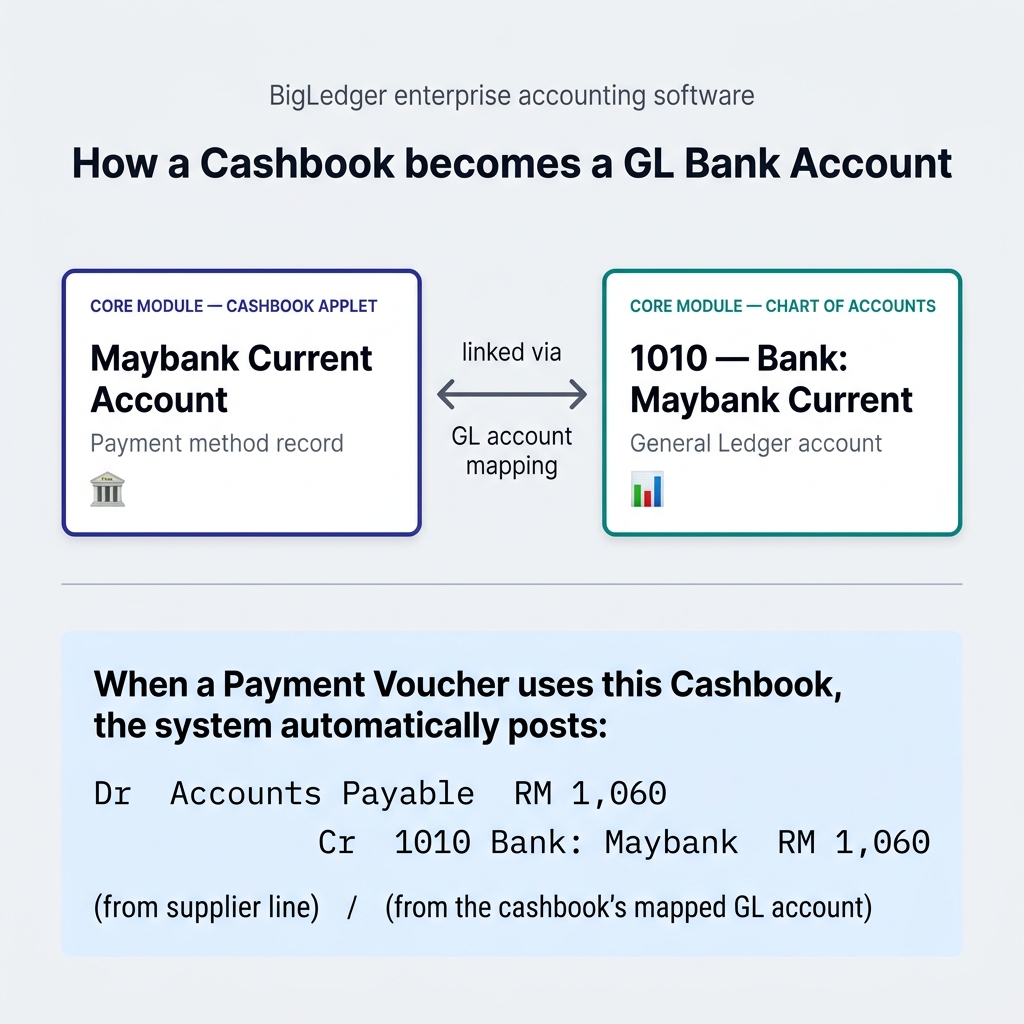
⚠️ Common pitfall: A new bank account requires two setup steps in Core: (1) create the GL account in Chart of Accounts, then (2) create the Cashbook and link it to that GL account. Skipping step 2 means transactions cannot be paid through that bank, even though the GL account exists.
How a Tax Code becomes a GL Tax Account
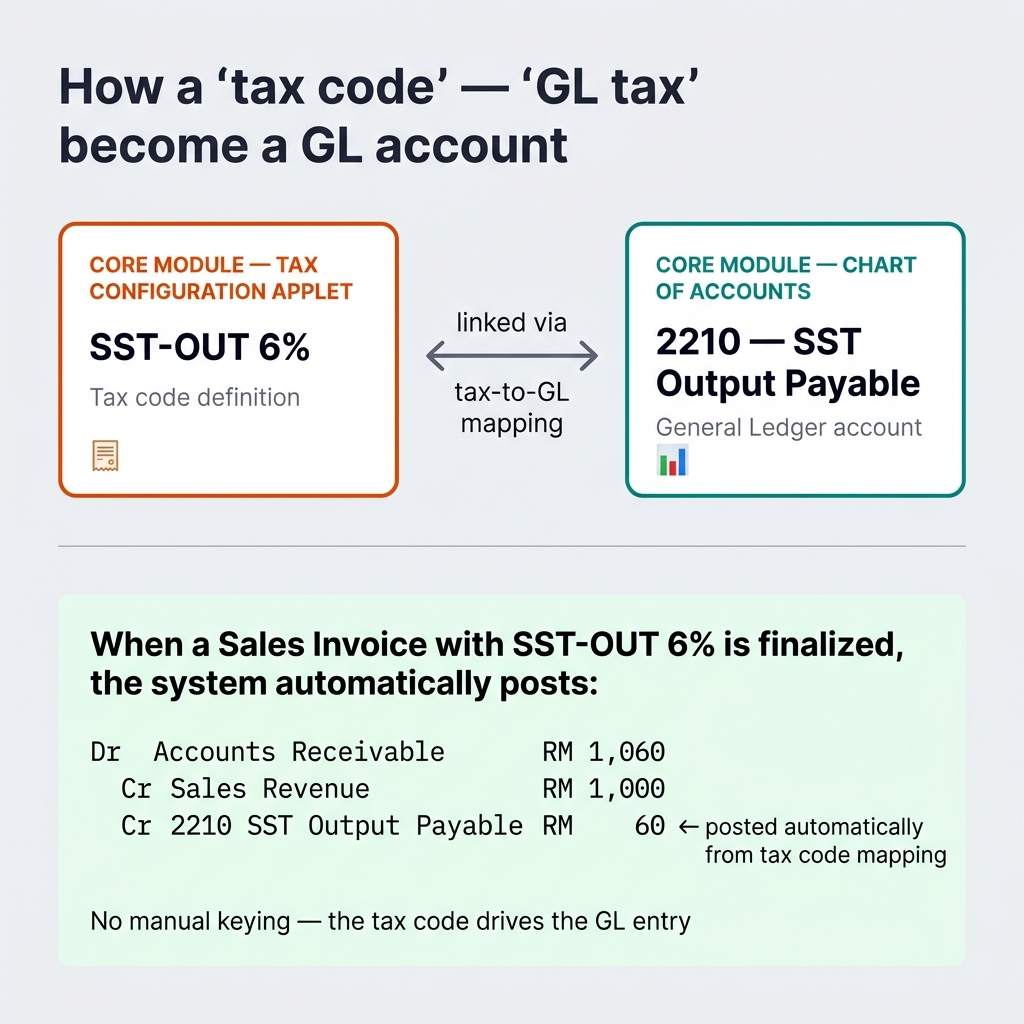
When a Sales Invoice with SST-OUT is finalized, the tax portion automatically credits 2210 SST Output Payable — without anyone keying it in.
4. Anatomy of a Transaction
Every finance transaction is a story made of six pieces. Knowing them helps you debug any posting issue.
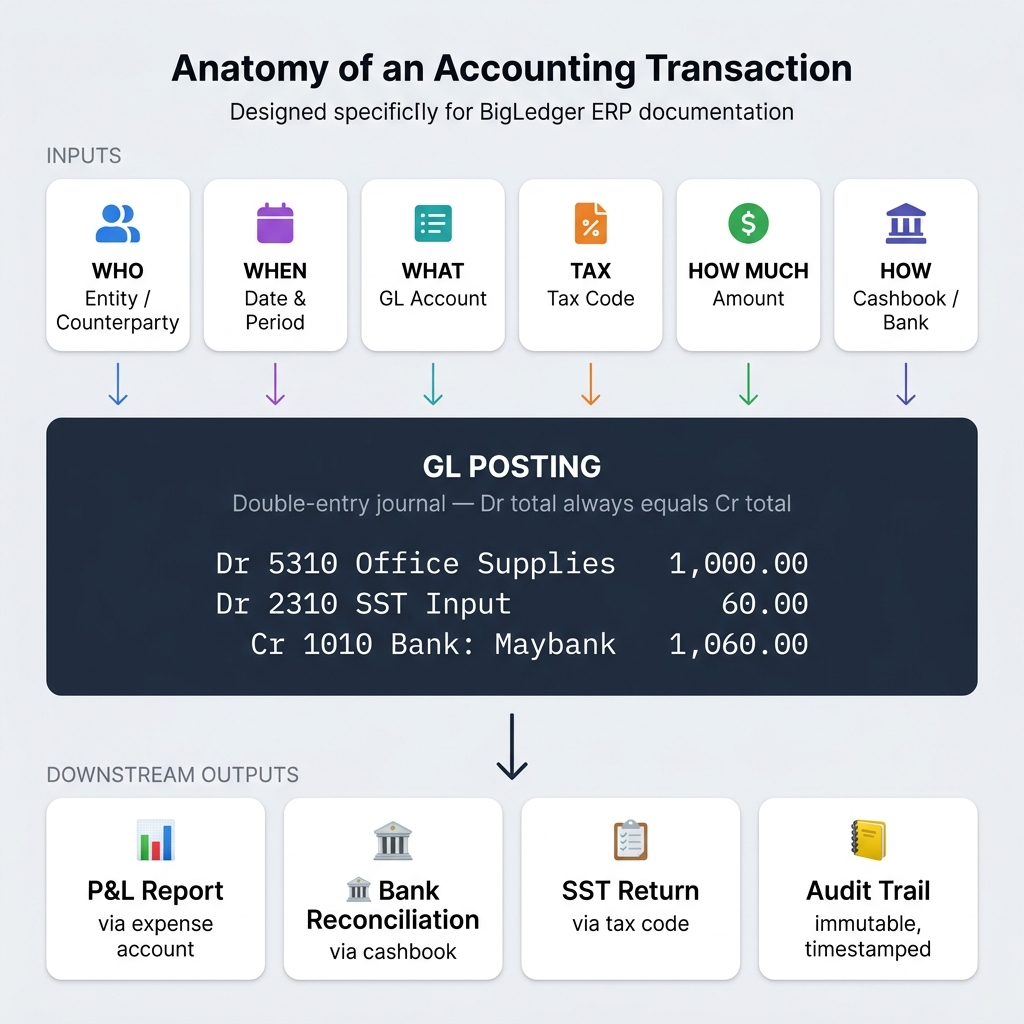
💡 How to read this: All six pieces (top row) feed into a single GL posting (middle). That posting then surfaces in every downstream report and reconciliation (bottom row). If any input is wrong or missing, the downstream outputs are wrong — this is your debugging map.
Example — A single Payment Voucher to Acme Supplies for RM 1,060 (incl. 6% SST):
| Piece | Value | Source |
|---|---|---|
| WHO (Entity) | Acme Supplies (SUP-014) | Supplier Maintenance |
| WHEN | 2026-03-15, Period: March-2026 | Ledger & Journal period control |
| WHAT (Account) | 5310 Office Supplies | Doc Item Maintenance default mapping |
| WHAT (Tax) | SST-IN 6% | Tax Configuration |
| HOW MUCH | RM 1,000 + RM 60 SST = RM 1,060 | Calculated by line + tax engine |
| HOW (Cashbook) | Maybank Current → GL 1010 | Cashbook Applet |
| WHERE | Branch: HQ | Organisation Applet |
Resulting GL posting (automatic):
That entry then flows into the P&L (via 5310), the Balance Sheet (via 1010 and 2310), the SST Return (via the tax code), and Bank Reconciliation (waiting to be matched).
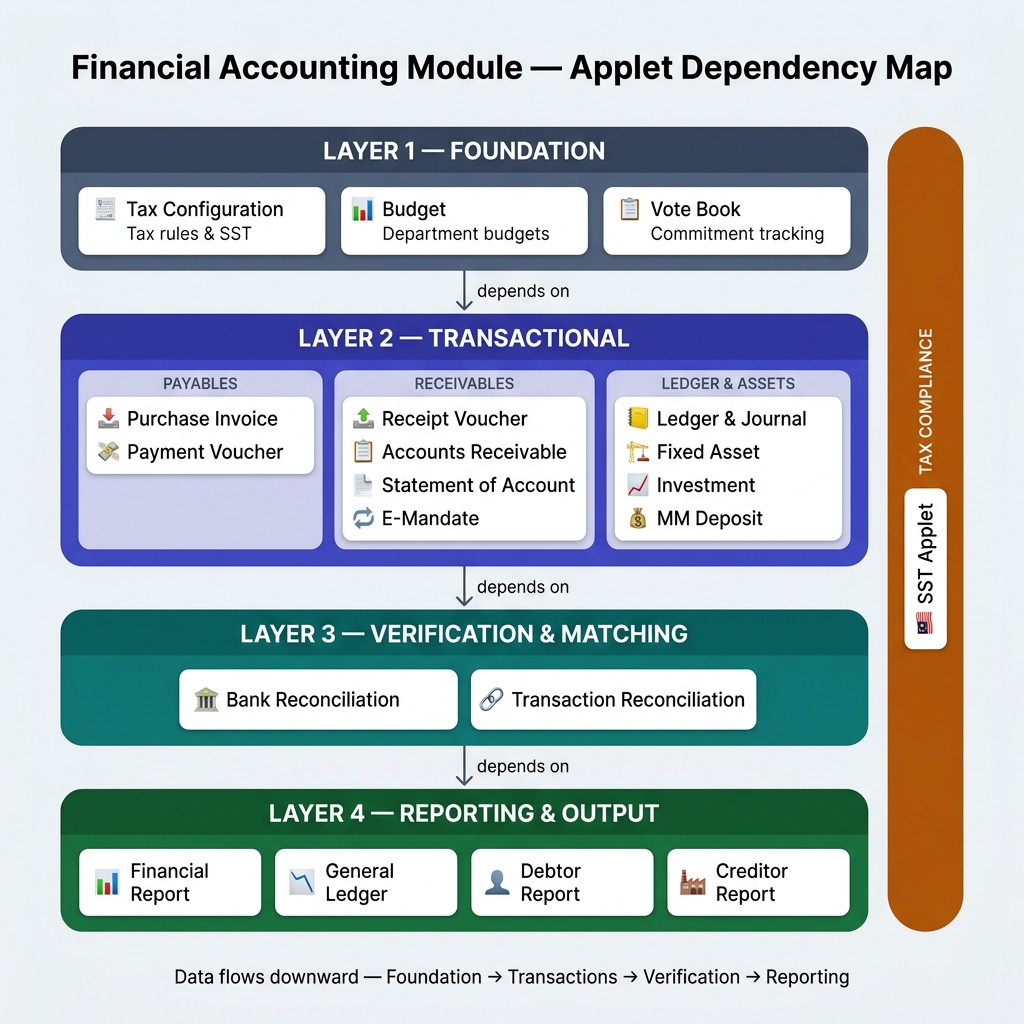
5. Applet Dependency Map
Finance applets stack into four layers, plus a cross-cutting compliance layer. Data flows downward — from configuration to transactions to verification to reporting.
6. The Applet Layers Explained
Layer 1 — Foundation
Set up the rules before any money moves. Budget envelopes, tax rates, and commitment registers are configured here first — every transaction posted in Layer 2 will draw on them automatically.
| Applet | When to Use | Key Output |
|---|---|---|
| Tax Configuration Applet | Before the first taxable transaction | Tax rates, SST treatment, and GL account mappings for every tax code |
| Budget Applet | At the start of each financial year or project | Department and cost-centre budgets with monthly or annual targets |
| Vote Book Applet | Continuously during the year | Live budget-vs-committed view; blocks overspend before a PV is approved |
💡 Why Tax Config sits in Foundation: Tax codes must exist before you can create a single invoice, PV, or RV. If a tax code is missing, the transaction either cannot be saved or posts to a suspense account — both are painful to clean up after the fact.
Layer 2 — Transactional
The bulk of day-to-day work happens here — every payment out, every receipt in, every manual journal, and every asset movement. Layer 2 is divided into four lanes depending on the nature of the transaction.
Payables Lane — Money leaving the company
Use the Payables lane to record what you owe suppliers and to make payments against those liabilities.
| Applet | When to Use | What It Posts to GL |
|---|---|---|
| Purchase Invoice (Internal) Applet | When a supplier invoice arrives and needs to enter the AP ledger | Dr Expense/Inventory · Dr SST Input · Cr Accounts Payable |
| Payment Voucher (Internal) Applet | When you are ready to pay a supplier — references the Purchase Invoice | Dr Accounts Payable · Cr Bank (via Cashbook) |
⚠️ Approval discipline: Payment Vouchers should always route through a workflow. Anyone who can create and approve their own PVs is a segregation-of-duties risk. Configure the PV approval chain in Workflow Design Applet before go-live.
Receivables Lane — Money coming into the company
Use the Receivables lane to capture customer payments, send statements, and manage mandates for recurring billing.
| Applet | When to Use | What It Posts to GL |
|---|---|---|
| Receipt Voucher (Internal) Applet | When a customer payment is received | Dr Bank (via Cashbook) · Cr Accounts Receivable |
| Accounts Receivable Applet | Ongoing — to manage the collection pipeline and overdue accounts | No GL posting; reads existing AR balance |
| Statement of Account Applet | Monthly — send a printed or emailed statement to each customer | No GL posting; generates statement from posted RVs and invoices |
| E-Mandate Applet | When a customer has authorized automatic direct debit | Generates RVs automatically on the mandate run date |
Core Ledger — Manual journals and period control
The Ledger & Journal Applet is the accountant’s workbench. Use it for accruals, reversals, corrections, and to open or close accounting periods.
| Applet | When to Use | What It Posts to GL |
|---|---|---|
| Ledger & Journal Applet | Accruals, reversals, corrections, period open/close | Any Dr/Cr pair the accountant specifies — full manual control |
💡 Period control lives here. Only users with the Period Management permission can open or close a month. Closing a period locks it — no backdating, no edits, and no deletions. Reopening is logged in the audit trail.
Assets & Treasury — Long-term holdings and investments
Use these applets for assets that sit on the Balance Sheet over multiple periods, not day-to-day expenses.
| Applet | When to Use | What It Manages |
|---|---|---|
| Fixed Asset Applet | When equipment, vehicles, or property is purchased | Depreciation schedules, disposals, and net book value |
| Investment Applet | When the company holds equity or fund investments | Investment cost, market value, and gain/loss tracking |
| MM Deposit Applet | When funds are placed in money market or fixed deposits | Maturity dates, interest accruals, and rollover management |
| Deposit Applet | For other deposit instruments (security deposits, utilities) | Deposit balance and reclaim tracking |
Specialty
| Applet | When to Use |
|---|---|
| Revenue Management Applet | When revenue must be deferred and recognized over time (e.g., subscriptions, advance payments). Prevents premature recognition of income. |
Layer 3 — Verification & Matching
Transactions are posted in Layer 2 — but posting is not the same as confirming. Verification is a separate discipline: you are checking that BigLedger’s internal records agree with the outside world (your bank) and with each other (cross-module matching).
Skipping this layer means errors accumulate silently. A payment recorded in BigLedger but rejected by the bank will not surface until reconciliation reveals the mismatch.
| Applet | What It Verifies | How Often |
|---|---|---|
| Bank Reconciliation Applet | BigLedger GL bank balance vs. actual bank statement | Monthly (minimum); daily for high-volume accounts |
| Transaction Reconciliation Applet | Cross-module matching — e.g., does a Purchase Invoice in Purchasing have a matching PV in Finance? | Monthly close; ad-hoc during investigations |
💡 Why verification is a separate layer: Posting a Payment Voucher updates the GL immediately. But the bank processes the payment independently — it may be delayed, rejected, or partially processed. Reconciliation is the step that confirms the two records agree. Without it, your GL cash balance is an estimate, not a fact.
Layer 4 — Reporting & Output
Reporting reads from the GL — it does not write to it. Everything posted in Layers 1–3 surfaces here as financial statements, aging reports, and drill-down inquiry tools.
See Section 7 — Reports Catalog below for a full breakdown of every report, when to run it, and who uses it.
Cross-Cutting — Tax Compliance
SST runs across all layers simultaneously — tax codes are configured in Layer 1, tax amounts are calculated and posted in Layer 2, and the SST return is filed using the cumulative tax data.
| Applet | Purpose |
|---|---|
| SST Applet | Malaysian Sales and Service Tax reporting, filing, and reconciliation. Aggregates output and input tax from all posted transactions across the period and generates the SST-02 return for submission to RMCD. |
7. Reports Catalog — What, When, Who
Reports turn posted data into decisions. They fall into five categories — each answers a different business question.
7.1 Statutory Reports (the official numbers)
| Report | Generated From | Primary Audience | Frequency | Decision It Drives |
|---|---|---|---|---|
| Balance Sheet | Financial Report Applet | Directors, auditors, banks | Month-end, year-end | Financial position, solvency, audit |
| Profit & Loss (Income Statement) | Financial Report Applet | Directors, finance manager | Monthly, quarterly, yearly | Profitability, performance vs. target |
| Trial Balance | Financial Report Applet | Accountant, auditor | Monthly (close), continuously | Confirms debits = credits before reports |
| Cash Flow Statement | Financial Report Applet | CFO, board, lenders | Monthly, quarterly | Operating / investing / financing health |
7.2 Operational Reports (the working numbers)
| Report | Generated From | Primary Audience | Frequency | Decision It Drives |
|---|---|---|---|---|
| Debtor Aging | Debtor Report Applet | AR Clerk, Finance Manager | Weekly | Who to chase for collection |
| Creditor Aging | Creditor Report Applet | AP Clerk, Finance Manager | Weekly | What to pay this week |
| Combined AR/AP | Debtor & Creditor Report Applet | Finance Manager | Weekly | Net cash position by counterparty |
| Statement of Account | Statement of Account Applet | AR Clerk → sent to customer | Monthly | Customer reconciliation and dispute resolution |
| Bank Reconciliation Summary | Bank Reconciliation Applet | AP/AR Clerk, Accountant | Monthly | Confirms book balance = bank statement balance |
7.3 GL Inquiry & Drill-Down (the investigative tools)
| Report | Generated From | Primary Audience | Frequency | Use Case |
|---|---|---|---|---|
| GL Account Inquiry | General Ledger Applet | Accountant, Auditor | Ad-hoc | “Why does account 5310 show RM 12,400 this month?” |
| Transaction Drill-Down | General Ledger Applet | Auditor | Ad-hoc | Trace a GL line back to its source document |
| Journal Listing | Ledger & Journal Applet | Accountant | As needed | Review all manual journals in a period |
7.4 Compliance & Tax Reports
| Report | Generated From | Primary Audience | Frequency | Decision It Drives |
|---|---|---|---|---|
| SST Return (SST-02) | SST Applet | Accountant → submit to RMCD | Bi-monthly (MY) | Tax liability filing |
| Tax Code Summary | SST Applet, Tax Config | Accountant | Each return cycle | Reconcile output vs. input tax |
7.5 Budget & Treasury Reports
| Report | Generated From | Primary Audience | Frequency | Decision It Drives |
|---|---|---|---|---|
| Budget vs. Actual | Budget Applet | Budget Controller, Dept Heads | Monthly | Identify overspend, reforecast |
| Vote Book Balance | Vote Book Applet | Budget Controller | Real-time | Confirm budget available before approving spend |
| Investment Holdings | Investment Applet | Treasurer, CFO | Monthly | Treasury position |
| MM Deposit Schedule | MM Deposit Applet | Treasurer | Monthly | Maturity planning, liquidity |
7.6 Cost of Goods Sold (COGS) — Where to Find It
COGS does not have its own applet — it is calculated automatically by every Sales Invoice and posted to the GL alongside the revenue entry. You read it back from three different places depending on the level of detail you need.
How COGS is generated
Every time a Sales Invoice goes FINAL, the system posts two journals at the same time:
The COGS amount uses the Moving Average (MA) unit cost of the item at the moment of sale. The COGS GL account is the one mapped against the item / inventory category in Chart of Accounts Applet — BigLedger supports multiple COGS variants (Retail COGS, Stock Adjustment COGS, Raw Material COGS, WIP COGS, Finished Goods COGS, NSTI COGS).
Where to read COGS
| What You Want | Where to Look | How |
|---|---|---|
| Aggregated COGS for the period (P&L view) | Financial Report Applet | Run the P&L — COGS appears as a row group between Revenue and Gross Profit. Configure which 5xxx accounts roll up in the Row Definitions. |
| COGS by account, with drill-down to source | General Ledger Applet | Select the COGS account (e.g. 5000), pick the period — every line shows the source Sales Invoice. Click through to inspect. |
| COGS per item / per sale / per branch | Stock Report Applet | Use the “Cost” column (permission-controlled) — shows Unit Cost (MA) × Qty Sold per stock movement. |
| Gross Margin | Financial Report Applet | P&L automatically calculates Gross Profit = Revenue − COGS once both row groups are defined. |
⚠️ COGS data hygiene — if your P&L COGS looks wrong, the cause is almost always one of three things: (1) an item has no MA cost yet (first sale before any purchase), (2) the item is mapped to the wrong COGS account in Doc Item Maintenance, or (3) Sales Invoices are still
DRAFTand not yet posted.
Reporting tips
- Branch filtering — every report supports branch / location / department filters. Use them when consolidating multi-entity figures.
- Period selection — reports respect the period selector. Closed periods give “as-at” snapshots; open periods change as new transactions post.
- Draft vs. Final —
DRAFTdocuments do not appear in any report. If a figure looks low, check for unposted drafts.
8. Who Uses This Module?
| Role | Lane |
|---|---|
| Accounts Payable Clerk | Supplier invoices, payments, payable reconciliation |
| Accounts Receivable Clerk | Customer receipts, statements, collections |
| General Accountant | Manual journals, GL inquiry, tax filing, fixed assets |
| Budget Controller | Budget setup, commitment monitoring, treasury |
| Finance Manager / Controller | Approvals, cross-module review, financial reports |
| Auditor (Read-Only) | Drill-down on GL, reports, and reconciliations |
9. Role-Based User Journeys
Journey: Accounts Payable Clerk (Daily)
- Open Purchase Invoice (Internal) Applet to log the supplier invoice — enter the supplier, invoice date, line items, and tax code.
- Create a Payment Voucher in Payment Voucher (Internal) Applet referencing that invoice. Pick the correct Cashbook — this determines which bank account is credited in the GL.
- Submit the PV for approval via the configured workflow. Do not pay until it is approved.
- Once approved and payment is made, import the bank statement and match the bank movement in Bank Reconciliation Applet.
- Weekly: review outstanding supplier balances in Creditor Report Applet — prioritize by due date to avoid late payment penalties.
Journey: Accounts Receivable Clerk (Daily)
- When a customer pays, open Receipt Voucher (Internal) Applet — select the customer, the receiving Cashbook (bank account), and the amount received.
- If the payment is partial, apply it against the oldest outstanding invoice first to reduce aging.
- Monthly: generate and send customer statements from Statement of Account Applet — customers use these to reconcile their own records and raise disputes.
- For recurring direct debit customers, check mandate run status in E-Mandate Applet — confirm the collection was processed and the resulting RV posted correctly.
- Weekly: review overdue accounts in Debtor Report Applet — filter by aging bucket (30/60/90+ days) and escalate accounts exceeding their credit terms.
Journey: General Accountant (Daily and Periodic)
Daily:
- Post accrual and adjustment journals in Ledger & Journal Applet. For each accrual, note the reversal date — post the reversing entry in the same session to avoid forgetting it next month.
- Investigate any GL balance that looks unexpected in General Ledger Applet — click through any line to reach the originating document.
Monthly (Period Close): 3. Review depreciation runs in Fixed Asset Applet — confirm depreciation journals are posted before closing the period. 4. Check deferred revenue recognition schedules in Revenue Management Applet — release the correct portion to earned revenue. 5. Run the SST reconciliation in SST Applet — confirm output tax matches the Sales module and input tax matches Purchasing.
Bi-Monthly (SST Filing): 6. Generate the SST-02 return in SST Applet and submit to RMCD before the due date.
Journey: Budget Controller (Continuous)
- At the start of the financial year, define budgets per department, project, or cost centre in Budget Applet. Break annual budgets into monthly targets for meaningful variance tracking.
- Before approving any significant spend commitment (purchase orders, service contracts), check available budget in Vote Book Applet. The Vote Book shows: budget allocated, committed, spent, and remaining — in real time.
- When the Vote Book shows a budget line nearing its limit, escalate to the Finance Manager for a budget revision or reforecast before commitments exceed the envelope.
- Manage treasury placements — track maturity dates and interest in MM Deposit Applet and Investment Applet to optimize cash yield without compromising liquidity.
Journey: Finance Manager / Controller (Daily approvals + monthly close)
Daily:
- Clear pending PV and RV approvals from the workflow queue. Review each payment against its supporting Purchase Invoice — approve only when the amounts match and the Cashbook selection is correct.
Monthly Close:
2. Confirm all Purchase Invoices and Receipt Vouchers from the period are in FINAL status. Chase AP and AR clerks for any stuck drafts.
3. Run cross-module sanity checks in Transaction Reconciliation Applet — confirm every Purchase Invoice has a matching PV and every Sales Invoice has a corresponding AR entry.
4. Review bank reconciliations — all cashbooks must be reconciled before the period closes.
5. Generate Balance Sheet, P&L, Trial Balance, and Cash Flow in Financial Report Applet. Distribute to directors and stakeholders.
Journey: Auditor (Read-Only)
- Start with statutory reports in Financial Report Applet — tie out the Balance Sheet totals and P&L gross figures against the prior-year comparatives.
- Select any account balance that needs substantiation in General Ledger Applet — drill from account → period → individual transaction → source document. Every posted entry is traceable.
- Verify the cash and bank balances via the completed bank reconciliation in Bank Reconciliation Applet — confirm outstanding items are reasonable and there are no long-outstanding reconciling items.
- For tax queries, use SST Applet to review filed returns and compare against the SST Output/Input GL accounts.
10. Cross-Module Data Flow
Finance is the financial endpoint of every other module. Knowing what flows in helps diagnose missing or wrong figures.
Inbound — Data flowing INTO Financial Accounting
📘 Reading the GL Impact column:
Dr= Debit (account receives value),Cr= Credit (account gives value). Every entry balances — total Dr always equals total Cr. Example:Dr Cash · Cr Salesmeans cash increased and sales revenue was recorded for the same amount.
| From Module | Source Document | Becomes in Finance | GL Impact |
|---|---|---|---|
| Sales & CRM | Sales Invoice — revenue side | AR balance, revenue recognition | Dr AR · Cr Revenue · Cr SST Output |
| Sales & CRM | Sales Invoice — COGS side (automatic, same instant) | COGS expense, inventory reduction | Dr COGS · Cr Inventory · Amount = MA Cost × Qty |
| Sales & CRM | Sales Credit Note | AR reduction, COGS reversal | Dr Revenue · Dr SST Output · Cr AR · (Cr COGS · Dr Inventory on returned items) |
| Purchasing | Purchase Invoice | AP balance, expense recognition, inventory increase | Dr Expense / Inventory · Dr SST Input · Cr AP |
| Purchasing | Purchase Debit Note | AP reduction | Dr AP · Cr Expense · Cr SST Input |
| Inventory | Stock Adjustment (write-off, write-on) | Stock adjustment COGS variant | Dr Stock Adjustment COGS · Cr Inventory (and reverse) |
| Manufacturing | Production order completion | WIP and finished goods movements | Dr Finished Goods · Cr WIP (with Raw Material / WIP / FG COGS variants per stage) |
| HR-Payroll | Payroll posting | Salary expense, statutory deductions | Dr Salaries · Cr Bank · Cr EPF/SOCSO payables |
| POS | Daily takings | Cash sales, daily Z-reads | Dr Cash · Cr Sales · Cr SST Output |
| Claims | Approved claim | Reimbursement payable | Dr Expense · Cr Employee Payable |
Outbound — Data flowing OUT of Financial Accounting
| To Module / Destination | What Goes Out | Purpose |
|---|---|---|
| E-Invoice Module | Final Sales Invoice, Credit Note | Regulatory submission (MyInvois, etc.) |
| Dashboards / BI | GL balances, KPI feeds | Real-time financial visibility |
| External Auditors | Trial Balance, GL listing, supporting docs | Annual audit |
| Tax Authority (RMCD) | SST-02 returns | Statutory filing |
| Banks | Audited financials | Loan covenants, banking facilities |
| Vote Book | Posted commitments | Budget consumption tracking |
💡 Debugging tip: If a sale appears in Sales but not in Finance, check: (1) is the Sales Invoice
FINAL(notDRAFT)? (2) is the transaction date inside an open period? (3) does the customer record have a valid mapping to AR account?
11. Period Management & Posting Mechanics
How BigLedger keeps the books trustworthy — and how to work within those rules.
Posting Status — DRAFT vs. FINAL
| Status | What It Means | Where It Appears |
|---|---|---|
| DRAFT | Document saved but not posted to GL. Editable. Deletable. | Visible in source applet only |
| FINAL | Posted to GL. Immutable. Audit trail locked. | Appears in GL, all reports, all reconciliations |
⚠️ A
DRAFTdocument does not affect the trial balance, debtor/creditor reports, bank balance, or financial statements. If a figure is missing — first check for unposted drafts.
Period Cut-off
Periods (months) are opened and closed via the Ledger & Journal Applet.
- Open period — any user with permission can post transactions dated in this period.
- Closed period — no new transactions or backdated entries. Reports become a fixed “as-at” snapshot.
- Cut-off discipline — finance teams typically close a period 5–10 working days into the next month, after all accruals, bank recs, and adjustments are in.
Correcting a Posted Entry
Posted entries cannot be edited or deleted (audit trail rule). The correct procedure:
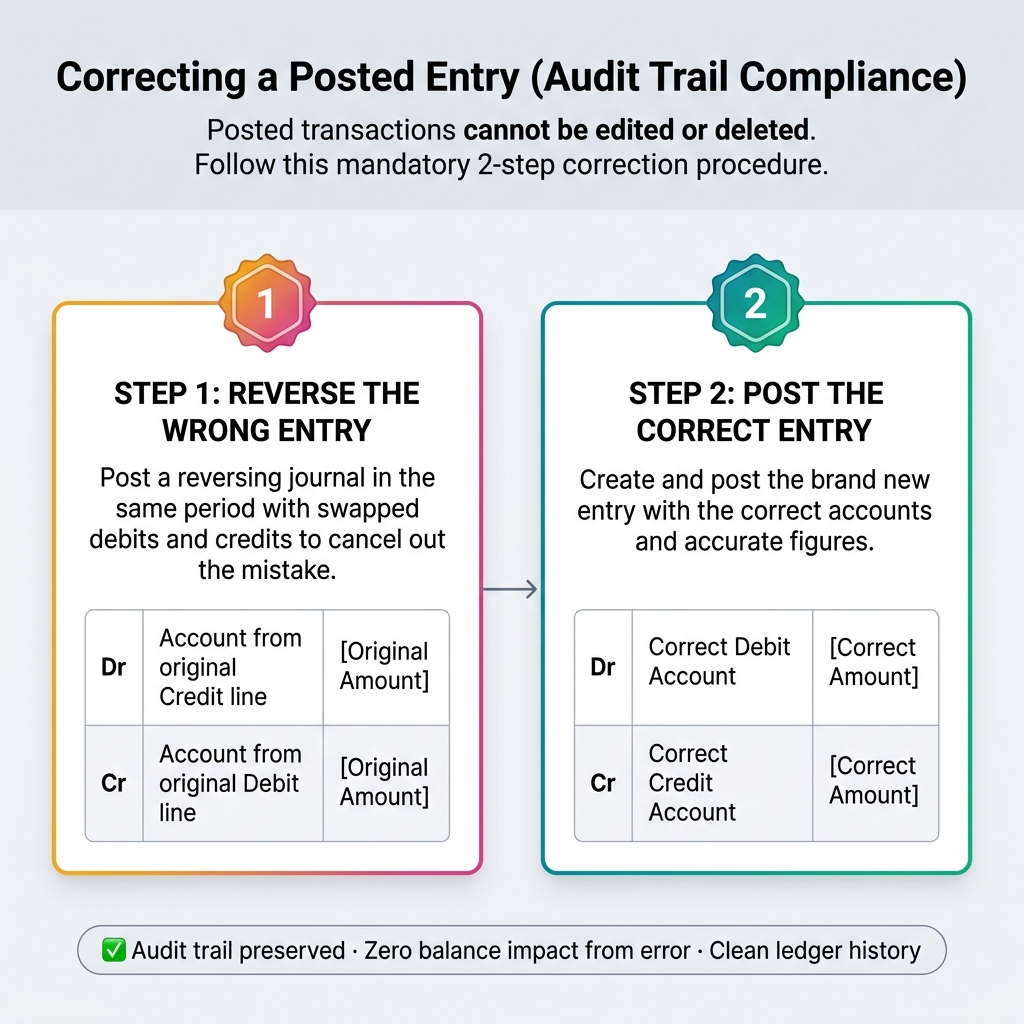
This preserves the audit trail while still arriving at the right balance.
Multi-Currency & Multi-Entity
How a foreign-currency transaction works
| Side | Account | MYR Amount | Note |
|---|---|---|---|
| Dr | 5310 Office Supplies | expense recognized | |
| Cr | Accounts Payable | liability at invoice rate |
| Side | Account | MYR Amount | Note |
|---|---|---|---|
| Dr | Accounts Payable | closes the AP balance | |
| Cr | Bank: USD Account | cash paid at payment rate | |
| Side | Account | MYR Amount | Note |
|---|---|---|---|
⟳ This revaluation journal is reversed at the start of next period — unrealized until payment clears.
Multi-Entity Consolidation
- Each BigLedger company entity maintains its own independent GL.
- Inter-company transactions (e.g., loans between related entities) must be recorded in both entities and eliminated at consolidation.
- Elimination rules are defined in the Chart of Accounts Applet by mapping inter-company accounts across entities.
- Consolidated financial reports in Financial Report Applet can span multiple entities when the correct inter-company eliminations are in place.
12. Prerequisites & Setup
Financial Accounting requires the Core Module to be live first.
Pre-Go-Live Checklist
- Core Module configured — Organisation, COA, Cashbook, Tax Codes, Doc Item mappings, Customer & Supplier records
- Every bank account registered as a Cashbook in Core, linked to a GL account
- Every Tax Code mapped to its GL Output/Input Tax account
- Doc Item Maintenance configured with default revenue/expense accounts per item
- Approval workflows for Payment Vouchers configured in Workflow Design Applet
- Budget structure defined (if using budgetary controls)
- Financial report templates configured in Financial Report Applet
- SST registration details entered (for Malaysian entities)
- Period control set — first open period defined in Ledger & Journal Applet
- Opening balances imported (see below)
Opening Balance Migration
Before go-live, historical balances must be brought forward from the previous system in this sequence: Stock ▶ AR ▶ AP ▶ Cashbook ▶ General Ledger.
📖 Full step-by-step guide: Opening Balance Migration Guide →
13. FAQs & Troubleshooting
Q: I created a Payment Voucher and approved it, but the bank balance in the Bank Reconciliation Applet hasn’t changed. Why? A: Two different things. The PV posts the accounting entry (debit AP, credit GL Bank). The bank balance shown in Bank Reconciliation Applet only updates when you import or enter the bank statement and match it to the PV. The GL balance updates immediately; the “matched bank balance” updates at reconciliation time.
Q: Why does my GL Bank account balance not equal my actual bank statement balance? A: This is normal between recs. The difference is made up of: (1) cheques issued but not yet cleared, (2) deposits in transit, (3) bank charges not yet booked, (4) errors. The Bank Reconciliation Applet produces the reconciling items list.
Q: The Trial Balance isn’t balancing. What should I check?
A: In order: (1) verify all journals in Ledger & Journal Applet have matching debits = credits, (2) check for documents stuck in DRAFT that you expected to be posted, (3) check for transactions posted to a suspense or “unmapped” account due to a missing tax-code or doc-item mapping.
Q: How do I correct a posted journal entry? A: BigLedger does not allow editing or deleting posted entries (audit trail compliance). Create a reversing journal entry in the same period, then post the corrected entry.
Q: I closed last month’s period but the auditor needs me to post one more adjustment. What now? A: A user with period-management permission can temporarily reopen the period in Ledger & Journal Applet, post the adjustment, then re-close. Every reopen is logged in the audit trail.
Q: Can I generate financial reports for a specific branch only? A: Yes. Every report in Financial Report Applet supports branch / location / department filters.
Q: A new bank account isn’t showing as a payment option on Payment Vouchers. What’s missing? A: A new bank requires two setup steps in Core: (1) create the GL account in Chart of Accounts, then (2) create the Cashbook in Cashbook Applet and link it to that GL account. Without step 2 the bank exists in the books but not as a payable cashbook.
Q: My P&L shows revenue I don’t recognize. How do I find where it came from? A: Open General Ledger Applet, select the revenue account, drill into the period — every line shows the source document and module (Sales Invoice, POS Z-read, etc.). Click through to inspect.
Q: A customer paid via direct debit but the receipt isn’t showing. Where is it? A: Direct debit collections come through the E-Mandate Applet which generates Receipt Vouchers. Check the mandate run log first, then the resulting RVs in Receipt Voucher (Internal) Applet.
Q: The SST Return total doesn’t match the SST Output account in my GL.
A: Common causes: (1) some invoices are still DRAFT, (2) the return period and the GL period don’t match exactly, (3) a manual journal touched the SST account without a tax code attached. Use the SST Applet reconciliation report to identify the gap.
Q: I see a transaction in the GL but the source document doesn’t exist anymore. What happened?
A: Posted source documents cannot be deleted — only reversed. If you cannot find it, check whether you’re filtering by FINAL only and whether the document was reversed (the reversal would also appear in the GL with opposite signs).
Q: Where do I find the Cost of Goods Sold (COGS) report? A: BigLedger has no standalone COGS report — COGS is a P&L line generated automatically when Sales Invoices post. You read it back from three places depending on what you need:
- Aggregated by period (P&L view): Financial Report Applet → Profit & Loss → COGS row group.
- Account-level detail with drill-down: General Ledger Applet → select the COGS account (usually 5000 series) → drill into any line to reach the originating Sales Invoice.
- Per item / per sale / per branch: Stock Report Applet → “Cost” column (permission-controlled) — shows
Unit Cost (MA) × Qty Soldper movement.
See Section 7.6 — Cost of Goods Sold (COGS) above for the full posting flow.
Q: My Gross Margin looks wrong / COGS seems too low. What should I check? A: Common causes, in order:
- An item has no Moving Average cost yet — usually the first sale before any purchase. The Sales Invoice posts COGS as zero, inflating margin. Check the item in Stock Report Applet for MA cost.
- Some Sales Invoices are still in
DRAFT— they don’t post Revenue or COGS, so both are understated. - The item is mapped to the wrong COGS variant in Doc Item Maintenance (e.g. landing in Stock Adjustment COGS instead of Retail COGS), splitting the figures across accounts your P&L row definition doesn’t include.
- A purchase return or stock adjustment after the sale reset the MA cost retroactively — drill the GL on the COGS account by date to see which entry is the outlier.