Inventory Module
The Inventory Module is BigLedger’s centralized stock control engine. It tracks real-time inventory balances, warehouse bin locations, batch/serial lot numbers, stock transfers, physical stock takes, and cost valuations integrated directly with Purchasing, Sales & POS, and Financial Accounting.
Architecture & Data Flow
Inventory acts as the physical fulfillment nexus between supply chain procurement and commercial sales. Every stock receipt (GRN) or stock-out (Sales Dispatch / POS Sale) updates inventory balances and posts financial asset valuations in real-time.
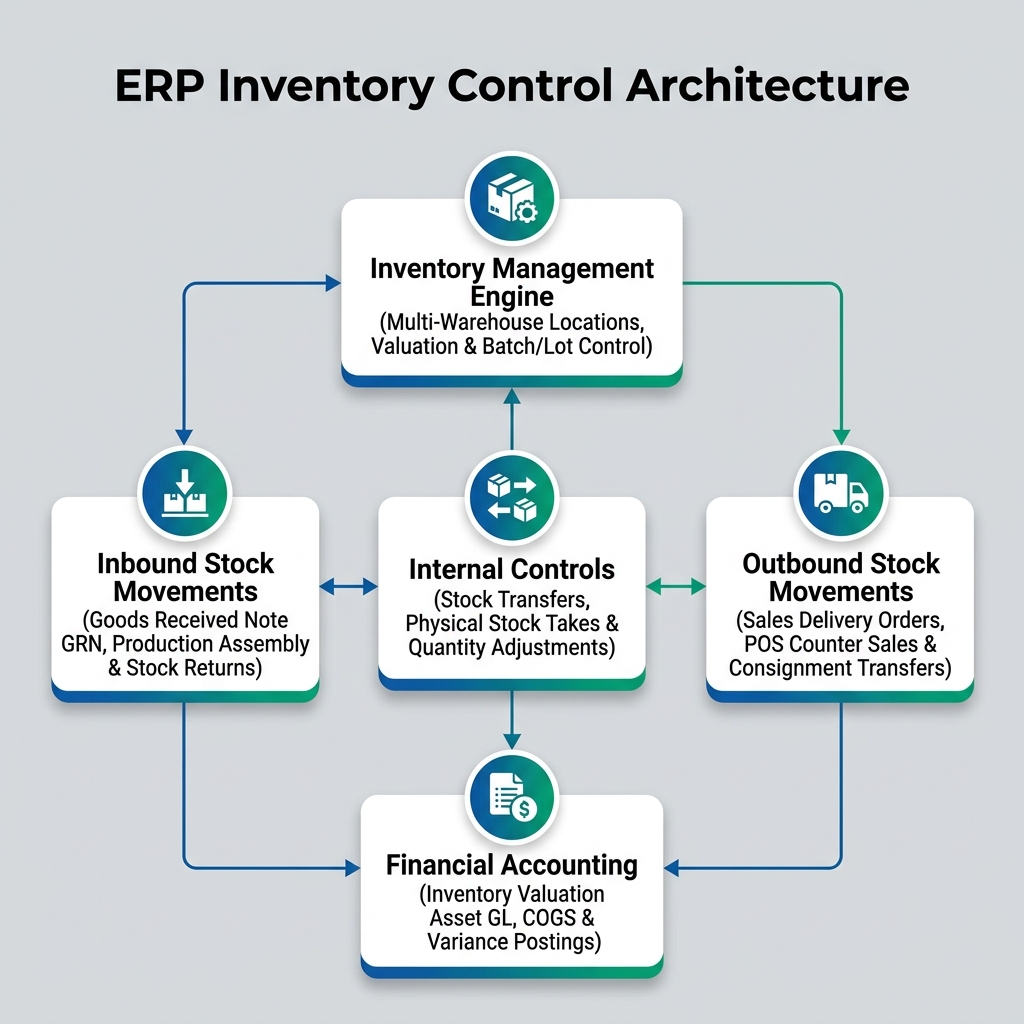
| Architecture Layer | System Component | Primary Role in Inventory Operations |
|---|---|---|
| Inventory Engine | Stock Balance & Valuation Engine | Central tracking of warehouse stock balances, batch/serial allocations, and perpetual cost valuation. |
| Inbound Movements | Purchasing & Production Stock-In | Receiving supplier goods via Goods Received Notes (GRN) or finished production assembly stock-in. |
| Internal Controls | Warehouse Control Applets | Inter-branch stock transfers, cycle counts, physical stock takes, and write-off adjustments. |
| Outbound Movements | Sales & POS Fulfillment | Releasing inventory for B2B commercial delivery orders or retail POS counter checkouts. |
| Financial Accounting | General Ledger Valuation | Real-time posting of Inventory Asset GL balances, Cost of Goods Sold (COGS), and variance accounts. |
Who Uses This Module
| Role | Primary Responsibilities | Core Applets Used |
|---|---|---|
| Warehouse Manager | Manage warehouse bin locations, authorize inter-branch stock transfers, oversee physical stock counts | Warehouse Management Applet, Stock Transfer Applet |
| Store Inventory Clerk | Perform daily cycle counts, verify receiving quantities, log damaged stock write-offs | Stock Take Applet, Stock Adjustment Applet |
| Stock Controller | Monitor real-time item availability, maintain reorder thresholds, track batch/expiry dates | Stock Balance Applet, Stock Availability Applet |
| Cost Accountant | Reconcile physical inventory asset values with General Ledger balances, audit COGS allocations | Stock Report Applet |
Four Inventory Transactions Every Team Must Differentiate
Confusing inventory transaction types leads to stock discrepancies and balance sheet audit failures:
| Inventory Transaction | When it is used | Stock Impact | Accounting Impact |
|---|---|---|---|
| Stock Transfer | Moving physical stock between internal warehouses or retail stores | Net Zero Overall (Decreases Source Location, Increases Target Location) | None (unless cross-company intercompany transfer) |
| Stock Adjustment | Correcting quantity discrepancies, damaged goods, or write-offs | Increases or Decreases stock quantity | Debits/Credits Inventory Asset GL & Expense Variance GL |
| Stock Take (Physical Audit) | Auditing physical warehouse inventory against system records | Adjusts system balance to match physical count | Debits/Credits Inventory Shrinkage/Variance GL |
| Stock Conversion (Assembly) | Bundling multiple component SKUs into a finished kit or assembly | Decreases component stock, Increases finished kit stock | Reallocates component asset costs to finished kit asset |
Applet Map
| Applet | What it does in this module |
|---|---|
| Stock Balance Applet | Real-time warehouse inventory inquiry, quantity-on-hand tracking, and batch/serial lookup |
| Stock Availability Applet | Multi-warehouse stock availability check, reserved stock breakdown, and reorder alerts |
| Stock Transfer Applet | Inter-branch stock transfers, transit tracking, and receiving store confirmations |
| Stock Adjustment Applet | Manual quantity and cost corrections, stock write-offs, and damage logging |
| Stock Take Applet | Physical inventory cycle counting, stock audit sheets, and variance posting |
| Stock Conversion Applet | Kitting, item bundling, assembly disassembly, and component stock conversions |
| Warehouse Management Applet | Warehouse structure definition, bin locations, aisle mapping, and stock location rules |
ERP Dependency Table
| Connected Module | What Inventory needs from it |
|---|---|
| Core | Item master SKUs, units of measure (UOM), organization branch locations |
| Purchasing | Inbound Goods Received Notes (GRN) to trigger automated stock-in |
| Sales & POS | Outbound Delivery Orders and POS counter sales to trigger automated stock-out |
| Financial Accounting | Inventory Asset GL accounts, COGS expense accounts, inventory shrinkage GLs |
Go-Live Checklist
- Item master SKUs, categories, and units of measure (UOM) configured in Core
- Warehouse locations and storage bins defined in Warehouse Management Applet
- Perpetual inventory valuation methods (FIFO, Moving Average) established
- Initial opening stock balances uploaded and reconciled with GL asset accounts
- Inter-branch stock transfer approval workflows configured and tested
- Barcode scanning hardware verified for physical stock takes
- Finance team aligned on month-end inventory valuation reconciliation
Module Learning Roadmap
Follow the documentation in this sequence to master the Inventory Module:
- Core Concepts (Next Step) — Understand perpetual inventory valuation, stock allocation mechanics, and batch lot tracking.
- Configuration — Step-by-step setup guides for warehouse structures, stock movement controls, and GL mapping.
- Use Cases
- [Reports 3. Use Cases Analytics](reports/) — Scenario guide for choosing the best inventory valuation and stock reports. — Real-world reference architectures for multi-warehouse distribution, batch/serial tracking, and kitting assembly.
- API Reference — Direct reference link to official developer inventory APIs.
- Related Applets — Complete guide to native applet dependencies across the BigLedger ecosystem.
Ready to explore inventory architecture?
Proceed to Core Concepts → to understand stock movement lifecycles and valuation models.
Proceed to Core Concepts → to understand stock movement lifecycles and valuation models.