Sales & POS Module
The Sales & POS Module is BigLedger’s centralized revenue engine. It connects both B2B commercial sales channels (Quotations, Orders, Invoices) and retail checkout counter operations (POS General Applet) into a single, real-time commercial workflow integrated directly with Inventory and Financial Accounting.
Architecture & Data Flow
Whether a commercial deal is negotiated via sales quotation or an item is scanned at a retail checkout counter, the Sales & POS module processes pricing, allocates stock, and posts revenue centrally.
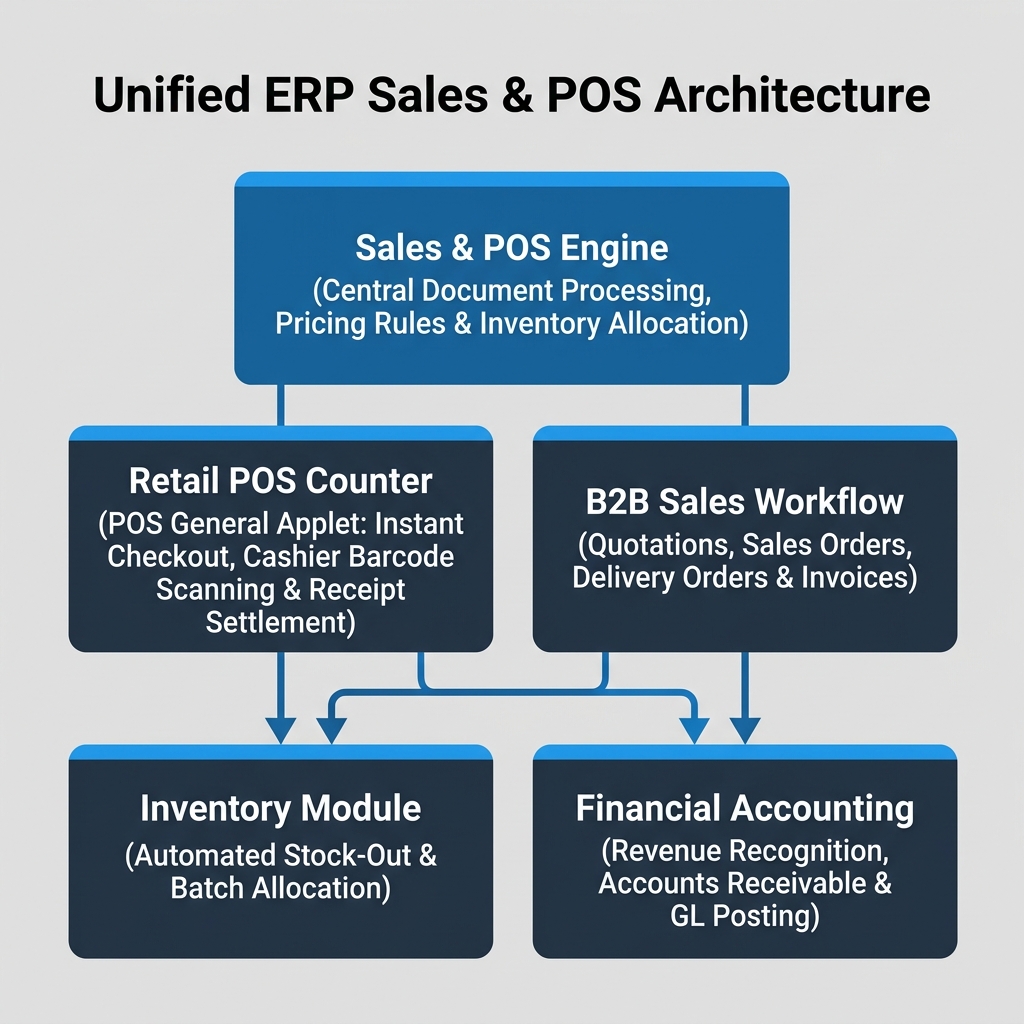
| Architecture Layer | System Component | Primary Role in Sales Operations |
|---|---|---|
| Sales & POS Engine | Document Processing & Pricing Engine | Central calculation of customer pricebooks, tax, discounts, and real-time inventory allocation. |
| Retail Checkout | POS General Applet | Fast-paced counter selling, barcode scanning, member lookup, and receipt settlement. |
| B2B Sales Workflow | Commercial Sales Applets | Formal commercial lifecycle from proposal (Quotation) to commitment (Order) and billing (Invoice). |
| Fulfillment & GL | Inventory & Financial Accounting | Automated stock-out reduction upon delivery and revenue GL posting upon invoice finalization. |
Who Uses This Module
| Role | Primary Responsibilities | Core Applets Used |
|---|---|---|
| Store Cashier | Process retail customer checkouts, handle barcode scanning, collect payment, issue receipts | POS General Applet |
| Store Supervisor | Review daily drawer totals, approve price overrides or voided sales, manage Z-reports | Daily Cashier Report Applet |
| Sales Representative | Prepare client proposals, issue formal quotes, manage sales orders, track customer deals | Sales Quotation, Sales Order |
| Billing / AR Clerk | Convert orders to invoices, issue credit notes, verify payment terms, post AR | Sales Invoice, Sales Return |
| Warehouse Controller | Fulfill sales orders, dispatch delivery orders, track customer consignment stock | Customer Consignment Applet |
Four Commercial Documents Every Team Must Differentiate
Confusing commercial document types creates balance sheet and stock control errors:
| Commercial Document | When it is used | Stock Impact | Financial Accounting Impact |
|---|---|---|---|
| Sales Quotation | Non-binding commercial proposal sent to customer | None | None |
| Sales Order | Confirmed customer commitment / contract | Stock Reserved (Hard/Soft allocation) | None |
| Sales Invoice | Final billing document demanding payment | Stock Reduced (if unlinked to DO) | Revenue Recognized, Accounts Receivable Debited |
| POS Checkout Sale | Instant counter retail transaction | Stock Reduced immediately | Cash/Bank Debited, Revenue Recognized immediately |
Applet Map
| Applet | What it does in this module |
|---|---|
| POS General Applet | Retail checkout interface — fast item scanning, cashier settlement, member points integration |
| Daily Cashier Report Applet | Cashier shift balancing, cash drawer auditing, payment breakdown, and end-of-day Z-reports |
| Sales Quotation Applet | Formal B2B price proposals, discount approvals, and validity tracking |
| Sales Order Applet | Confirmed commercial orders, inventory reservation, credit limit checks, and fulfillment tracking |
| Sales Invoice Applet | Final commercial billing, tax invoice generation, payment terms enforcement, and AR posting |
| Sales Return Applet | Processing returned merchandise, stock inspection, and credit note authorization |
| Customer Consignment Applet | Managing consignment inventory located at customer sites, tracking consumption and billing |
ERP Dependency Table
| Connected Module | What Sales & POS needs from it |
|---|---|
| Core | Customer master profiles, organization branch structures, pricebooks, tax codes |
| Inventory | Real-time item availability, warehouse stock locations, batch/serial selection |
| Membership | Member identification, tier discounts, point accrual events, voucher redemptions |
| Financial Accounting | Chart of accounts mapping, revenue accounts, accounts receivable ledgers, tax GLs |
Go-Live Checklist
- Customer master records and branch locations ready in Core
- Product master data, barcodes, and pricing schemes active in Inventory & Core
- Tax codes (GST/SST/VAT) configured for commercial invoices and POS receipts
- Cashier drawers and terminal hardware mapped in POS General Applet
- Payment methods (Cash, Card, E-Wallet) configured and tested
- Sales order-to-invoice approval workflow verified
- Finance team aligned on daily cashier reconciliation procedures
Module Learning Roadmap
Follow the documentation in this sequence to master the Sales & POS Module:
- Core Concepts (Next Step) — Understand sales document hierarchies, stock reservation mechanics, and credit limit controls.
- Configuration — Step-by-step setup guides for POS terminals, commercial pricing rules, and sales workflows.
- Use Cases
- [Reports 3. Use Cases Analytics](reports/) — Scenario guide for choosing the best sales and cashier reports. — Real-world business scenarios for retail chains, B2B wholesale, and consignment sales.
- API Reference — Developer APIs for external e-commerce connectors and custom sales tools.
- Related Applets — Complete guide to native applet dependencies across the BigLedger ecosystem.
Ready to explore sales architecture?
Proceed to Core Concepts → to understand commercial document lifecycles and stock allocation logic.
Proceed to Core Concepts → to understand commercial document lifecycles and stock allocation logic.