Push Notification Configuration Guide
Last Updated: 2026-02-16
Introduction
This document provides comprehensive configuration details for implementing push notifications in the Wavelet CP Commerce application (The Datai). The application is built using Ionic/Angular with Capacitor framework and integrates Firebase Cloud Messaging (FCM) for push notification delivery on both Android and iOS platforms.
Technology Stack
- Framework: Ionic 7.8.6 with Angular 19.2.8
- Native Bridge: Capacitor 5.7.8
- Push Notification Plugin: @capacitor/push-notifications v5.1.0
- Firebase Authentication: @capacitor-firebase/authentication v5.0.0
- Package Name (Android): com.thedatailangkawi.thedatai
- Bundle ID (iOS): com.thedatailangkawi.thedatai
Firebase Project Configuration
Firebase Project Details
The application uses Firebase Cloud Messaging for push notifications. The Firebase project is configured with the following details:
Firebase Project Information
- Project ID: cp-commerce-datai
- Project Number: 619749139226
- Storage Bucket: cp-commerce-datai.appspot.com
- API Key (iOS): AIzaSyDwGVK90AlLcDAR8Xodd8sfzw8s7zZRpxg
- GCM Sender ID: 619749139226
Firebase Console Configuration Screenshots
Database Configuration
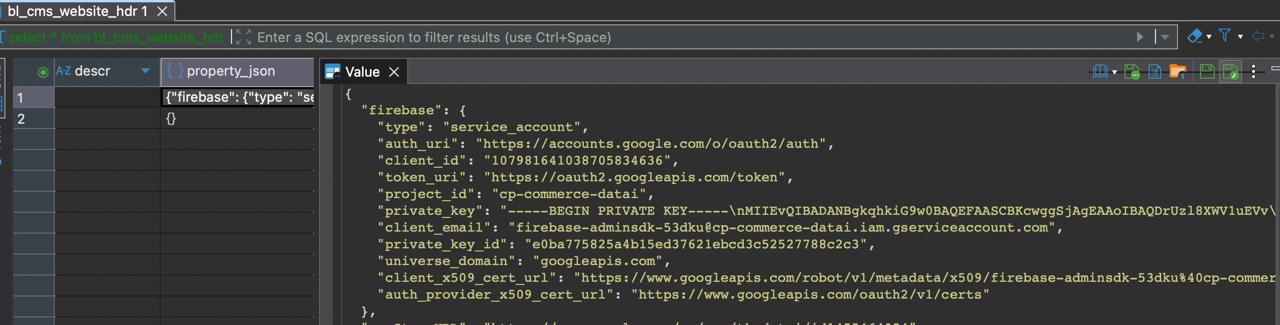
The Firebase configuration is stored in the backend database in the bl_cms_website_hdr table within the property JSON column under the firebase key.

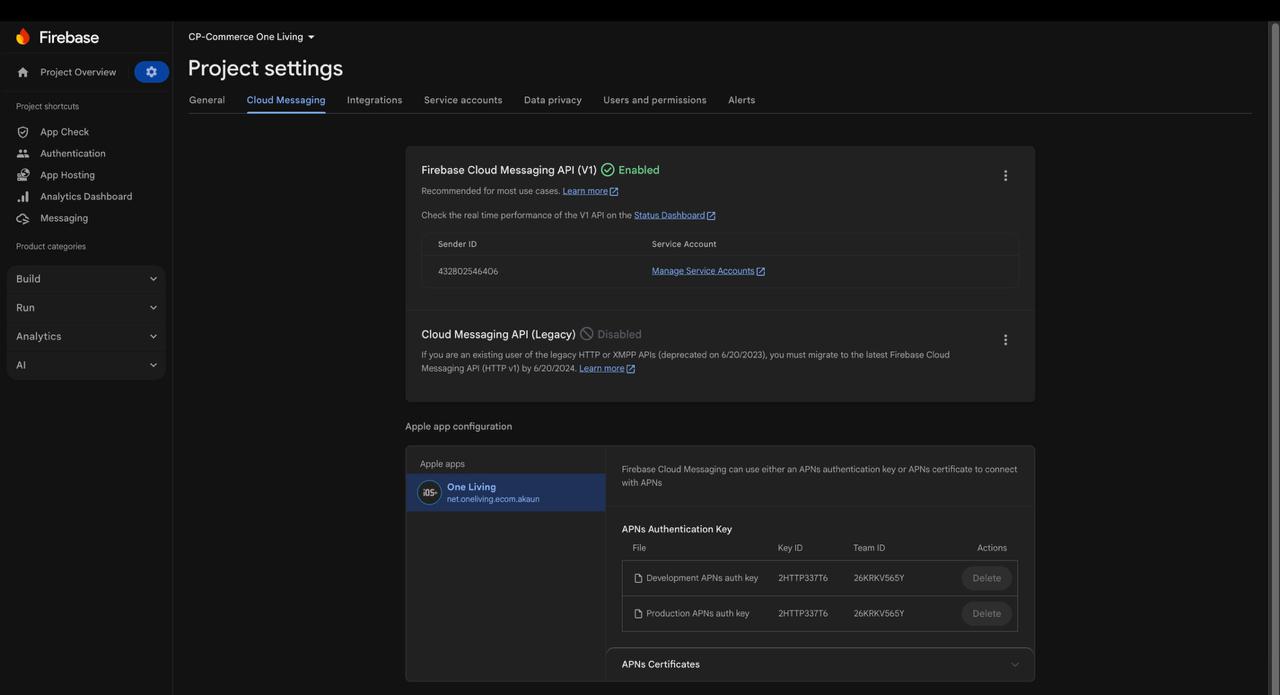
Firebase Cloud Messaging Settings
Firebase Cloud Messaging must be enabled in the Firebase Console for push notifications to work.

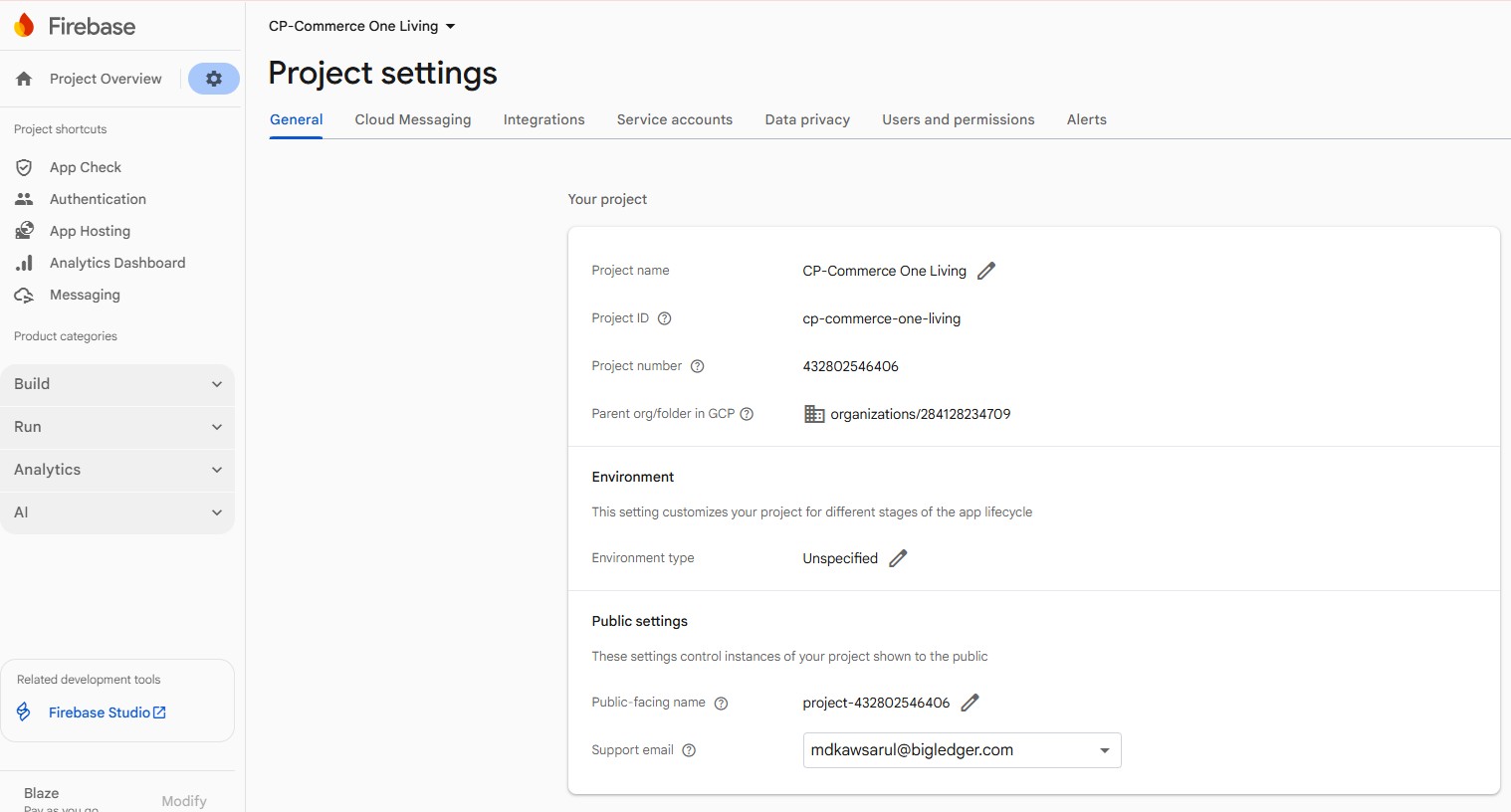
General Project Settings

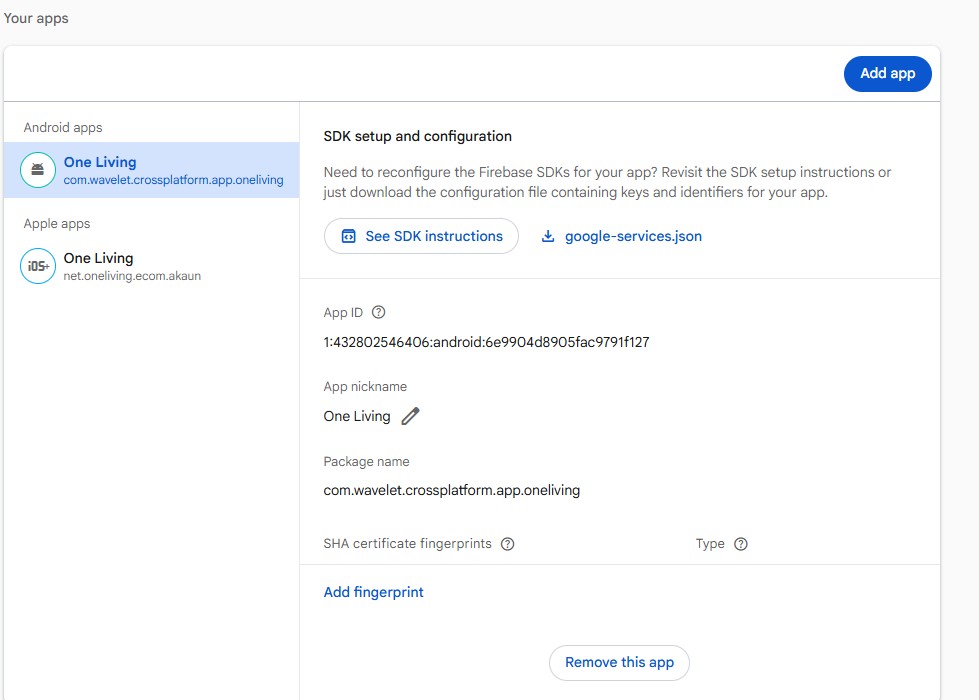
Android Configuration
Android Project Settings in Firebase

google-services.json Configuration
The google-services.json file must be placed in the Android project root directory. This file contains the Firebase configuration for Android.
File Location: google-services.json
{
  "project_info": {
    "project_number": "124018728460",
    "firebase_url": "https://ionic4fullapp.firebaseio.com",
    "project_id": "ionic4fullapp",
    "storage_bucket": "ionic4fullapp.appspot.com"
  },
  "client": [
    {
      "client_info": {
        "mobilesdk_app_id": "1:124018728460:android:b9518881f8718a6c",
        "android_client_info": {
          "package_name": "com.enappd.ionic4fullapp"
        }
      },
      "api_key": [
        {
          "current_key": "AIzaSyDd0RqOu6lvpUVPkA0KilrAGoEZIS9Ok28"
        }
      ],
      "services": {
        "analytics_service": {
          "status": 1
        }
      }
    }
  ]
}
Android Build Configuration
build.gradle (Project Level)
File Location: android/build.gradle
buildscript {
    repositories {
        google()
        mavenCentral()
    }
    dependencies {
        classpath 'com.android.tools.build:gradle:8.1.1'
        classpath 'com.google.gms:google-services:4.3.15'
    }
}
build.gradle (App Level)
File Location: android/app/build.gradle
Key configurations:
- Application ID: com.thedatailangkawi.thedatai
- Min SDK Version: 22
- Target SDK Version: 34
- Compile SDK Version: 34
The build file includes automatic detection and application of the Google Services plugin:
try {
    def servicesJSON = file('google-services.json')
    if (servicesJSON.text) {
        apply plugin: 'com.google.gms.google-services'
    }
} catch(Exception e) {
    logger.info("google-services.json not found, Push Notifications won't work")
}
variables.gradle
File Location: android/variables.gradle
ext {
    minSdkVersion = 22
    compileSdkVersion = 34
    targetSdkVersion = 34
    androidxActivityVersion = '1.7.0'
    androidxAppCompatVersion = '1.6.1'
    androidxCoordinatorLayoutVersion = '1.2.0'
    androidxCoreVersion = '1.10.0'
    androidxFragmentVersion = '1.5.6'
    coreSplashScreenVersion = '1.0.0'
    androidxWebkitVersion = '1.6.1'
}
AndroidManifest.xml
File Location: android/app/src/main/AndroidManifest.xml
Required permissions:
<uses-permission android:name="android.permission.INTERNET" />
<uses-permission android:name="android.permission.READ_EXTERNAL_STORAGE"/>
<uses-permission android:name="android.permission.WRITE_EXTERNAL_STORAGE"/>
Main Activity Configuration:
<activity
    android:exported="true"
    android:configChanges="orientation|keyboardHidden|keyboard|screenSize|locale|smallestScreenSize|screenLayout|uiMode"
    android:name="com.thedatailangkawi.thedatai.MainActivity"
    android:label="@string/title_activity_main"
    android:theme="@style/AppTheme.NoActionBarLaunch"
    android:launchMode="singleTask">

    <intent-filter>
        <action android:name="android.intent.action.MAIN" />
        <category android:name="android.intent.category.LAUNCHER" />
    </intent-filter>
</activity>
iOS Configuration
iOS Project Settings in Firebase
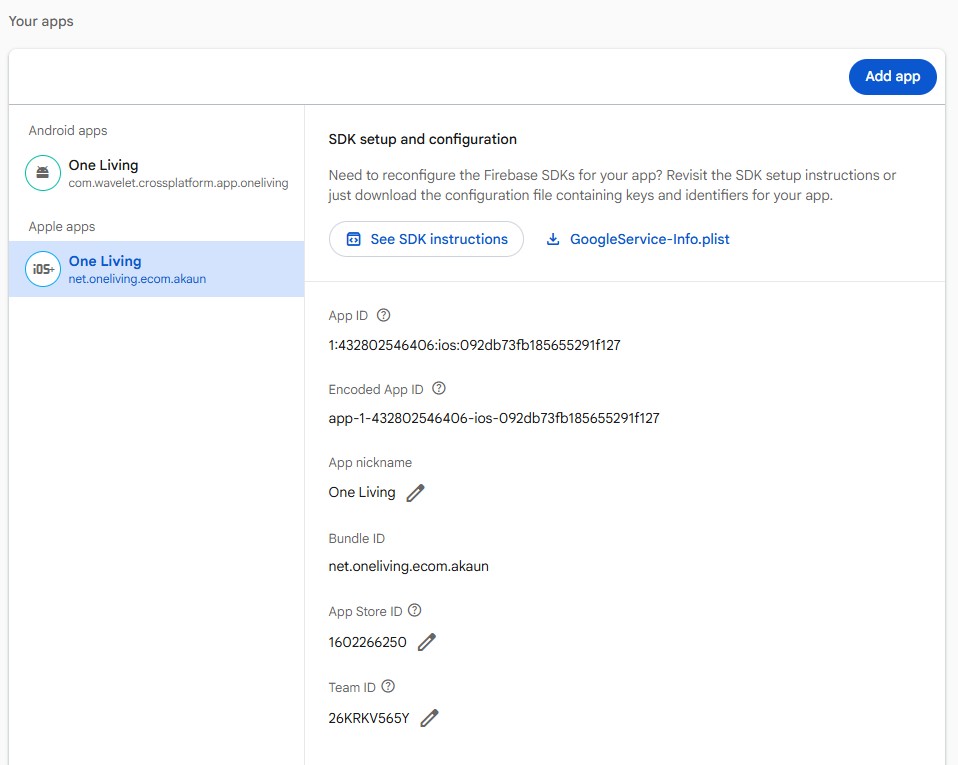

GoogleService-Info.plist Configuration
The GoogleService-Info.plist file must be added to the iOS project in Xcode.
File Location: ios/App/App/GoogleService-Info.plist
<?xml version="1.0" encoding="UTF-8"?>
<!DOCTYPE plist PUBLIC "-//Apple//DTD PLIST 1.0//EN" "http://www.apple.com/DTDs/PropertyList-1.0.dtd">
<plist version="1.0">
<dict>
    <key>ANDROID_CLIENT_ID</key>
    <string>619749139226-rv05ctg9tpjsfjbku009gb6i3va4355l.apps.googleusercontent.com</string>
    <key>API_KEY</key>
    <string>AIzaSyDwGVK90AlLcDAR8Xodd8sfzw8s7zZRpxg</string>
    <key>GCM_SENDER_ID</key>
    <string>619749139226</string>
    <key>PLIST_VERSION</key>
    <string>1</string>
    <key>BUNDLE_ID</key>
    <string>com.thedatailangkawi.thedatai</string>
    <key>PROJECT_ID</key>
    <string>cp-commerce-datai</string>
    <key>STORAGE_BUCKET</key>
    <string>cp-commerce-datai.appspot.com</string>
    <key>IS_ADS_ENABLED</key>
    <false></false>
    <key>IS_ANALYTICS_ENABLED</key>
    <false></false>
    <key>IS_APPINVITE_ENABLED</key>
    <true></true>
    <key>IS_GCM_ENABLED</key>
    <true></true>
    <key>IS_SIGNIN_ENABLED</key>
    <true></true>
    <key>GOOGLE_APP_ID</key>
    <string>1:619749139226:ios:d81d8363a3e25ec92ac2a3</string>
</dict>
</plist>
Info.plist Configuration
File Location: ios/App/App/Info.plist
Key configurations in Info.plist:
- CFBundleDisplayName: The Datai
- CFBundleIdentifier: com.thedatailangkawi.thedatai
Required permissions for push notifications:
<key>NSCameraUsageDescription</key>
<string>Allow access to Camera</string>
<key>NSPhotoLibraryAddUsageDescription</key>
<string>Allow access to library</string>
<key>NSLocationWhenInUseUsageDescription</key>
<string>Location Permission</string>
<key>NSLocationAlwaysAndWhenInUseUsageDescription</key>
<string>Location Permission</string>
iOS Capabilities
To enable push notifications on iOS, you must:
- Open the project in Xcode
- Select the App target
- Go to “Signing & Capabilities” tab
- Add “Push Notifications” capability
- Add “Background Modes” capability and enable:
- Remote notifications
Capacitor Configuration
capacitor.config.ts
File Location: capacitor.config.ts
import { CapacitorConfig } from '@capacitor/cli';

const config: CapacitorConfig = {
  appId: process.env.PLATFORM_OS === 'android' ?
         "com.thedatailangkawi.thedatai" :
         "com.thedatailangkawi.thedatai",
  appName: "The Datai",
  bundledWebRuntime: false,
  webDir: "www",
  plugins: {
    "SplashScreen": {
      "launchShowDuration": 0
    },
    PushNotifications: {
      presentationOptions: ["badge", "sound", "alert"],
    },
    "PrivacyScreen": {
      "enable": false,
      "imageName": "Splash",
      "preventScreenshots": false
    },
    Keyboard: {
      resize: "body",
      style: "dark",
      scroll: false
    },
    App: {
      url: "waveletcommerce://"
    }
  },
  ios: {
    contentInset: "never",
    scrollEnabled: false
  },
  cordova: {
    preferences: {
      DisableDeploy: "true",
      "ScrollEnabled": "false",
      "android-minSdkVersion": "19",
      "android-targetSdkVersion": "30",
      "BackupWebStorage": "none",
      "SplashMaintainAspectRatio": "true",
      "FadeSplashScreenDuration": "300",
      "SplashShowOnlyFirstTime": "false",
      "SplashScreen": "screen",
      "SplashScreenDelay": "15000",
      "loadUrlTimeoutValue": "700000",
      "ShowSplashScreenSpinner": "false"
    }
  }
};

export default config;
Key Capacitor Plugin Settings
PushNotifications Plugin Configuration
The presentationOptions array defines how notifications appear:
- badge: Shows notification badge on app icon
- sound: Plays notification sound
- alert: Shows notification alert/banner
Application Code Implementation
Package Dependencies
File Location: package.json
Key dependencies for push notifications:
{
  "dependencies": {
    "@capacitor/push-notifications": "^5.1.0",
    "@capacitor/local-notifications": "^6.0.0",
    "@capacitor-firebase/authentication": "^5.0.0",
    "@capacitor/core": "^5.7.8",
    "@capacitor/android": "^5.0.0",
    "@capacitor/ios": "^5.7.8"
  }
}
Push Notification Service Implementation
PushNotificationFacade
File Location: src/app/domain-controller-module/mobile-native/push-notification-controller/facades/push-notification.facade.ts
This facade provides the core push notification functionality:
import { Injectable } from '@angular/core';
import {
    PermissionStatus,
    PushNotifications
} from '@capacitor/push-notifications';
import { Store } from '@ngrx/store';
import { EMPTY, from, map } from 'rxjs';
import { PushNotificationActions } from '../actions';

@Injectable()
export class PushNotificationFacade {
  private __addListeners = async () => {
    // Token registration listener
    await PushNotifications.addListener('registration',
      token => {
        this.store.dispatch(
          PushNotificationActions
            .pushNotificationRegistrationSuccess({ token })
        );
      }
    );

    // Registration error listener
    await PushNotifications.addListener('registrationError',
      err => {
        this.store.dispatch(
          PushNotificationActions
            .pushNotificationRegistrationFail({ err })
        );
      }
    );

    // Push notification received listener
    await PushNotifications.addListener(
      'pushNotificationReceived',
      notification => this.store.dispatch(
        PushNotificationActions
          .fetchPushNotificationSuccess({ notification })
      )
    );

    // Push notification action performed listener
    await PushNotifications.addListener(
      'pushNotificationActionPerformed',
      actionPerformed => this.store.dispatch(
        PushNotificationActions
          .pushNotificationActionPerformed({ actionPerformed })
      )
    );
  }

  userPermissionEventStream = () =>
    from(PushNotifications.checkPermissions()).pipe(
      map(permissionStatusToEvents)
    );

  requestPermission = () =>
    from(PushNotifications.requestPermissions()).pipe(
      map(permissionStatusToEvents)
    );

  registerNotifications = async () => {
    await PushNotifications.register();
    return PushNotificationActions
      .pushNotificationRemoteRegistrationComplete();
  };

  getNotifications = async () => {
    await PushNotifications.getDeliveredNotifications();
    return EMPTY;
  }

  init = () => this.__addListeners();
}
Push Notification Effects
File Location: src/app/domain-controller-module/mobile-native/push-notification-controller/effects/push-notification.effects.ts
NgRx Effects handle push notification state management:
@Injectable()
export class PushNotificationEffects {
  // Check user permission on app load
  userPermission$ = createEffect(() =>
    this.pushNotificationService.userPermissionEventStream()
  );

  // Request permission from user
  requestPermission$ = createEffect(() => this.actions$.pipe(
    ofType(PushNotificationActions.promptUserPermission),
    switchMap(_ =>
      this.pushNotificationService.requestPermission()
    )
  ));

  // Register for push notifications after permission granted
  registerNotifications$ = createEffect(() => this.actions$.pipe(
    ofType(PushNotificationActions.userGrantedPermission),
    switchMap(_ =>
      from(this.pushNotificationService.registerNotifications())
    )
  ));

  // Handle token registration success
  tokenRegistrationSuccess$ = createEffect(() =>
    this.actions$.pipe(
      ofType(
        PushNotificationActions.pushNotificationRegistrationSuccess
      ),
      switchMap((action) => {
        // Store device token
        this.mobileConfigFacade.storeDeviceToken(
          action.token.value
        );
        // Subscribe to default topics if needed
        // ...
      })
    )
  );

  // Handle notification action performed (tap on notification)
  pushNotificationActionPerformed$ = createEffect(() =>
    this.actions$.pipe(
      ofType(PushNotificationActions.pushNotificationActionPerformed),
      filter(action =>
        !isNullOrEmpty(
          action.actionPerformed.notification?.data?.deeplink_url
        )
      ),
      map(action => {
        const deeplinkUrl =
          action.actionPerformed.notification?.data?.deeplink_url;
        return RouterStoreActions.navigateForward({
          url: deeplinkUrl
        });
      })
    )
  );

  constructor(
    protected readonly actions$: Actions,
    protected readonly store: Store,
    private pushNotificationService: PushNotificationFacade,
    private mobileConfigFacade: MobileConfigFacade
  ) {
    this.pushNotificationService.init()
  }
}
Module Registration
File Location: src/app/domain-controller-module/mobile-native/push-notification-controller/push-notification-controller.module.ts
@NgModule({
  declarations: [],
  imports: [
    CommonModule,
    EffectsModule.forFeature([
      PushNotificationEffects,
    ]),
  ],
  providers: [
    PushNotificationFacade
  ]
})
export class PushNotificationControllerModule { }
Testing and Verification
Testing Push Notifications on Android
- Build the Android app:
ionic cap build android - Open in Android Studio:
ionic cap open android - Ensure
google-services.jsonis inandroid/app/ - Run the app on a physical device (emulator won’t receive push)
- Grant notification permissions when prompted
- Check logcat for FCM token registration
- Send test notification from Firebase Console
Testing Push Notifications on iOS
- Build the iOS app:
ionic cap build ios - Open in Xcode:
ionic cap open ios - Ensure
GoogleService-Info.plistis added to project - Verify Push Notifications capability is enabled
- Configure proper provisioning profile with push capability
- Run the app on a physical device (simulator won’t receive push)
- Grant notification permissions when prompted
- Check console for APNs token registration
- Send test notification from Firebase Console
Debugging Tips
Common Issues and Solutions
Android:
- Issue: google-services.json not found
- Solution: Ensure file is in
android/app/directory - Issue: No FCM token received
- Solution: Check Google Play Services on device
iOS:
- Issue: No APNs token received
- Solution: Verify push notification capability and valid provisioning profile
- Issue: Notifications not appearing
- Solution: Check notification settings in device Settings app
Backend Integration
Database Configuration
Push notification configuration is stored in the backend database in the bl_cms_website_hdr table. The configuration is stored in the property column as a JSON object under the firebase key.
Example structure:
{
  "firebase": {
    "serverKey": "YOUR_SERVER_KEY",
    "senderId": "619749139226",
    "projectId": "cp-commerce-datai",
    "apiKey": "AIzaSyDwGVK90AlLcDAR8Xodd8sfzw8s7zZRpxg"
  }
}
Notification Topics
The application supports topic-based notifications:
- Default topic subscription on app initialization
- Dynamic topic subscription based on user preferences
- Member-restricted notifications
- Public notifications for non-members
Deeplink Integration
Push notifications support deeplinks for navigation:
{
  "notification": {
    "title": "Welcome to The Datai",
    "body": "Check out our latest offers"
  },
  "data": {
    "deeplink_url": "/promotions/latest"
  }
}
When a user taps on the notification, the app navigates to the specified deeplink URL.
Deployment Checklist
Pre-deployment Verification
Firebase Configuration
- ✓ Firebase project created
- ✓ Cloud Messaging enabled
- ✓ Android app registered with correct package name
- ✓ iOS app registered with correct bundle ID
- ✓ google-services.json downloaded and added
- ✓ GoogleService-Info.plist downloaded and added
Android Configuration
- ✓ google-services.json in android/app/
- ✓ Google services plugin configured in build.gradle
- ✓ Package name matches Firebase registration
- ✓ AndroidManifest.xml configured correctly
- ✓ Required permissions added
iOS Configuration
- ✓ GoogleService-Info.plist added to Xcode project
- ✓ Bundle ID matches Firebase registration
- ✓ Push Notifications capability enabled
- ✓ Background Modes capability enabled
- ✓ Valid provisioning profile with push capability
- ✓ APNs authentication key uploaded to Firebase
Application Code
- ✓ Capacitor push notifications plugin installed
- ✓ PushNotificationFacade configured
- ✓ NgRx effects registered
- ✓ Permission request implemented
- ✓ Notification listeners configured
- ✓ Deeplink handling implemented
Backend Configuration
- ✓ Database configuration updated
- ✓ Firebase server key configured
- ✓ Topic management implemented
- ✓ Notification scheduling configured
Testing
- ✓ Test notifications on Android physical device
- ✓ Test notifications on iOS physical device
- ✓ Test foreground notifications
- ✓ Test background notifications
- ✓ Test deeplink navigation
- ✓ Test notification actions
- ✓ Test topic subscriptions
Appendix
Useful Commands
Build and Deploy Commands
# Install dependencies
npm install

# Build the web assets
ionic build

# Sync Capacitor
ionic cap sync

# Build and open Android
ionic cap build android
ionic cap open android

# Build and open iOS
ionic cap build ios
ionic cap open ios

# Run on Android device
ionic cap run android --device

# Run on iOS device
ionic cap run ios --device
Important URLs
- Firebase Console: https://console.firebase.google.com
- Capacitor Documentation: https://capacitorjs.com/docs
- Push Notifications Plugin: https://capacitorjs.com/docs/apis/push-notifications
- Firebase Cloud Messaging: https://firebase.google.com/docs/cloud-messaging
Version Information
| Component | Version |
|---|---|
| Ionic | 7.8.6 |
| Angular | 19.2.8 |
| Capacitor | 5.7.8 |
| @capacitor/push-notifications | 5.1.0 |
| @capacitor-firebase/authentication | 5.0.0 |
| Android Min SDK | 22 |
| Android Target SDK | 34 |
| Android Compile SDK | 34 |
| Google Services Plugin | 4.3.15 |
| Android Gradle Plugin | 8.1.1 |
Conclusion
This documentation provides a comprehensive guide to configuring push notifications for The Datai Wavelet CP Commerce application on both Android and iOS platforms. By following the configurations outlined in this document, you can successfully implement Firebase Cloud Messaging for push notification delivery.
Key Points to Remember
- Ensure all Firebase configuration files are correctly placed
- Verify platform-specific capabilities and permissions
- Test on physical devices, not emulators/simulators
- Monitor backend database configuration
- Implement proper error handling and logging
For any issues or questions, refer to the official Capacitor and Firebase documentation, or consult with the development team.